> ## Documentation Index
> Fetch the complete documentation index at: https://docs.alertdog.io/llms.txt
> Use this file to discover all available pages before exploring further.
# How to Filter Spam Token Airdrop Notifications
> The monitored wallet always receives useless spam token airdrop notifications, how to set up filtering?
You can effectively filter spam token airdrop notifications through the following four methods:
### Method 1: Add Filter Conditions
When adding address monitoring, click "Add Filter Condition".
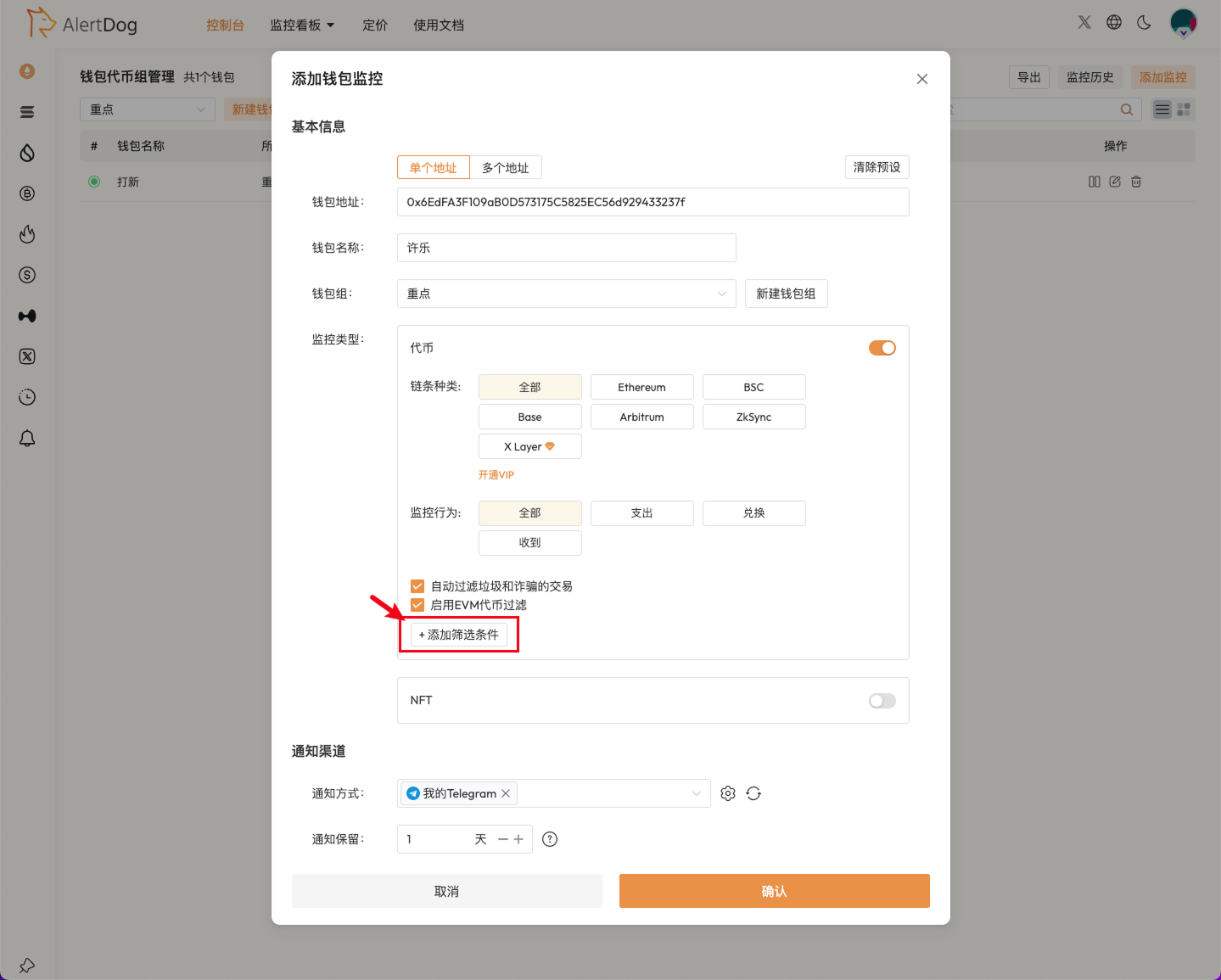 Set USD amount >= \$100.
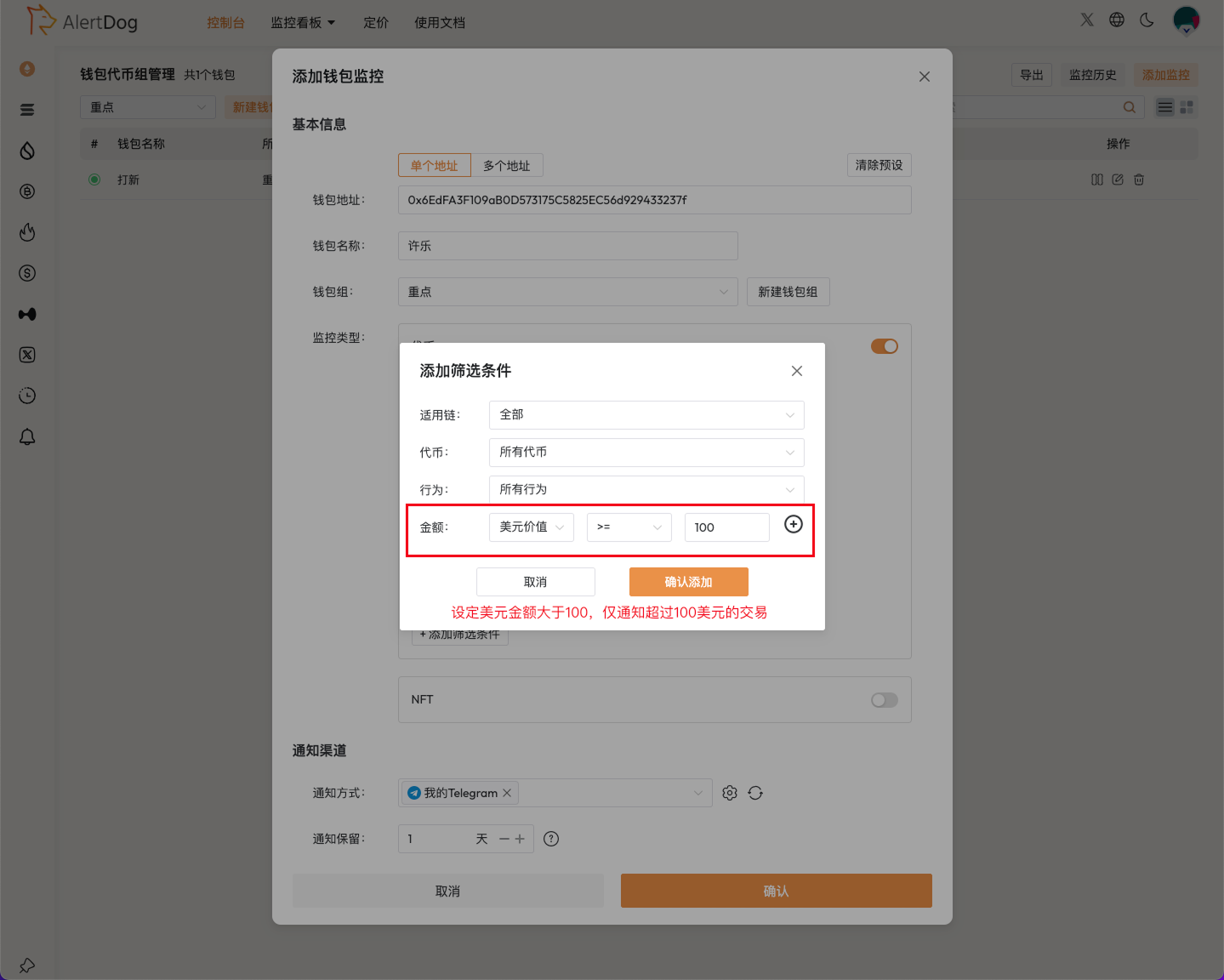 This method only notifies transactions exceeding $100, which can effectively filter spam token airdrop notifications; may not filter honeypot token notifications, transactions below $100 cannot be received
### Method 2: Select Only Spend and Swap for Monitoring Behavior
When adding address monitoring, select only Spend and Swap for monitoring behavior.
This method only notifies transactions exceeding $100, which can effectively filter spam token airdrop notifications; may not filter honeypot token notifications, transactions below $100 cannot be received
### Method 2: Select Only Spend and Swap for Monitoring Behavior
When adding address monitoring, select only Spend and Swap for monitoring behavior.
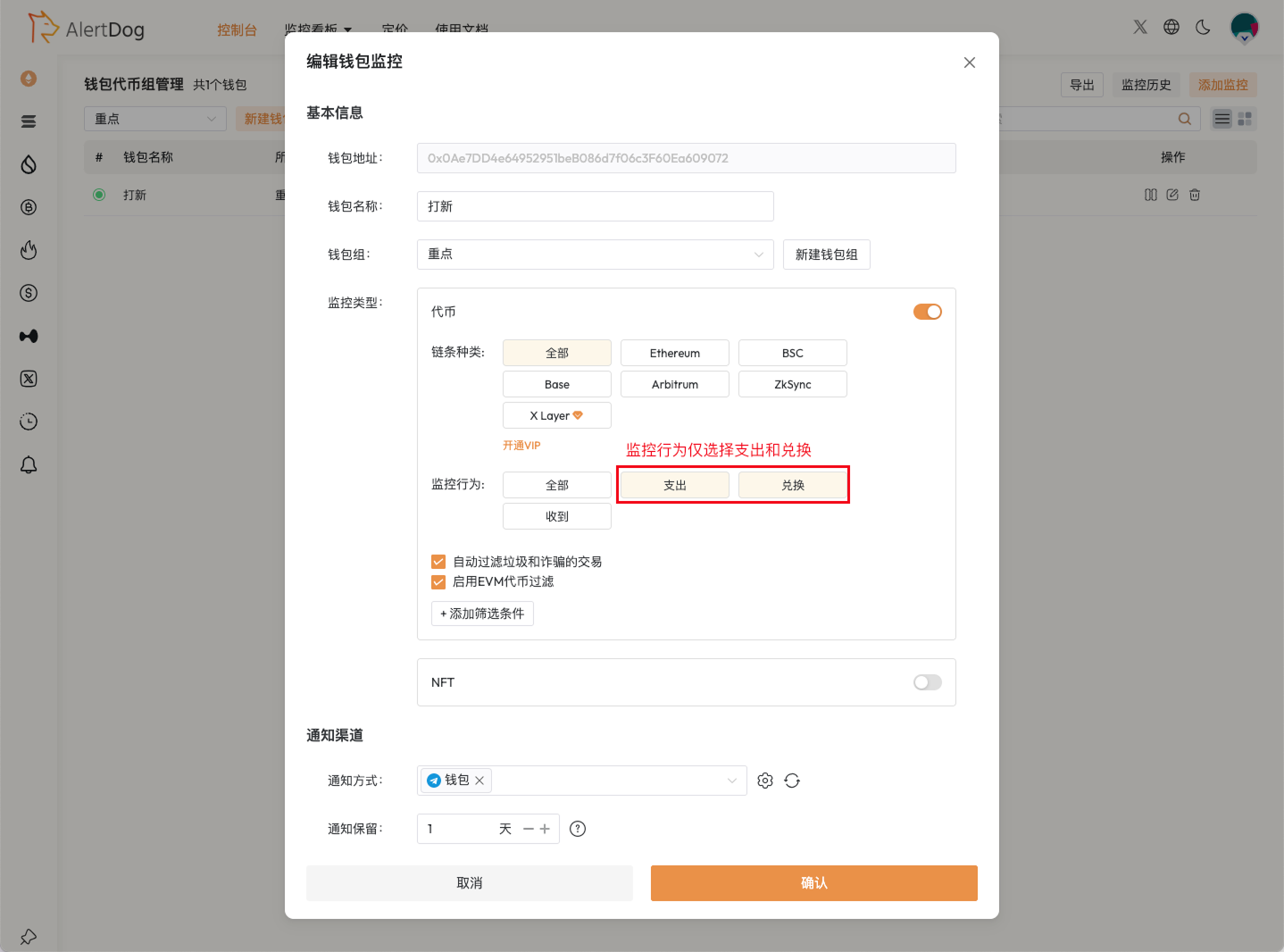 This method only notifies spend/buy/sell transactions, which can effectively filter all spam token airdrop notifications; other "receive" behavior transactions also cannot be received
### Method 3: Manually Add Tokens to Blacklist
In personal settings, find EVM Token Blacklist and manually add addresses of spam tokens you want to filter.
This method only notifies spend/buy/sell transactions, which can effectively filter all spam token airdrop notifications; other "receive" behavior transactions also cannot be received
### Method 3: Manually Add Tokens to Blacklist
In personal settings, find EVM Token Blacklist and manually add addresses of spam tokens you want to filter.
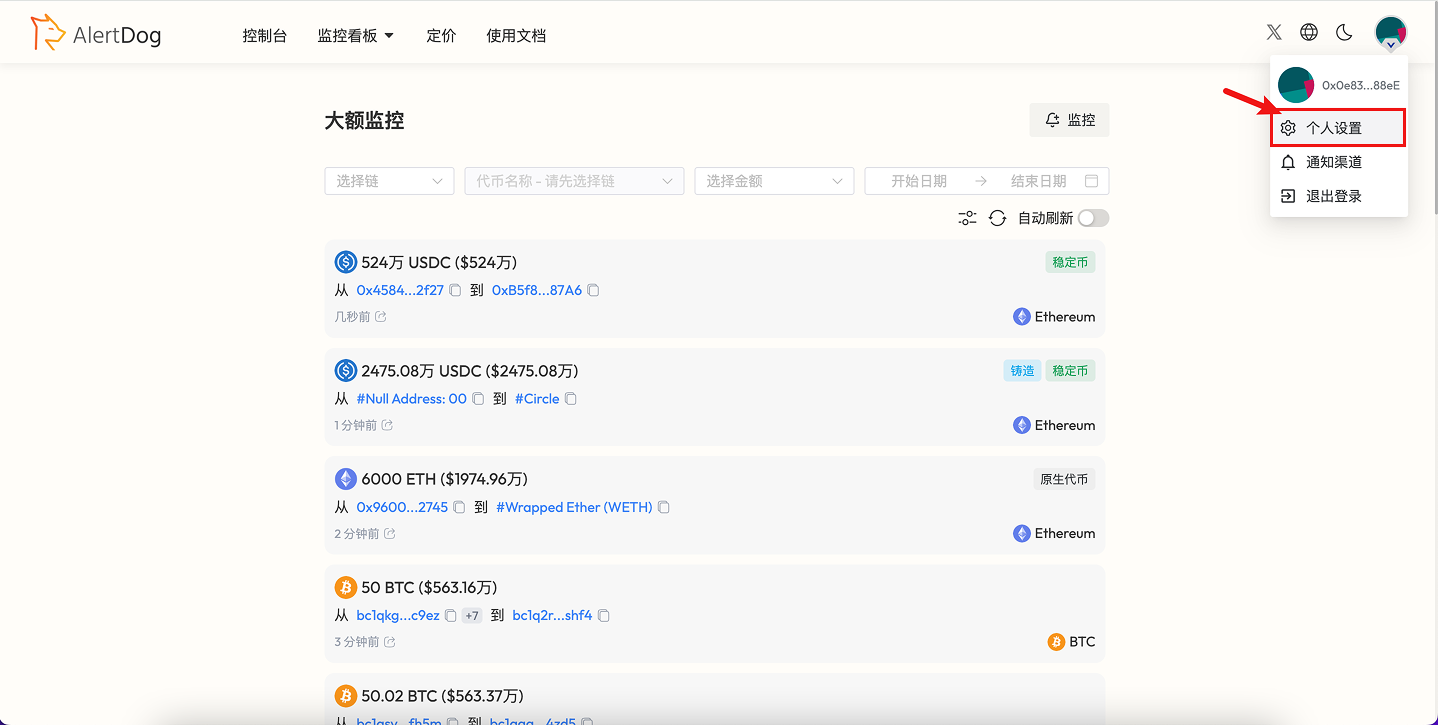
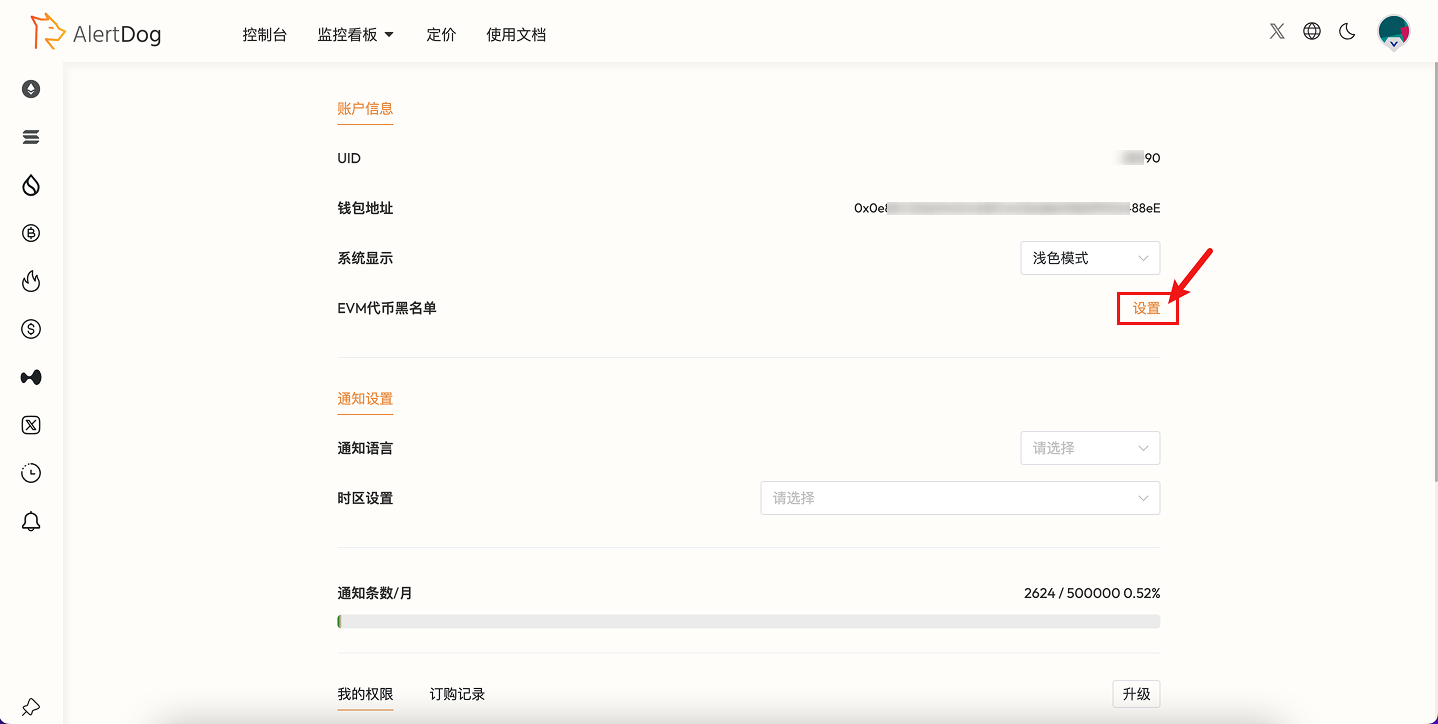
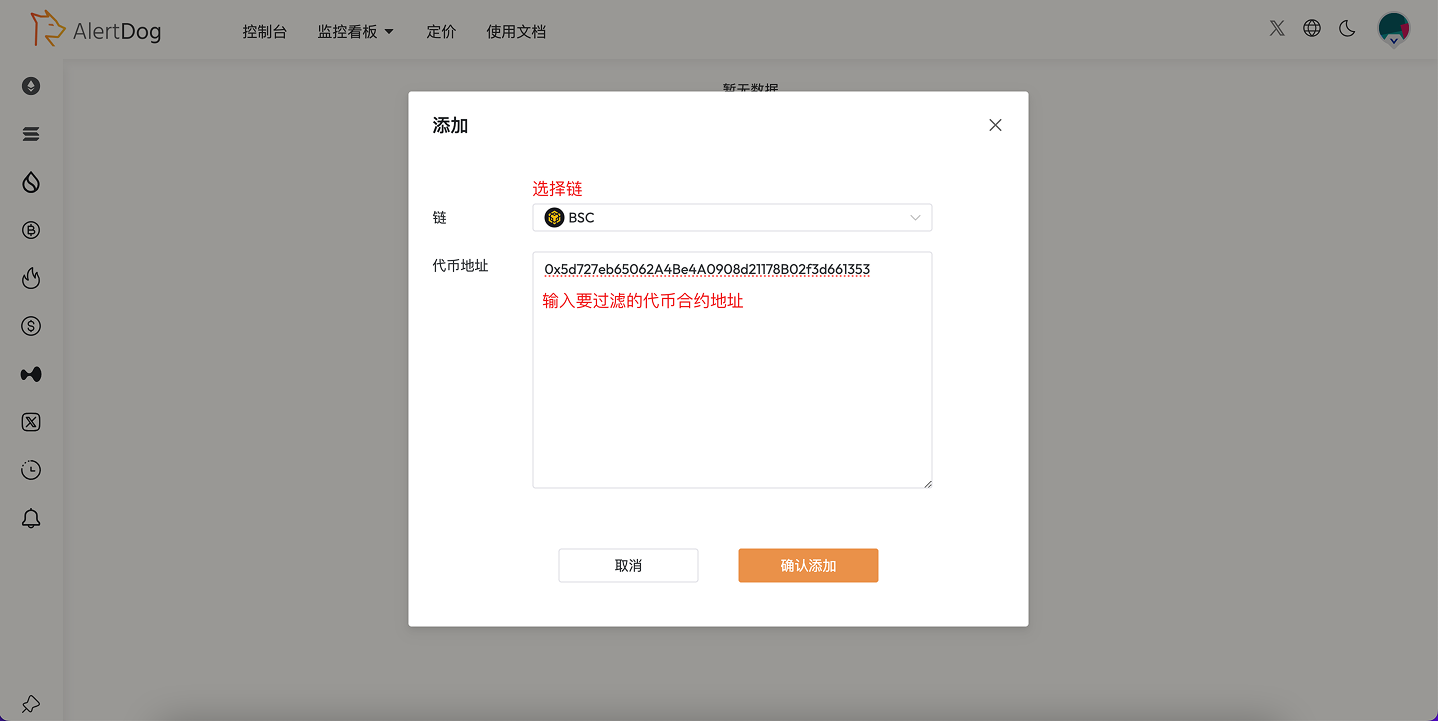 Tokens added to the EVM token blacklist will not trigger notifications
### Method 4: Contact Customer Service
If you still receive a large number of spam token notifications after setting up the first three methods, join the official Telegram group to contact customer service:
[https://t.me/alertdog](https://t.me/alertdog)
Tokens added to the EVM token blacklist will not trigger notifications
### Method 4: Contact Customer Service
If you still receive a large number of spam token notifications after setting up the first three methods, join the official Telegram group to contact customer service:
[https://t.me/alertdog](https://t.me/alertdog)