> ## Documentation Index
> Fetch the complete documentation index at: https://docs.alertdog.io/llms.txt
> Use this file to discover all available pages before exploring further.

# DingTalk

> Receive AlertDog monitoring alerts through DingTalk bot, enterprise office platform notification method

Introduction: DingTalk is an enterprise-level office platform that supports pushing monitoring messages through group bots, suitable for enterprise teams, allowing real-time viewing of monitoring alerts in DingTalk groups.

## Step 1: Create DingTalk Bot

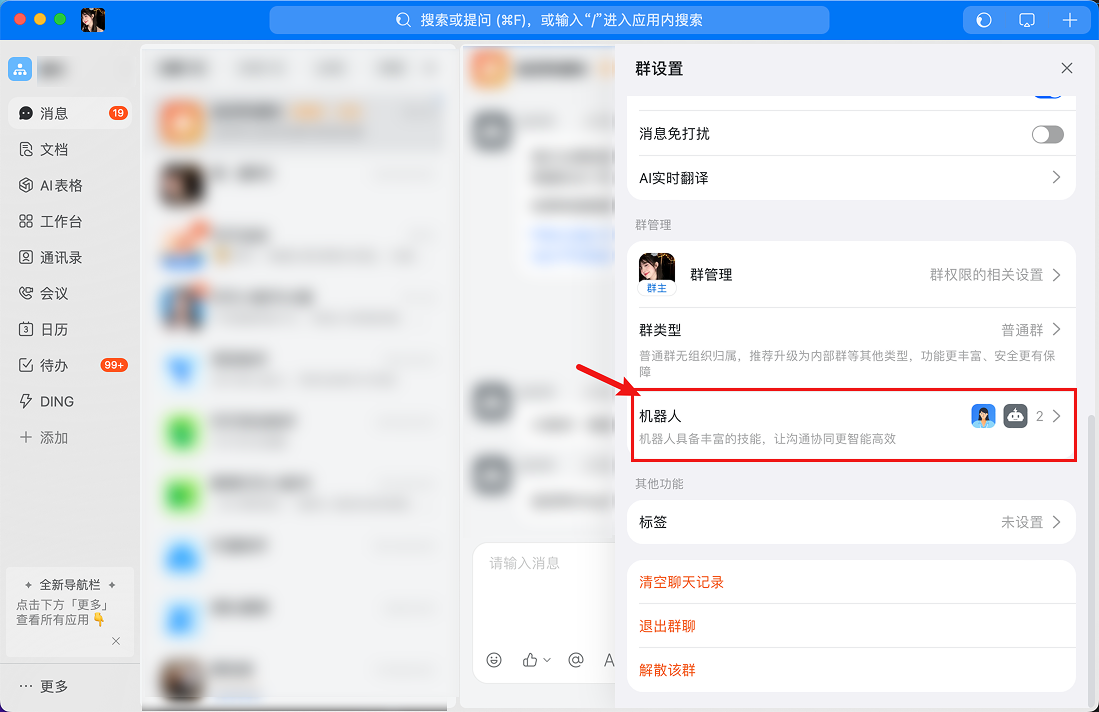
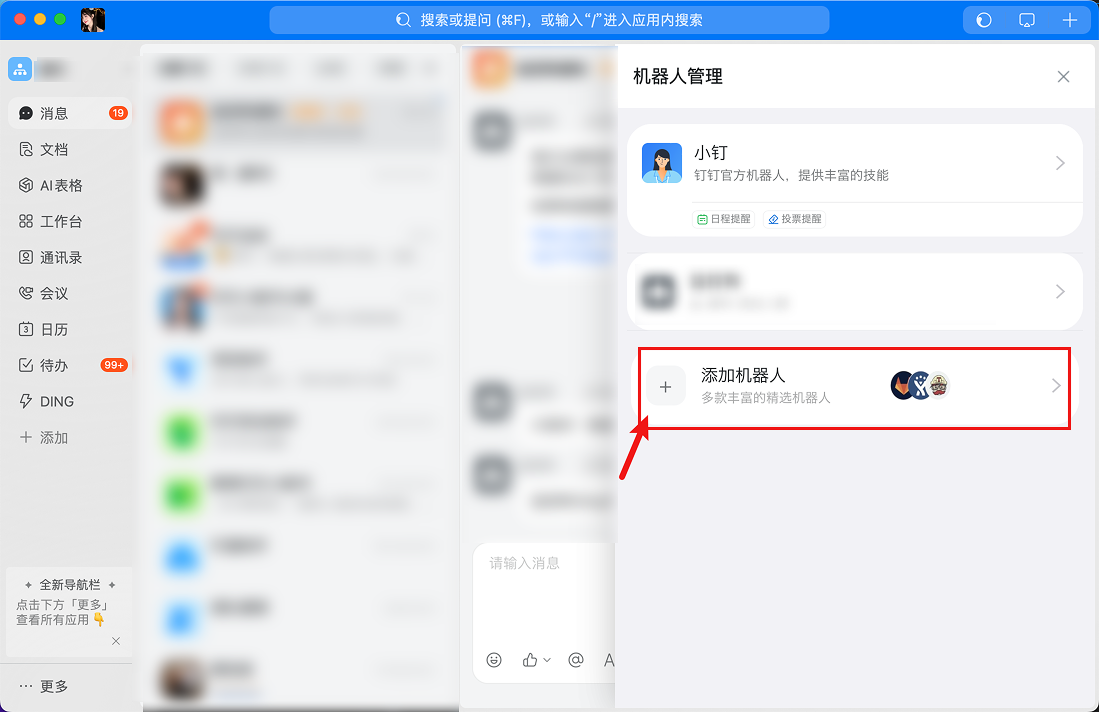
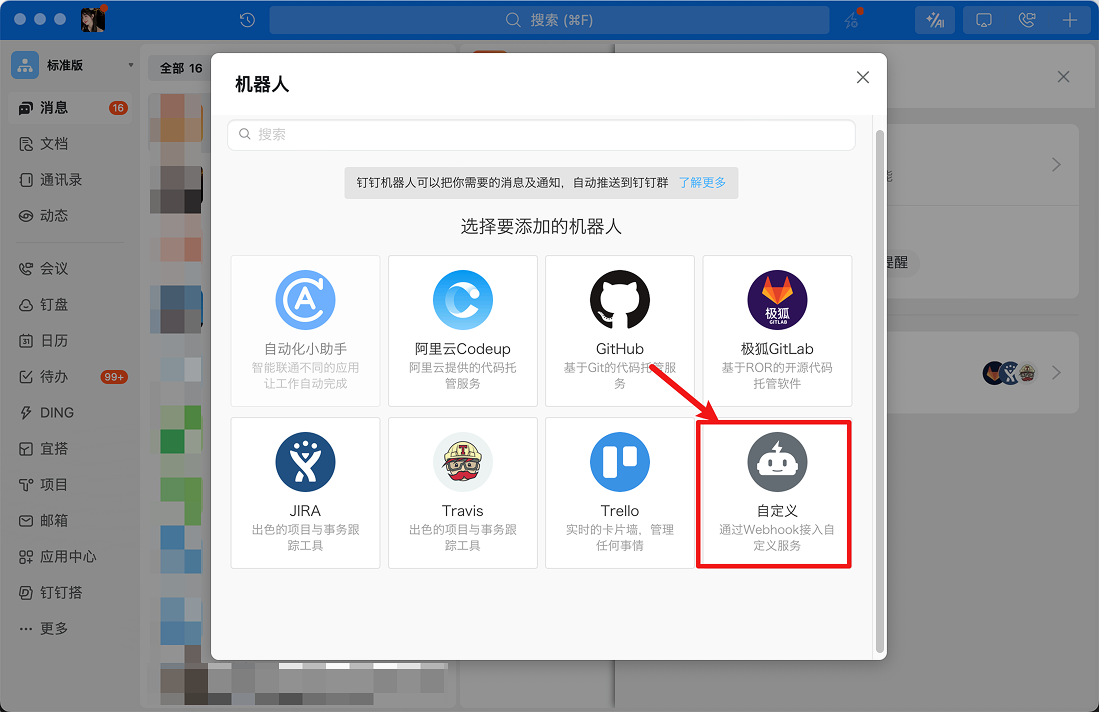
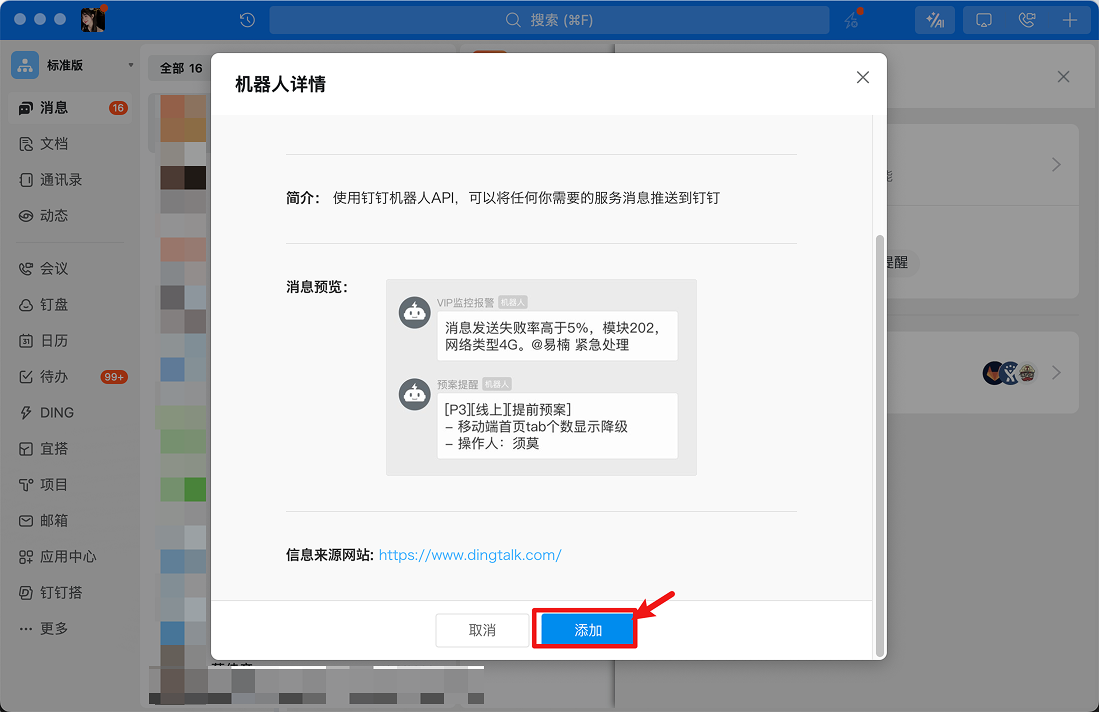
Open DingTalk, find settings in the group, create a bot
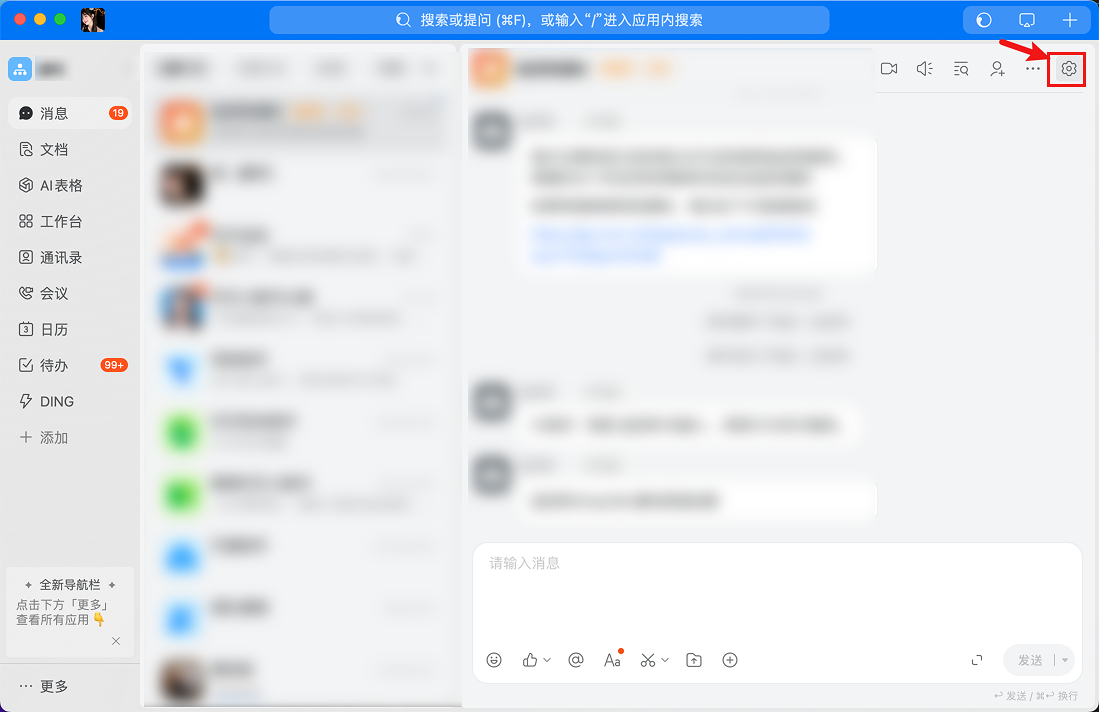
<Frame>
  <img src="https://mintcdn.com/alertdog/NmTmCeFNBk4WSdFg/images/notification-channels/dingtalk/dingtalk-robot-settings.png?fit=max&auto=format&n=NmTmCeFNBk4WSdFg&q=85&s=797bffeb9841d0c53c4d849e04d74383" alt="DingTalk group settings interface showing smart group assistant option" width="1099" height="712" data-path="images/notification-channels/dingtalk/dingtalk-robot-settings.png" />
</Frame>

<Frame>
  <img src="https://mintcdn.com/alertdog/NmTmCeFNBk4WSdFg/images/notification-channels/dingtalk/dingtalk-add-robot.png?fit=max&auto=format&n=NmTmCeFNBk4WSdFg&q=85&s=4ebc84d84024533c533c7fb4fc05666f" alt="DingTalk add bot interface, select custom bot" width="1099" height="712" data-path="images/notification-channels/dingtalk/dingtalk-add-robot.png" />
</Frame>

<Frame>
  <img src="https://mintcdn.com/alertdog/NmTmCeFNBk4WSdFg/images/notification-channels/dingtalk/dingtalk-select-webhook.png?fit=max&auto=format&n=NmTmCeFNBk4WSdFg&q=85&s=8d54be8f93dcadc704150702099e168a" alt="DingTalk select Webhook type bot" width="1099" height="712" data-path="images/notification-channels/dingtalk/dingtalk-select-webhook.png" />
</Frame>

<Frame>
  <img src="https://mintcdn.com/alertdog/NmTmCeFNBk4WSdFg/images/notification-channels/dingtalk/dingtalk-create-group.png?fit=max&auto=format&n=NmTmCeFNBk4WSdFg&q=85&s=99fddb76b06e1d5ac0f665786a33e3c7" alt="DingTalk create custom bot configuration interface" width="1099" height="712" data-path="images/notification-channels/dingtalk/dingtalk-create-group.png" />
</Frame>

<Frame>
  <img src="https://mintcdn.com/alertdog/NmTmCeFNBk4WSdFg/images/notification-channels/dingtalk/dingtalk-group-created.png?fit=max&auto=format&n=NmTmCeFNBk4WSdFg&q=85&s=65df544f59c5abd89d0345bee69a03fa" alt="DingTalk bot created successfully interface" width="1099" height="712" data-path="images/notification-channels/dingtalk/dingtalk-group-created.png" />
</Frame>

## Step 2: Copy Secret and Webhook URL

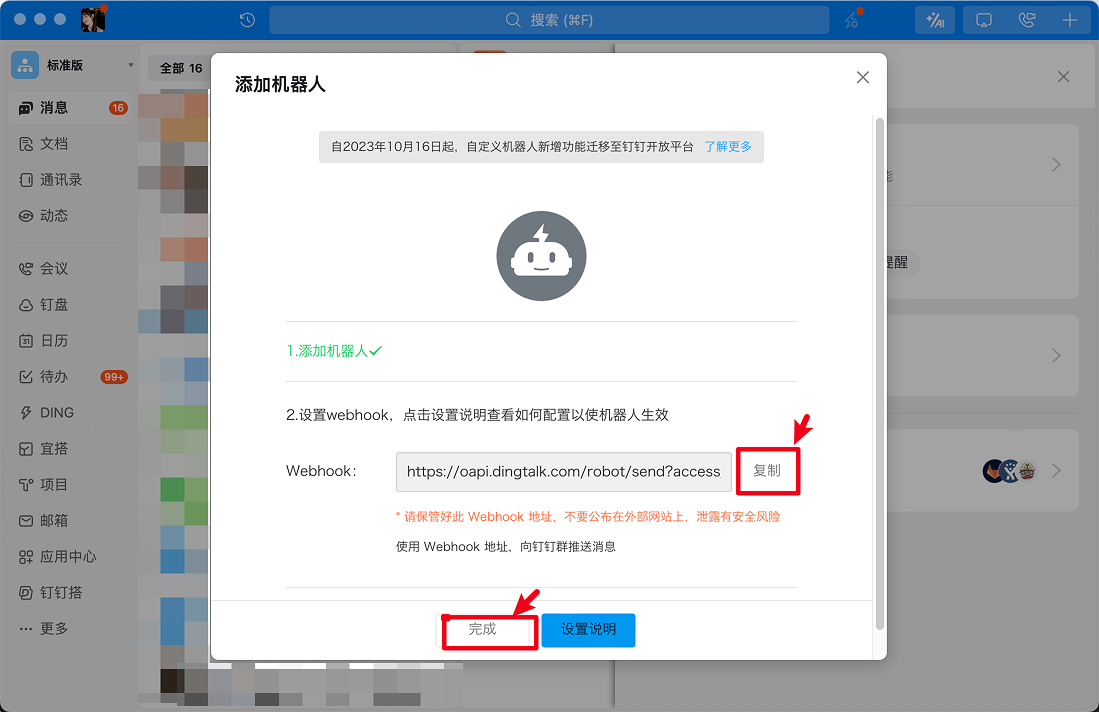
After creation, copy the secret and Webhook URL
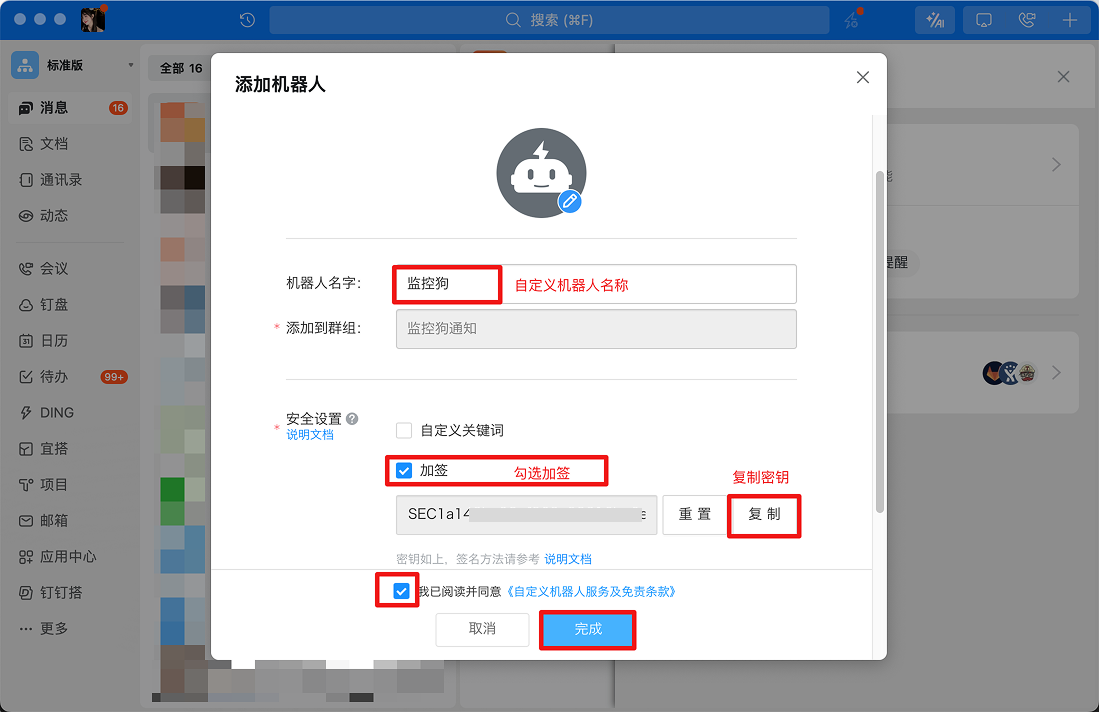
<Frame>
  <img src="https://mintcdn.com/alertdog/NmTmCeFNBk4WSdFg/images/notification-channels/dingtalk/Group%201947.png?fit=max&auto=format&n=NmTmCeFNBk4WSdFg&q=85&s=22883ac650da92a0c350f63e0b6422a8" alt="DingTalk bot configuration complete, showing Webhook address and signing secret" width="1099" height="712" data-path="images/notification-channels/dingtalk/Group 1947.png" />
</Frame>

<Frame>
  <img src="https://mintcdn.com/alertdog/NmTmCeFNBk4WSdFg/images/notification-channels/dingtalk/dingtalk-copy-webhook.png?fit=max&auto=format&n=NmTmCeFNBk4WSdFg&q=85&s=340b59a2fb606e3cdeb9c1ca239d42db" alt="DingTalk copy Webhook URL and secret" width="1099" height="712" data-path="images/notification-channels/dingtalk/dingtalk-copy-webhook.png" />
</Frame>

## Step 3: Create DingTalk Notification Channel and Fill in Parameters

Open AlertDog **Add New Channel** -> **DingTalk** -> **Enter secret and Webhook URL** -> **Confirm**
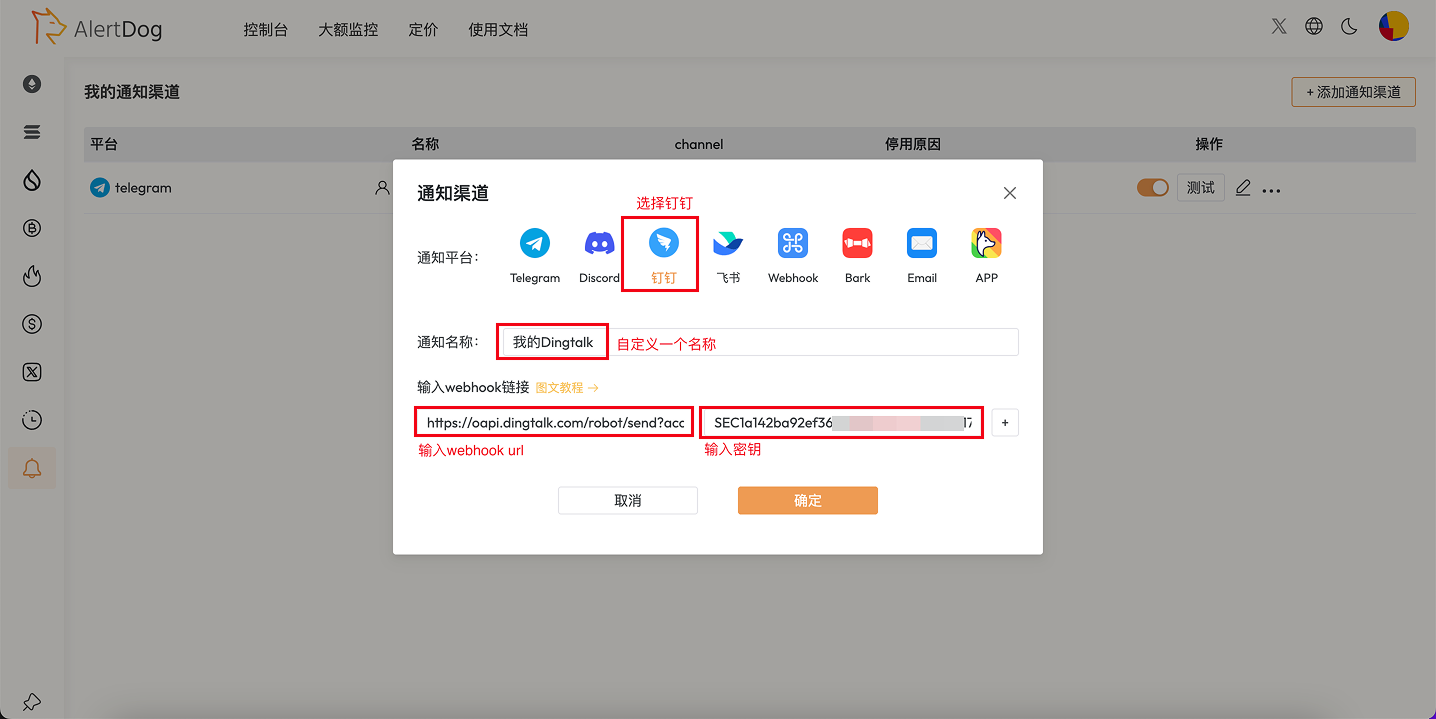
<Frame caption="Create Notification Channel">
  <img src="https://mintcdn.com/alertdog/NmTmCeFNBk4WSdFg/images/notification-channels/dingtalk/dingtalk-alertdog-config.png?fit=max&auto=format&n=NmTmCeFNBk4WSdFg&q=85&s=43c3ad4bde8afcf406e4066e17f7f998" alt="Create notification channel" width="1436" height="719" data-path="images/notification-channels/dingtalk/dingtalk-alertdog-config.png" />
</Frame>

## Step 4: Setup Complete

After configuration, you can select DingTalk as the notification method when creating monitoring tasks. When monitoring is triggered, messages will be pushed to the specified DingTalk group.

## FAQ

<AccordionGroup>
  <Accordion title="How to add a bot in DingTalk?">
    In DingTalk group settings → Smart Group Assistant → Add Bot → Create a custom bot and get the Webhook URL.
  </Accordion>

  <Accordion title="What is signature verification?">
    DingTalk bots support signature verification for enhanced security. If signature verification is enabled, you need to configure the signature secret in AlertDog.
  </Accordion>

  <Accordion title="Do DingTalk bots have message frequency limits?">
    DingTalk bots have certain frequency limits, with a maximum of 20 messages per minute.
  </Accordion>
</AccordionGroup>