> ## Documentation Index
> Fetch the complete documentation index at: https://docs.alertdog.io/llms.txt
> Use this file to discover all available pages before exploring further.

# Discord

> Receive AlertDog monitoring alerts through Discord channels, the preferred notification method for team collaboration

Introduction: Discord is an ideal notification channel for team collaboration, supporting pushing monitoring messages to specified Discord channels, making it easy for team members to share monitoring information.

## Step 1: Create Server

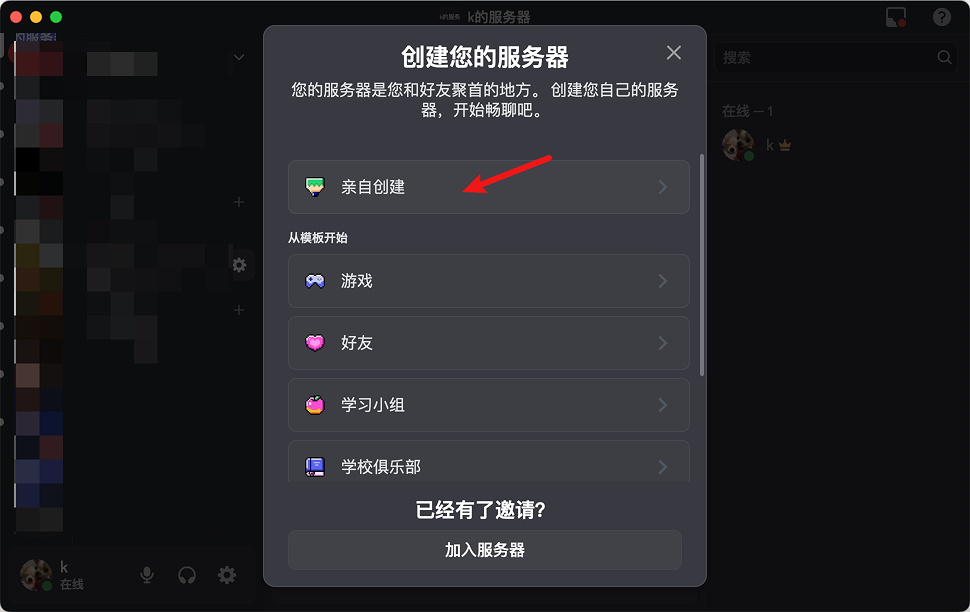
Open Discord, add a server.
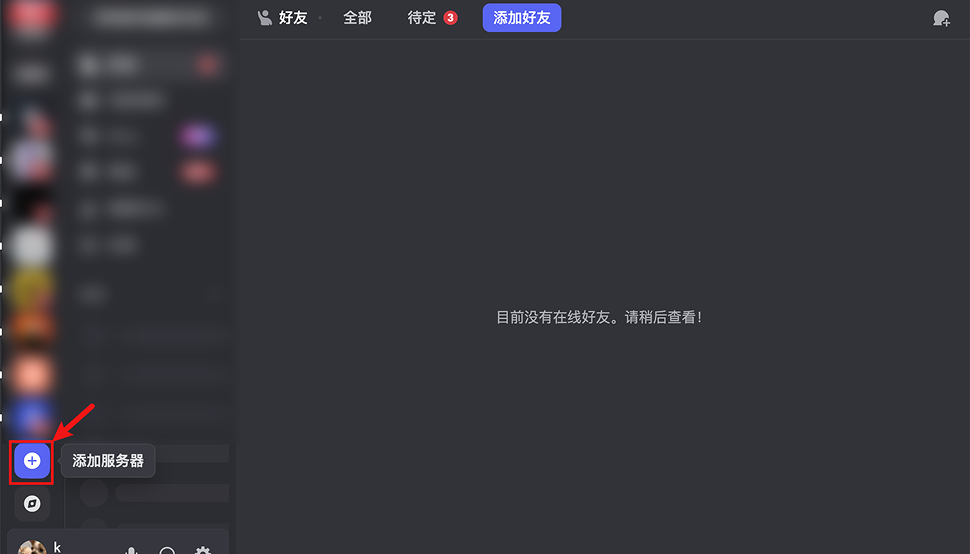
<Frame caption="Add Server">
  <img src="https://mintcdn.com/alertdog/NmTmCeFNBk4WSdFg/images/notification-channels/discord/discord-add-server.png?fit=max&auto=format&n=NmTmCeFNBk4WSdFg&q=85&s=d3df341fb0694adfccd8969fd531829f" alt="Discord add server button" width="970" height="554" data-path="images/notification-channels/discord/discord-add-server.png" />
</Frame>

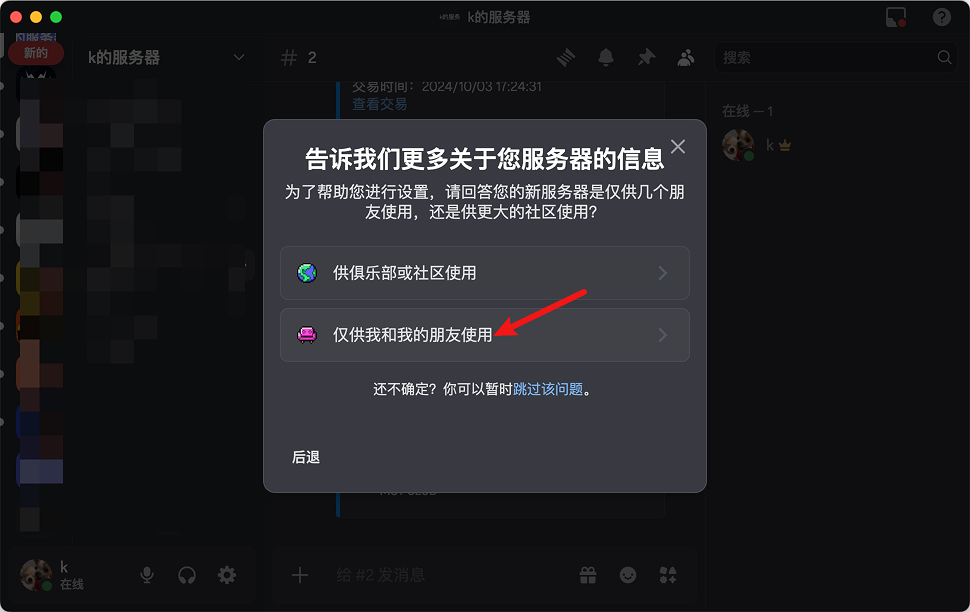
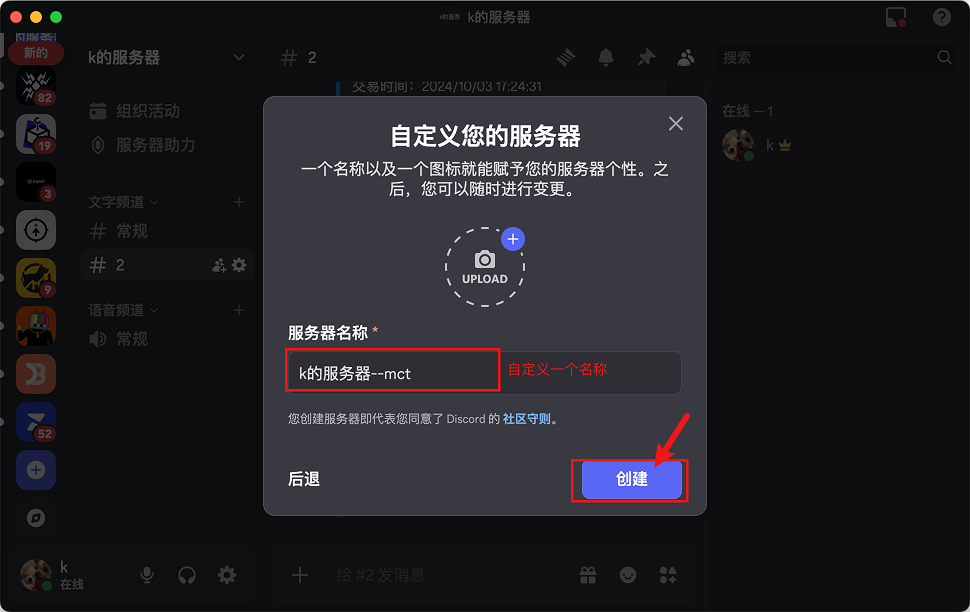
Follow the prompts to add.

<Frame caption="Select Server Type">
  <img src="https://mintcdn.com/alertdog/RCBluHwjsDCzwhrG/images/notification-channels/discord/discord-server-type.png?fit=max&auto=format&n=RCBluHwjsDCzwhrG&q=85&s=97f56e6147f7ad07092f1cee6004f82c" alt="Discord create server, select server type" width="970" height="612" data-path="images/notification-channels/discord/discord-server-type.png" />
</Frame>

<Frame caption="Set Server Name">
  <img src="https://mintcdn.com/alertdog/RCBluHwjsDCzwhrG/images/notification-channels/discord/discord-server-name.png?fit=max&auto=format&n=RCBluHwjsDCzwhrG&q=85&s=4fad6ff788c2b313863678745c4aebb3" alt="Discord server name and icon settings" width="970" height="612" data-path="images/notification-channels/discord/discord-server-name.png" />
</Frame>

<Frame caption="Server Created">
  <img src="https://mintcdn.com/alertdog/NmTmCeFNBk4WSdFg/images/notification-channels/discord/discord-server-created.png?fit=max&auto=format&n=NmTmCeFNBk4WSdFg&q=85&s=b3b318a28ac98d5188125c52dfdc82e6" alt="Discord server created successfully" width="970" height="612" data-path="images/notification-channels/discord/discord-server-created.png" />
</Frame>

## Step 2: Copy Webhook URL

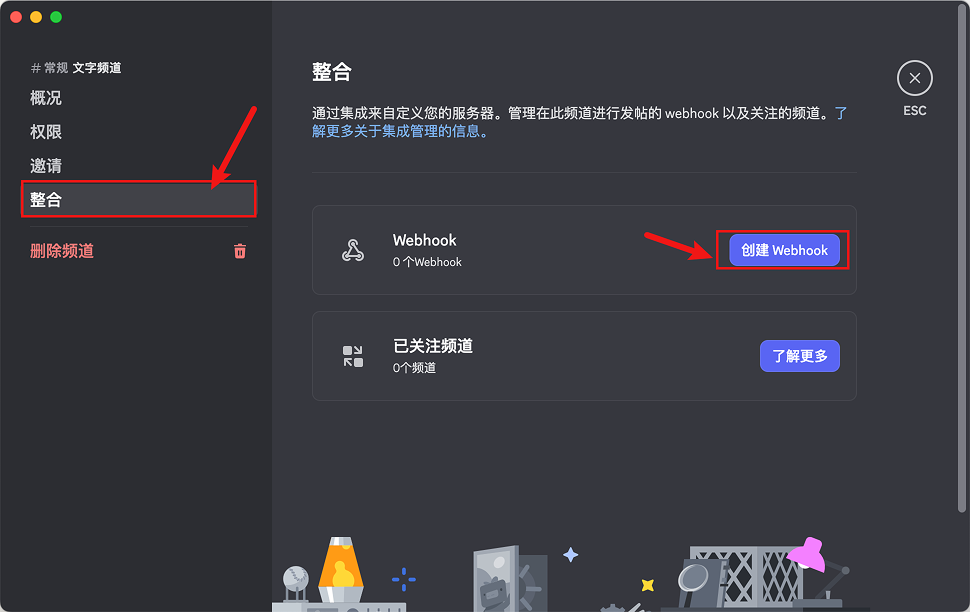
After the server is created, find Webhook in settings.
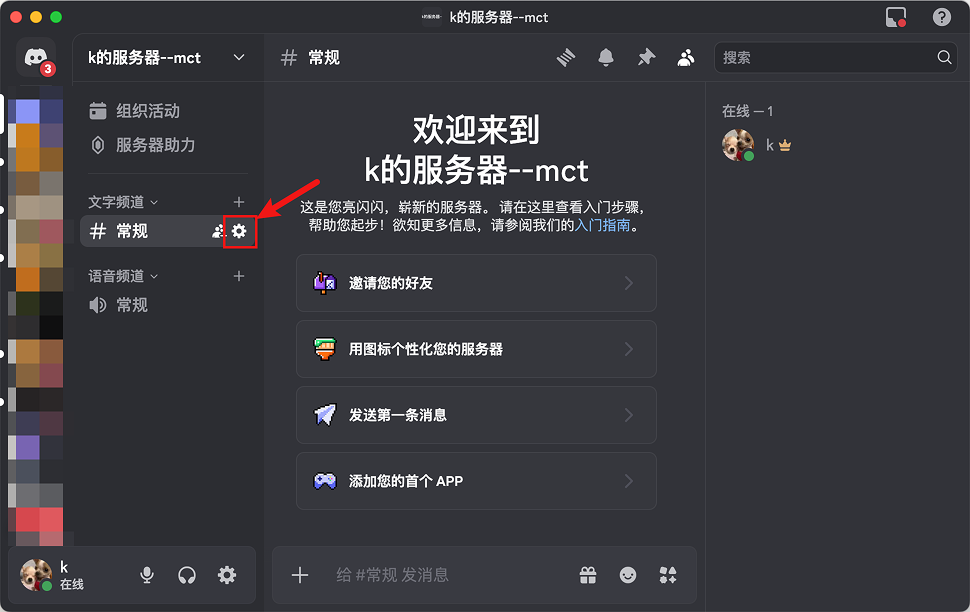
<Frame caption="Open Settings">
  <img src="https://mintcdn.com/alertdog/RCBluHwjsDCzwhrG/images/notification-channels/discord/discord-settings-menu.png?fit=max&auto=format&n=RCBluHwjsDCzwhrG&q=85&s=cc5c2354364b133b57a988eb2727209a" alt="Discord server settings entry" width="970" height="612" data-path="images/notification-channels/discord/discord-settings-menu.png" />
</Frame>

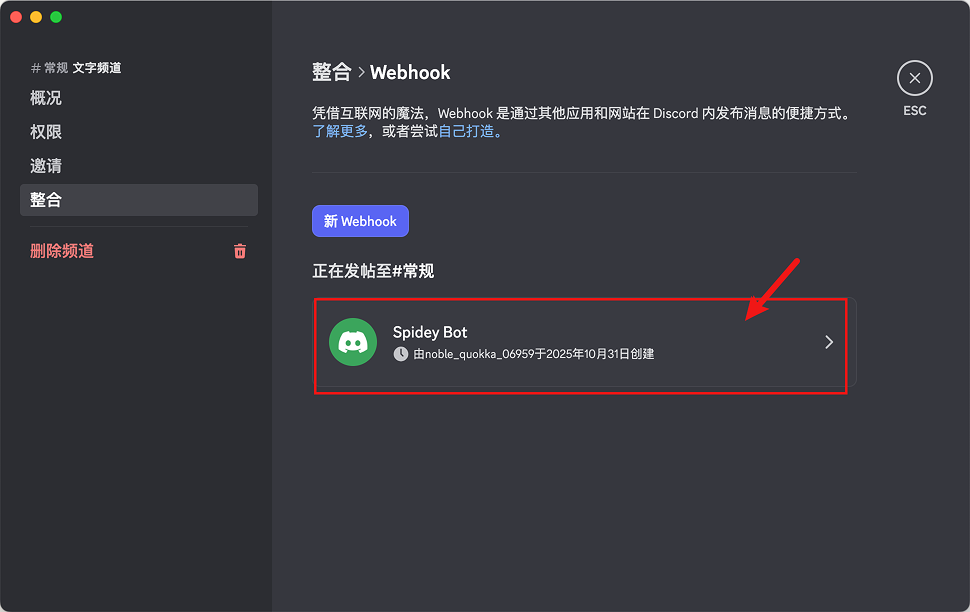
Create Webhook.

<Frame caption="Webhook Settings">
  <img src="https://mintcdn.com/alertdog/RCBluHwjsDCzwhrG/images/notification-channels/discord/discord-webhook-settings.png?fit=max&auto=format&n=RCBluHwjsDCzwhrG&q=85&s=350d469e514aeb58a7e1131eececf285" alt="Discord Webhook settings page" width="970" height="612" data-path="images/notification-channels/discord/discord-webhook-settings.png" />
</Frame>

<Frame caption="Create New Webhook">
  <img src="https://mintcdn.com/alertdog/NmTmCeFNBk4WSdFg/images/notification-channels/discord/discord-create-webhook.png?fit=max&auto=format&n=NmTmCeFNBk4WSdFg&q=85&s=437413412b60e7fcf5cf706bb9908ca6" alt="Create new Discord Webhook" width="970" height="612" data-path="images/notification-channels/discord/discord-create-webhook.png" />
</Frame>

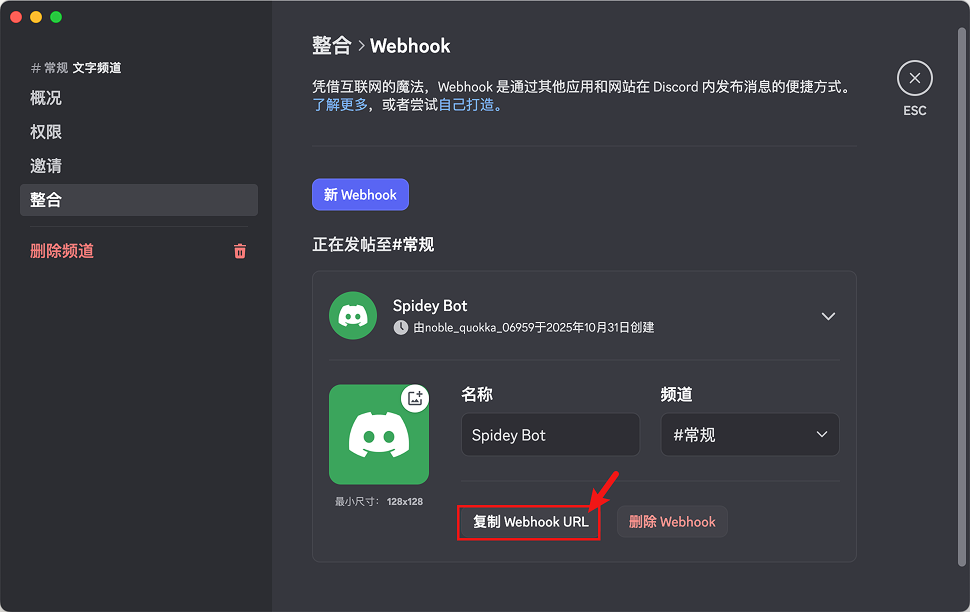
Copy Webhook URL.

<Frame caption="Copy Webhook URL">
  <img src="https://mintcdn.com/alertdog/NmTmCeFNBk4WSdFg/images/notification-channels/discord/discord-copy-webhook-url.png?fit=max&auto=format&n=NmTmCeFNBk4WSdFg&q=85&s=bcfd5dc3ca559f445d0cb9be13b3c38b" alt="Copy Discord Webhook URL" width="970" height="612" data-path="images/notification-channels/discord/discord-copy-webhook-url.png" />
</Frame>

## Step 3: Create Notification Channel

Open AlertDog, select Discord, enter the Webhook URL and click connect.
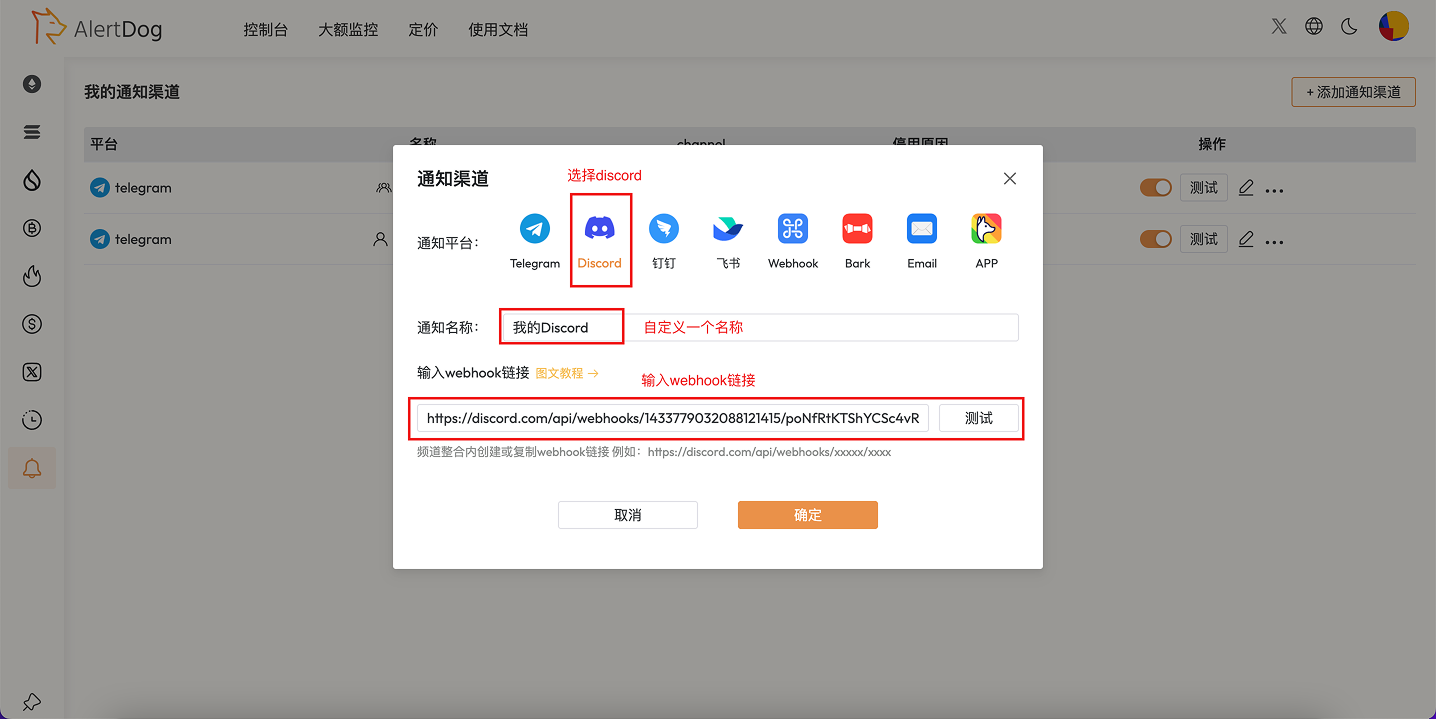
<Frame caption="Create Notification Channel">
  <img src="https://mintcdn.com/alertdog/NmTmCeFNBk4WSdFg/images/notification-channels/discord/discord-alertdog-config.png?fit=max&auto=format&n=NmTmCeFNBk4WSdFg&q=85&s=ad0ac6210354c7486fb4f18e1437ff06" alt="AlertDog add Discord notification channel, enter Webhook URL" width="1436" height="719" data-path="images/notification-channels/discord/discord-alertdog-config.png" />
</Frame>

## Step 4: Setup Complete

After successful connection, the notification channel has been successfully added and will be displayed in the notification channel list.
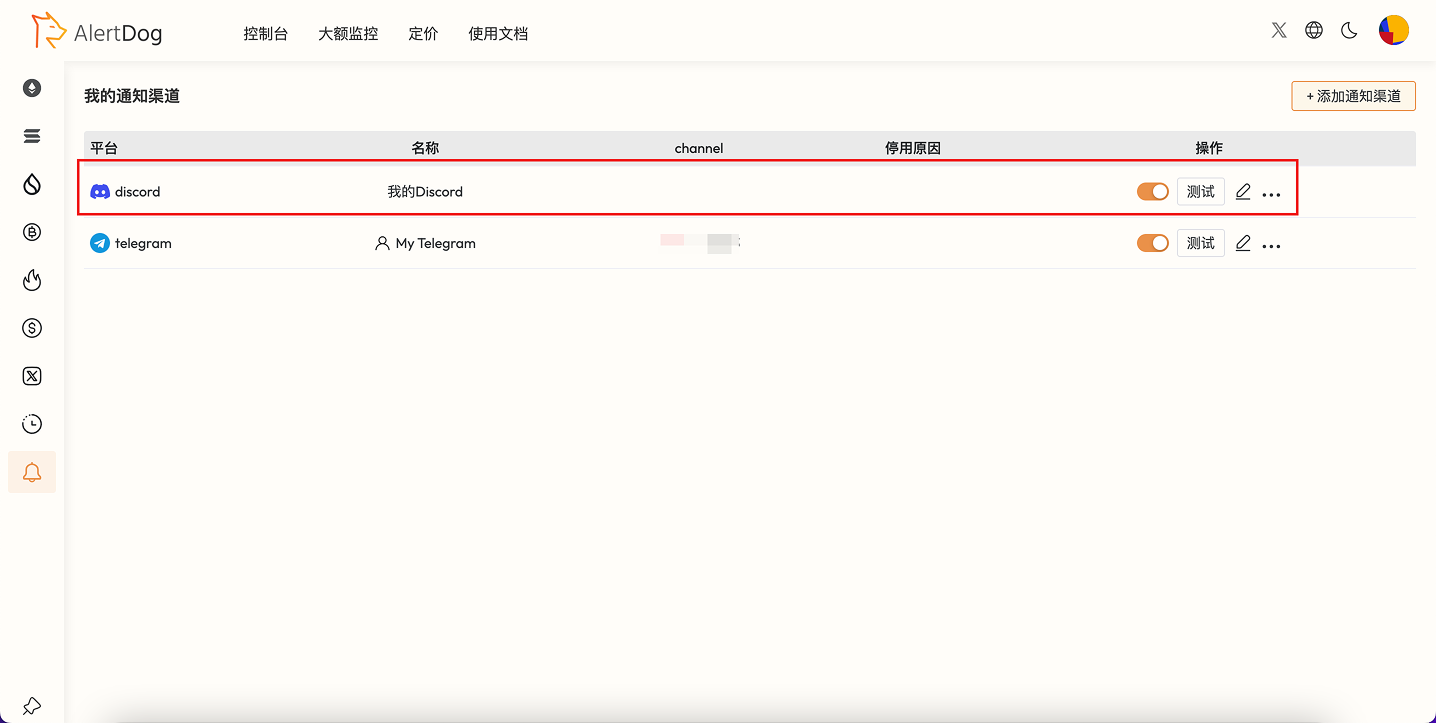
<Frame caption="Setup Complete">
  <img src="https://mintcdn.com/alertdog/NmTmCeFNBk4WSdFg/images/notification-channels/discord/discord-channel-created.png?fit=max&auto=format&n=NmTmCeFNBk4WSdFg&q=85&s=68965025d18c74554b6be21990d4ed44" alt="Discord notification channel created successfully, displayed in list" width="1436" height="723" data-path="images/notification-channels/discord/discord-channel-created.png" />
</Frame>

After configuration, you can select Discord as the notification method when creating monitoring tasks. When monitoring is triggered, messages will be pushed to the specified Discord channel.

## FAQ

<AccordionGroup>
  <Accordion title="How to delete a Discord notification channel?">
    Find the Discord item in the notification channel list and click "Delete".
  </Accordion>

  <Accordion title="Can I add multiple Discord channels?">
    Yes. You can configure multiple Webhooks for different Discord channels to implement categorized notifications.
  </Accordion>

  <Accordion title="Where to get the Webhook URL?">
    In Discord server channel settings → Integrations → Webhooks, create and copy the URL.
  </Accordion>
</AccordionGroup>