> ## Documentation Index
> Fetch the complete documentation index at: https://docs.alertdog.io/llms.txt
> Use this file to discover all available pages before exploring further.

# Notify to Group

> Receive AlertDog monitoring alerts through Telegram bot, instant push, easy to use

<Note>
  Notify to Group can receive up to 20 messages per minute. For higher limits, please choose [Notify to Telegram Custom Bot](/en/notification-channels/custom-telegram-bot)
</Note>

## Step 1: Create Group and Get Chat ID

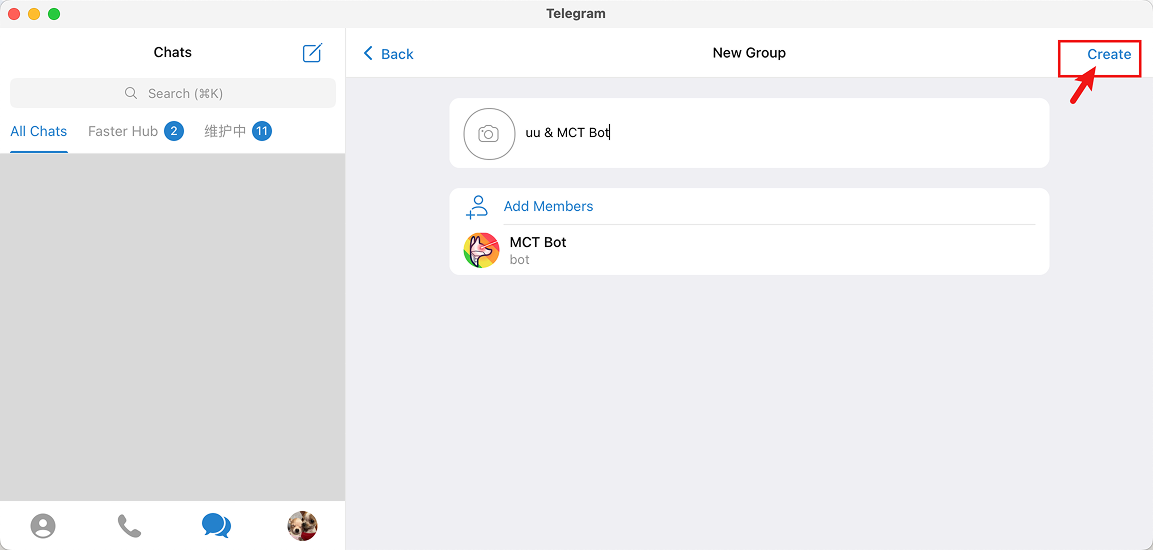
Open Telegram, create a new group (or Channel)
<Frame caption="Create a Telegram Group">
  <img src="https://mintcdn.com/alertdog/Vee5be0vffUP6yuX/images/notification-channels/telegram/telegram-create-group.png?fit=max&auto=format&n=Vee5be0vffUP6yuX&q=85&s=46794ed3e0f5f6303727617a91835365" alt="Create Group" width="1153" height="550" data-path="images/notification-channels/telegram/telegram-create-group.png" />
</Frame>

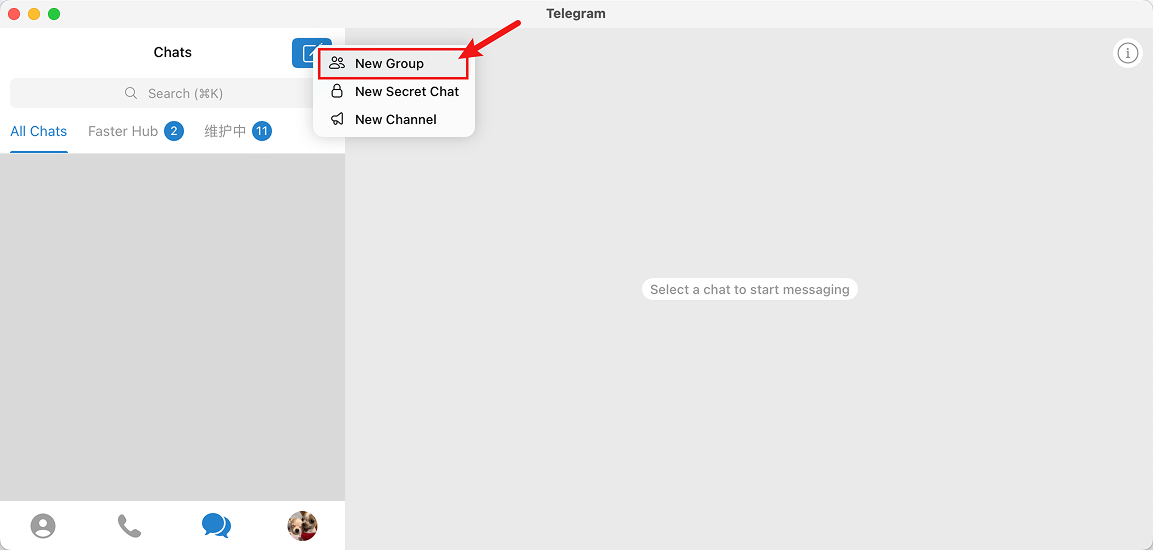
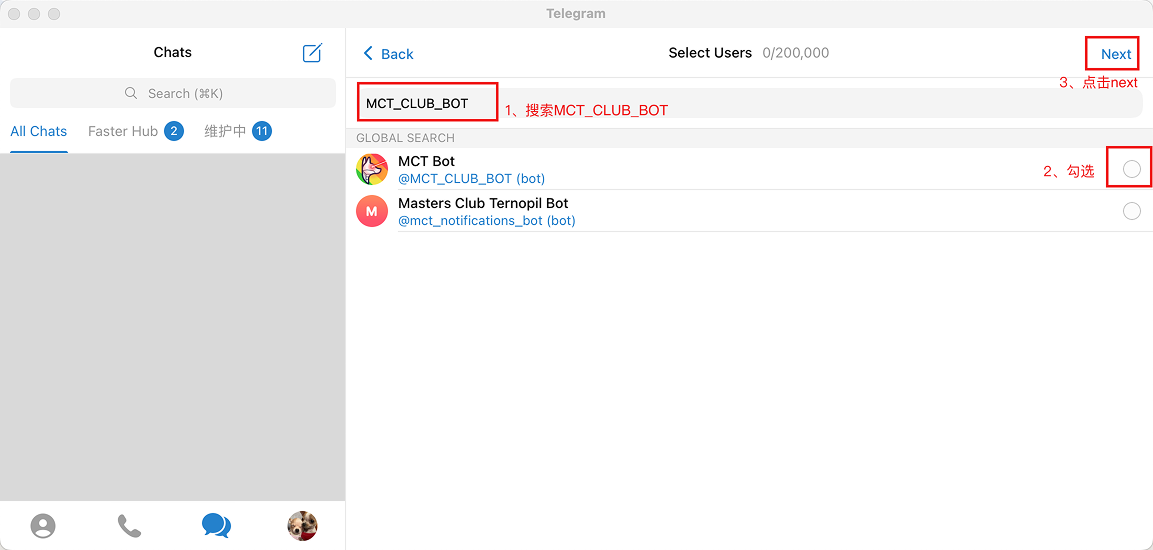
Search for MCT\_CLUB\_BOT and add it to the group
<Frame caption="Search MCT_CLUB_BOT">
  <img src="https://mintcdn.com/alertdog/Vee5be0vffUP6yuX/images/notification-channels/telegram/telegram-search-mct-bot.png?fit=max&auto=format&n=Vee5be0vffUP6yuX&q=85&s=117989aad4276f69e41f182c973d4001" alt="Telegram search MCT_CLUB_BOT" width="1153" height="550" data-path="images/notification-channels/telegram/telegram-search-mct-bot.png" />
</Frame>

<Frame caption="Add MCT_CLUB_BOT to Group">
  <img src="https://mintcdn.com/alertdog/Vee5be0vffUP6yuX/images/notification-channels/telegram/telegram-add-mct-bot.png?fit=max&auto=format&n=Vee5be0vffUP6yuX&q=85&s=c35d4578df348140dd376578a91e322f" alt="Add MCT Bot to Telegram group" width="1153" height="550" data-path="images/notification-channels/telegram/telegram-add-mct-bot.png" />
</Frame>

After successfully added, MCT Bot will automatically send the Chat ID in the group, copy the Chat ID for later use
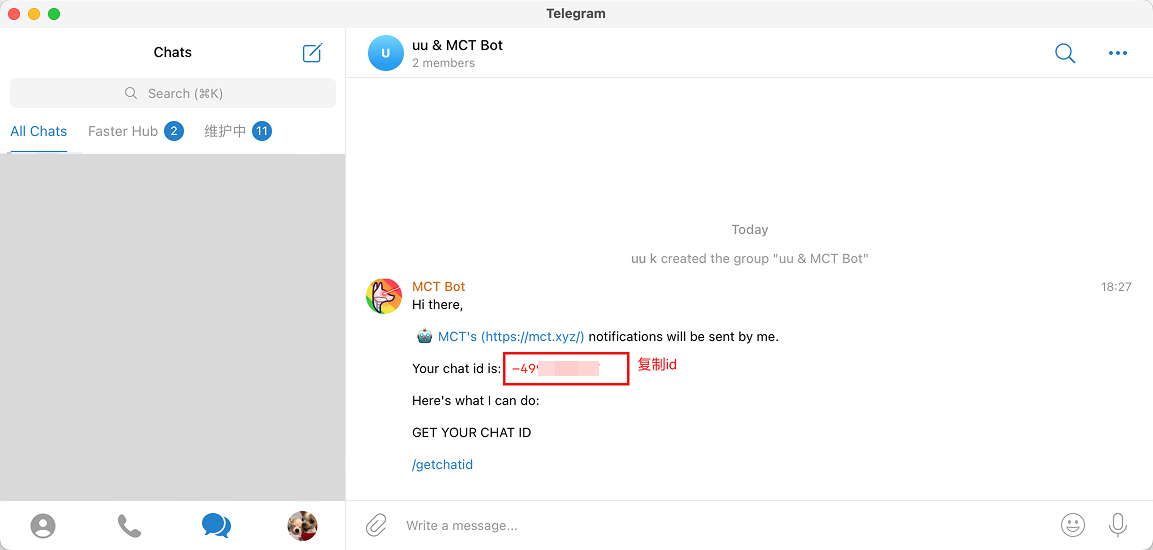
<Frame caption="Telegram Group Chat ID">
  <img src="https://mintcdn.com/alertdog/Vee5be0vffUP6yuX/images/notification-channels/telegram/telegram-copy-chat-id.png?fit=max&auto=format&n=Vee5be0vffUP6yuX&q=85&s=a9a7d4c644a2d69abfc735749da726c7" alt="Telegram group Chat ID" width="1153" height="550" data-path="images/notification-channels/telegram/telegram-copy-chat-id.png" />
</Frame>

## Step 2: Create Notification Channel

Open AlertDog **Add New Channel** -> **Telegram** -> **Notify to Group** -> **Enter Chat ID from previous step** -> **Connect** to confirm
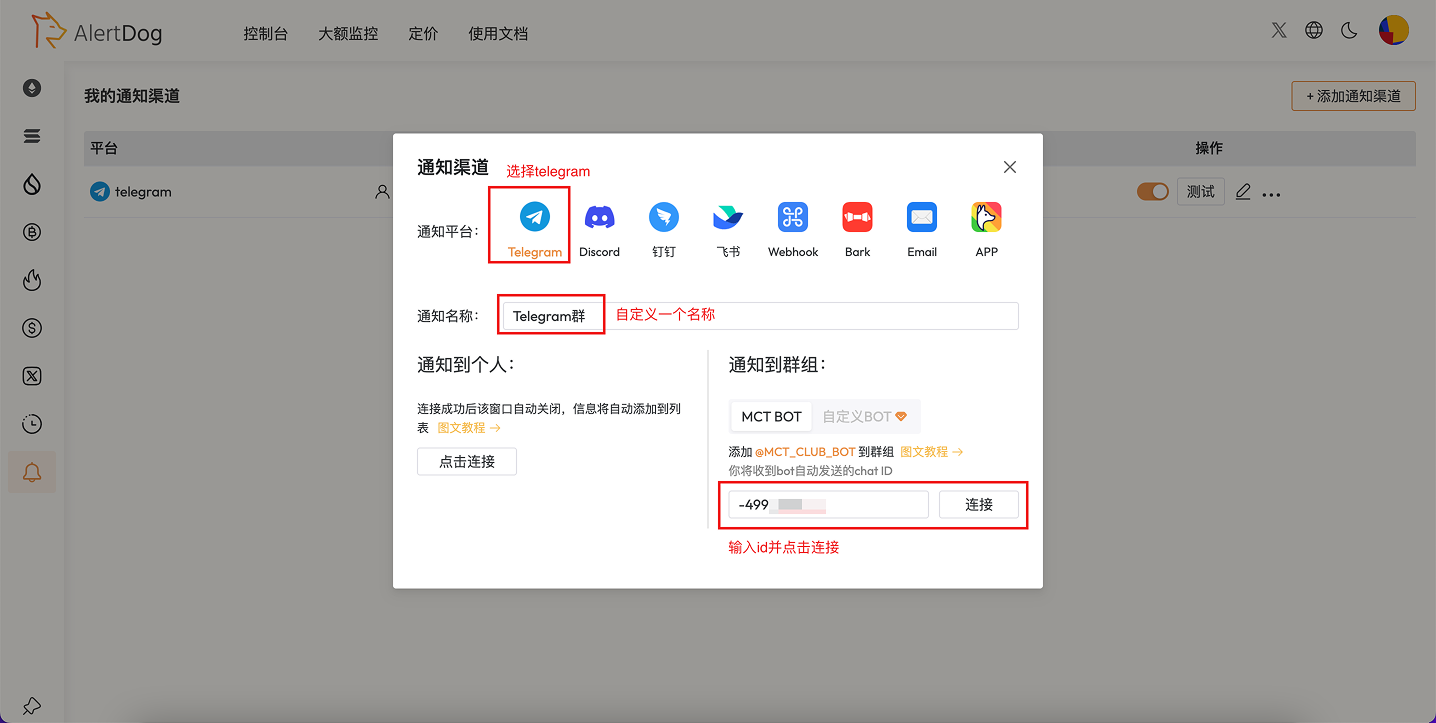
<Frame caption="Create Notification Channel">
  <img src="https://mintcdn.com/alertdog/RCBluHwjsDCzwhrG/images/notification-channels/telegram/telegram-group-notification.png?fit=max&auto=format&n=RCBluHwjsDCzwhrG&q=85&s=dcf33c6c58fb309617003de343e1b782" alt="Create notification channel" width="1436" height="723" data-path="images/notification-channels/telegram/telegram-group-notification.png" />
</Frame>

## Step 3: Telegram Group Channel Created

After successful connection, the channel is added successfully, the notification channel list will display this notification channel
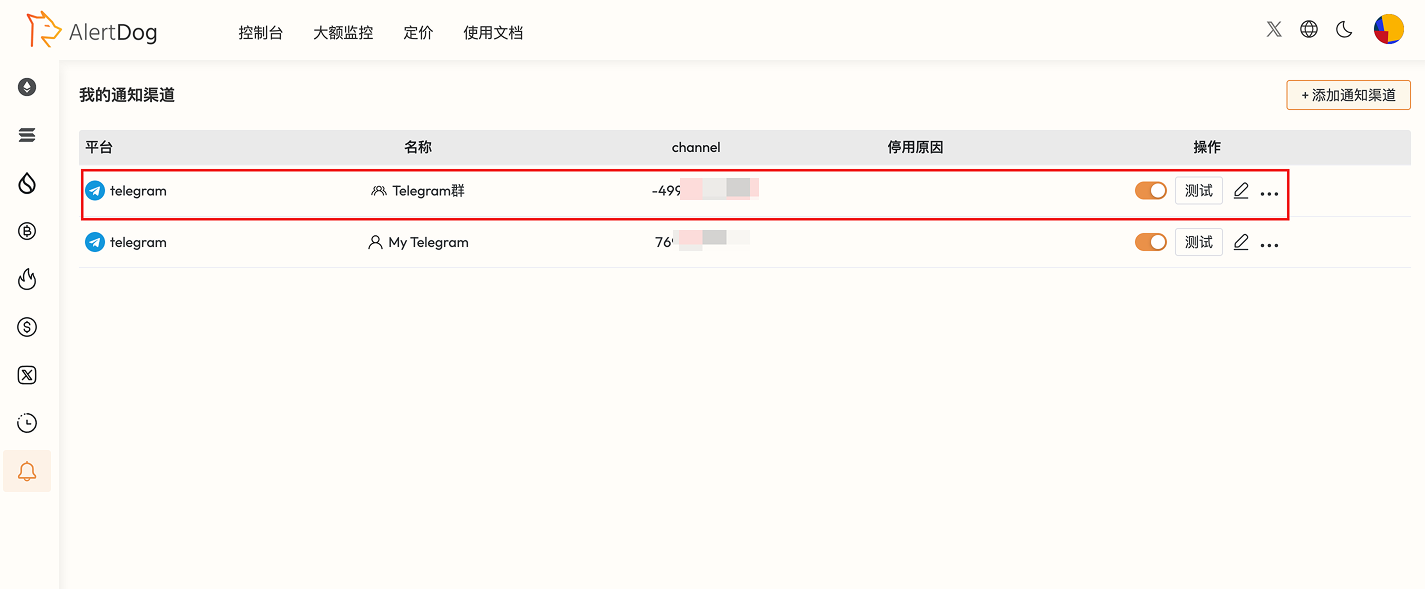
<Frame caption="Notification Channel Created">
  <img src="https://mintcdn.com/alertdog/RCBluHwjsDCzwhrG/images/notification-channels/telegram/telegram-group-created.png?fit=max&auto=format&n=RCBluHwjsDCzwhrG&q=85&s=56ab3a658d54c89fea56f8e730b37c36" alt="Telegram group channel created" width="1425" height="589" data-path="images/notification-channels/telegram/telegram-group-created.png" />
</Frame>

<Check>You have successfully completed Telegram notify to group setup</Check>

## FAQ

<AccordionGroup>
  <Accordion title="How to unbind Telegram?">
    Find the Telegram item in the notification channel list, click "Delete" to unbind.
  </Accordion>

  <Accordion title="Can I invite the Telegram bot to multiple groups for binding?">
    Yes.
  </Accordion>
</AccordionGroup>