> ## Documentation Index
> Fetch the complete documentation index at: https://docs.alertdog.io/llms.txt
> Use this file to discover all available pages before exploring further.
# Notify to Personal
> Receive AlertDog monitoring alerts through Telegram bot, instant push, easy to use
Telegram notify to personal uses a shared bot, messages may be delayed during peak on-chain activity. If your business is critical, we recommend using [Notify to Telegram Custom Bot](/en/notification-channels/custom-telegram-bot)
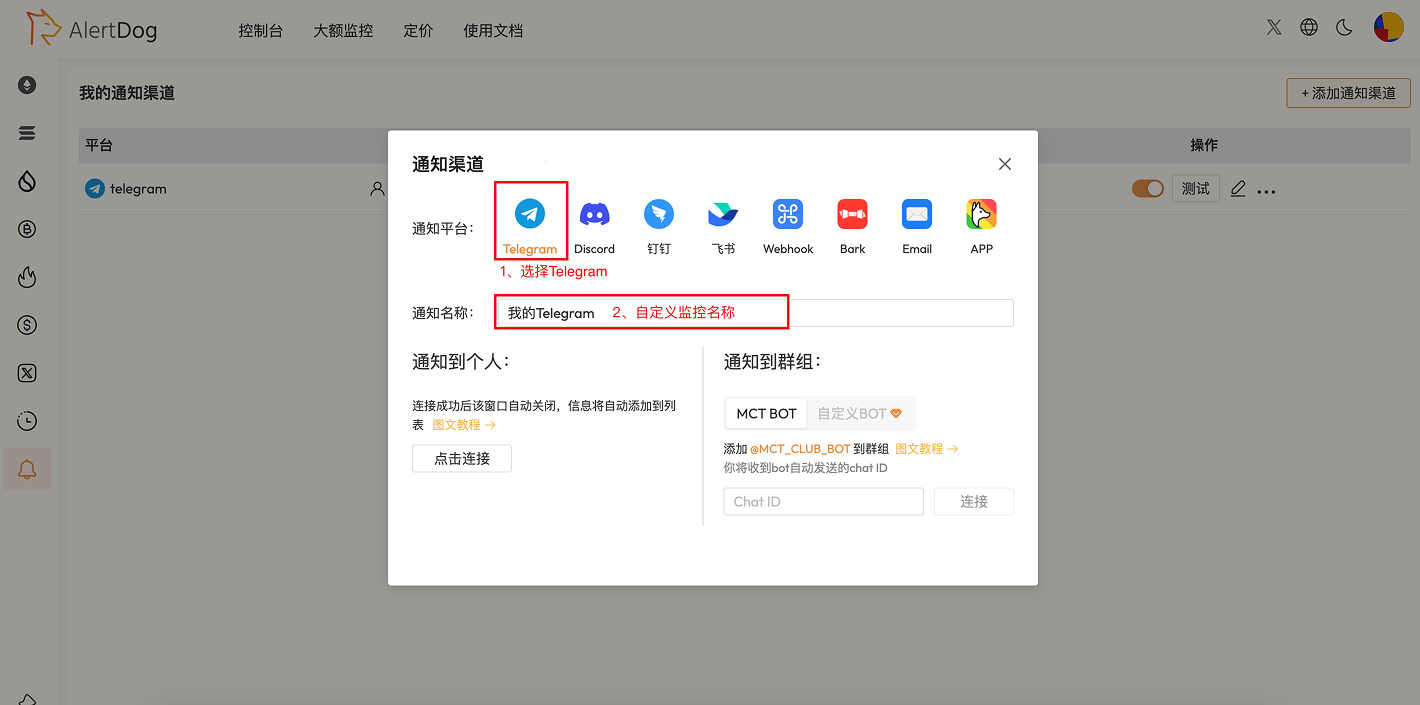
## Step 1: Select Telegram as Notification Channel
Open AlertDog **Add New Channel** ->
Select **Telegram** as platform -> Notification name can keep default (or set to an identifiable name like "Jay's Telegram")
 ## Step 2: Connect and Bind
Click the **Click Connect** button under **Notify to Personal**, Telegram dialog will automatically pop up
## Step 2: Connect and Bind
Click the **Click Connect** button under **Notify to Personal**, Telegram dialog will automatically pop up
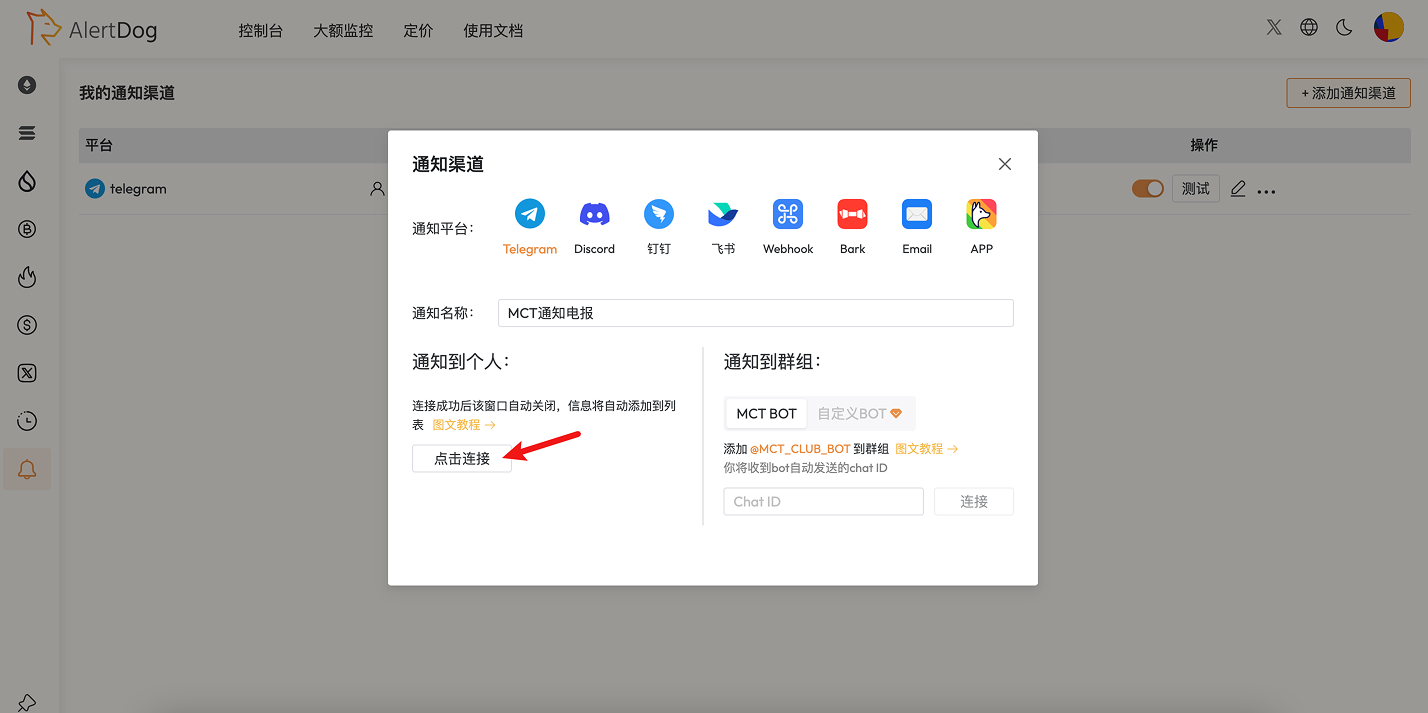 Pop-up window
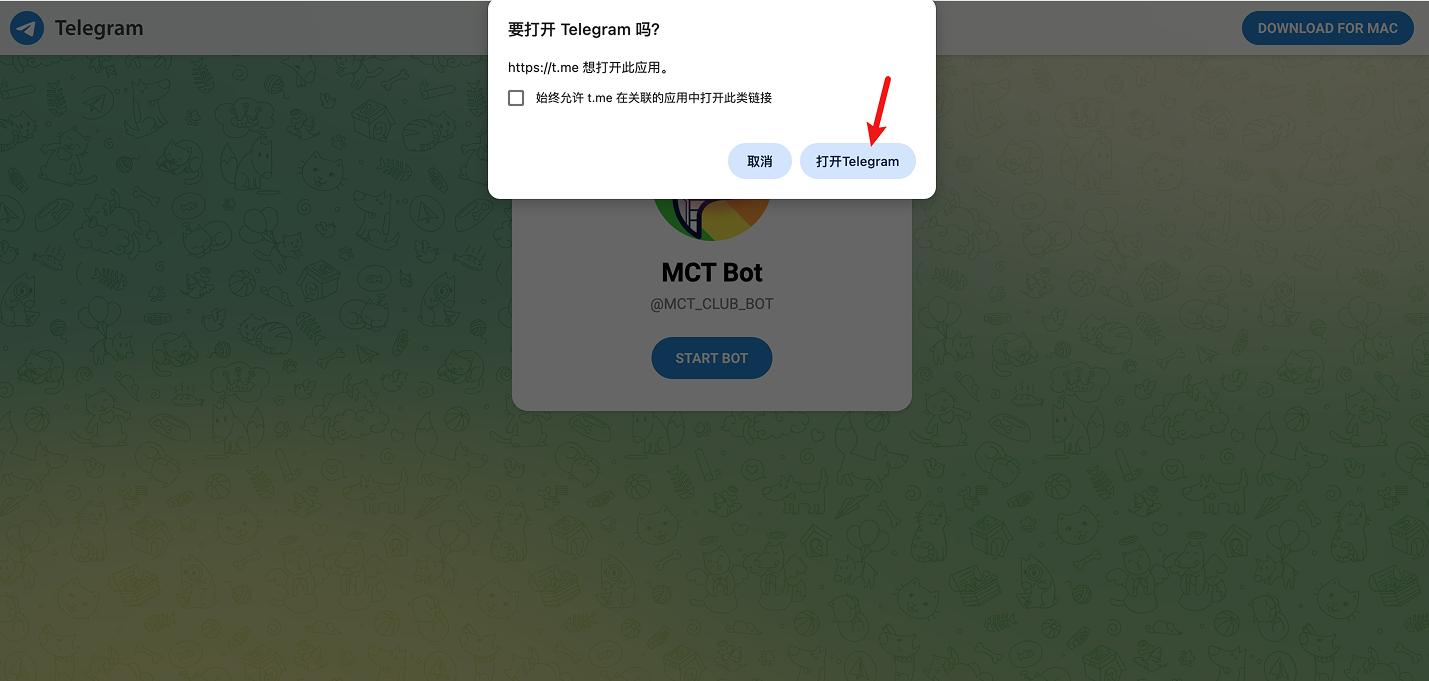 After opening Telegram, MCT Bot will automatically send you a message confirming channel creation
 ## Step 3: Complete Binding
Return to AlertDog, the notification channel has been successfully added, the notification channel list will display your Telegram account.
## Step 3: Complete Binding
Return to AlertDog, the notification channel has been successfully added, the notification channel list will display your Telegram account.
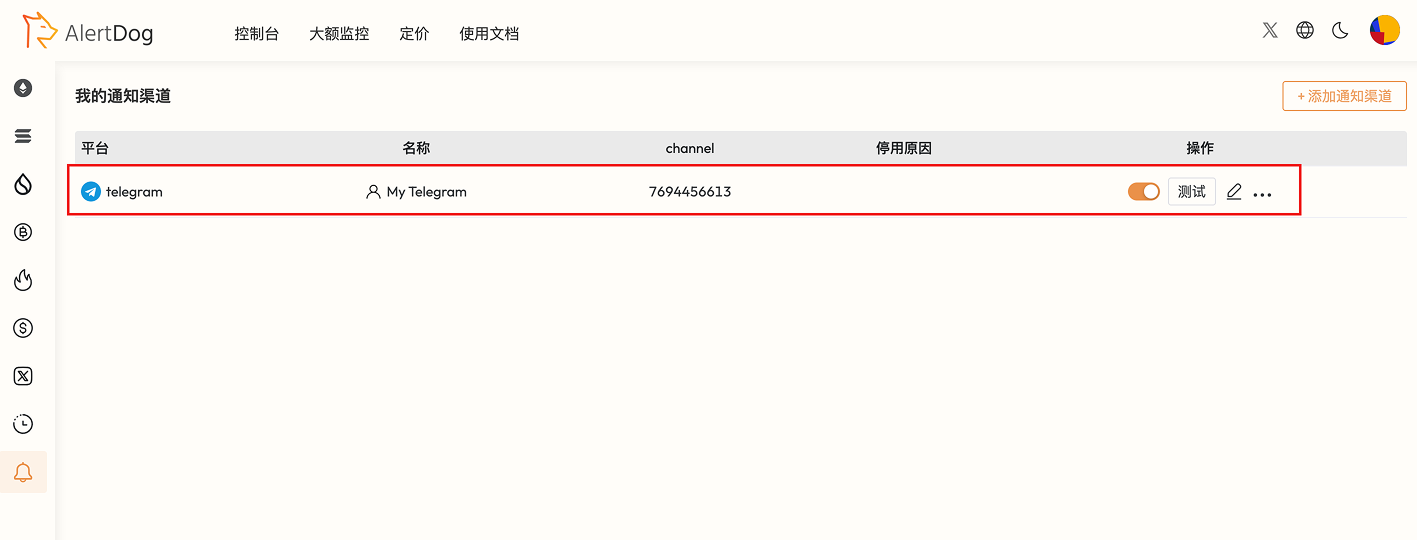 Congratulations! You have successfully bound Telegram
## FAQ
Find the corresponding Telegram item in the notification channel list, click the three-dot icon and select "**Delete**" to unbind.
Yes. But the same Telegram account can only bind one AlertDog account
Congratulations! You have successfully bound Telegram
## FAQ
Find the corresponding Telegram item in the notification channel list, click the three-dot icon and select "**Delete**" to unbind.
Yes. But the same Telegram account can only bind one AlertDog account