> ## Documentation Index
> Fetch the complete documentation index at: https://docs.alertdog.io/llms.txt
> Use this file to discover all available pages before exploring further.

# WeCom

> WeCom notification

## Step 1: Create Group Chat Message Push in WeCom

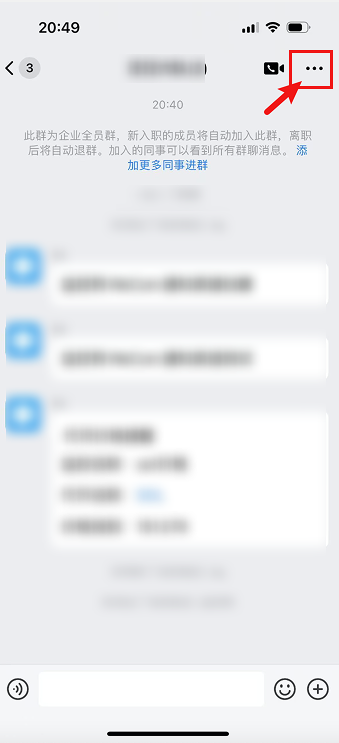
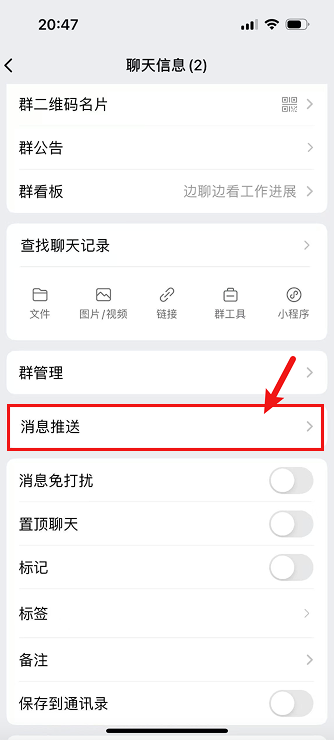
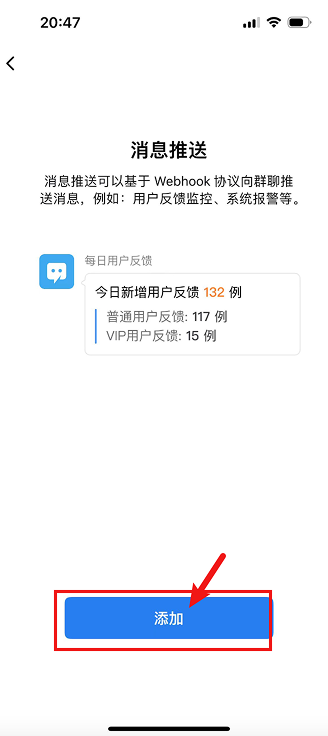
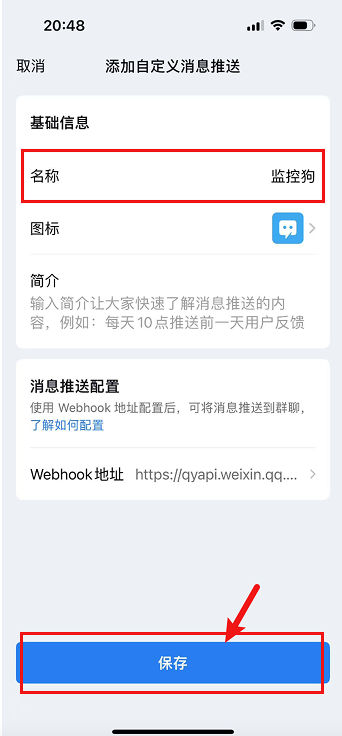
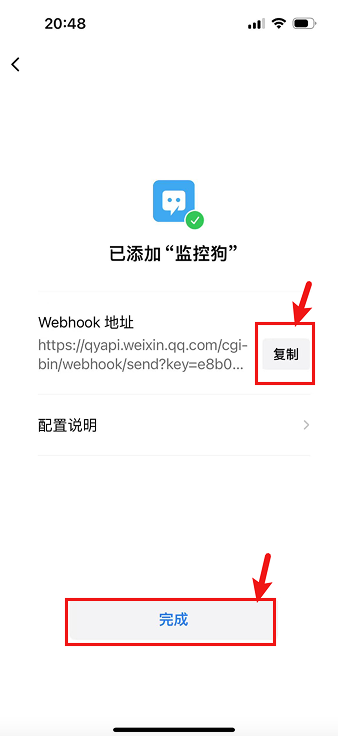
Open WeChat Work, select a group chat where you want to send alert notifications, click ... in the upper right corner to enter settings -> Select message push -> Click add -> Customize robot name and save

<Frame caption="WeChat Work Configuration Steps">
  <div style={{ display: 'grid', gridTemplateColumns: '1fr 1fr', gap: '10px' }}>
    <img src="https://mintcdn.com/alertdog/RCBluHwjsDCzwhrG/images/notification-channels/wx/workwechat-robot-settings.png?fit=max&auto=format&n=RCBluHwjsDCzwhrG&q=85&s=be3a63d6cb9946d16a0146214cd3651c" alt="1. WeChat Work group chat settings" style={{ width: '100%' }} width="339" height="743" data-path="images/notification-channels/wx/workwechat-robot-settings.png" />

    <img src="https://mintcdn.com/alertdog/RCBluHwjsDCzwhrG/images/notification-channels/wx/workwechat-add-robot.png?fit=max&auto=format&n=RCBluHwjsDCzwhrG&q=85&s=91332f170b30c2678906fb939b5e0164" alt="2. Click to add robot" style={{ width: '100%' }} width="334" height="740" data-path="images/notification-channels/wx/workwechat-add-robot.png" />

    <img src="https://mintcdn.com/alertdog/RCBluHwjsDCzwhrG/images/notification-channels/wx/workwechat-robot-name.png?fit=max&auto=format&n=RCBluHwjsDCzwhrG&q=85&s=dba004e52c00e65be7b4e48f1305d80c" alt="3. Customize robot name" style={{ width: '100%' }} width="328" height="736" data-path="images/notification-channels/wx/workwechat-robot-name.png" />

    <img src="https://mintcdn.com/alertdog/RCBluHwjsDCzwhrG/images/notification-channels/wx/workwechat-copy-webhook.png?fit=max&auto=format&n=RCBluHwjsDCzwhrG&q=85&s=f0228ebfc6ccd475bac833263b51ca81" alt="4. Copy Webhook URL" style={{ width: '100%' }} width="342" height="736" data-path="images/notification-channels/wx/workwechat-copy-webhook.png" />
  </div>
</Frame>

Finally, copy the Webhook address for later use (as shown below)
<Frame caption="Configure WeChat Work Notification Channel">
  <img src="https://mintcdn.com/alertdog/RCBluHwjsDCzwhrG/images/notification-channels/wx/workwechat-alertdog-config.png?fit=max&auto=format&n=RCBluHwjsDCzwhrG&q=85&s=c47ba9d11765f36934e8c75d5825a8c3" alt="Configure WeChat Work notification channel in AlertDog" width="338" height="736" data-path="images/notification-channels/wx/workwechat-alertdog-config.png" />
</Frame>

## Step 2: Create WeChat Notification Channel and Fill in Parameters

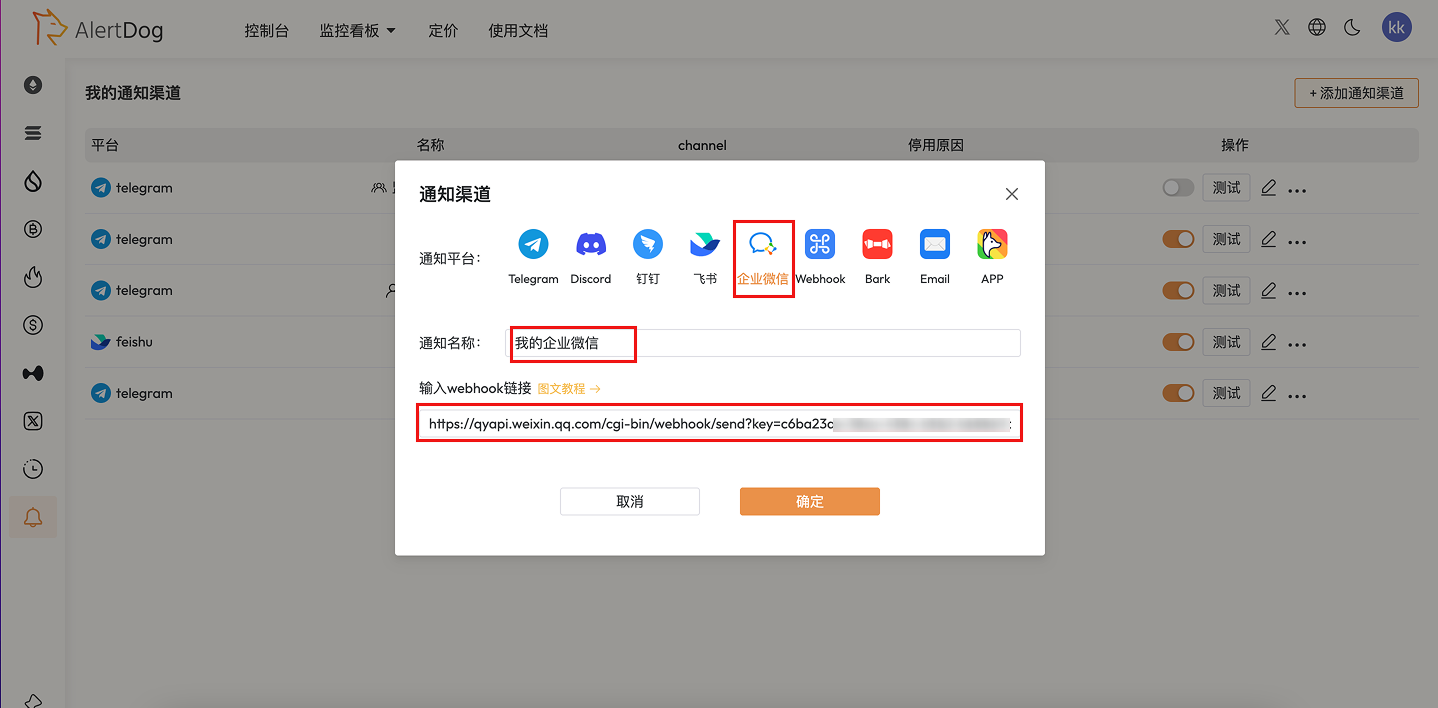
Open AlertDog **Add New Channel** -> **WeCom** -> **Enter the Webhook address from the previous step** -> **Confirm**
<Frame caption="Test Notification Success">
  <img src="https://mintcdn.com/alertdog/RCBluHwjsDCzwhrG/images/notification-channels/wx/workwechat-test-notification.png?fit=max&auto=format&n=RCBluHwjsDCzwhrG&q=85&s=28e853e9fe90421be5d8caa3ba0883c8" alt="WeChat Work test notification success interface" width="1438" height="708" data-path="images/notification-channels/wx/workwechat-test-notification.png" />
</Frame>

## Step 3: Creation Complete

After successful connection, the notification channel has been successfully added and will appear in the notification channel list