> ## Documentation Index
> Fetch the complete documentation index at: https://docs.alertdog.io/llms.txt
> Use this file to discover all available pages before exploring further.
# Quick Start
> Get started with AlertDog monitoring system from scratch
AlertDog is a WEB3 on-chain monitoring and alert system that helps you track wallet addresses, token transactions, and on-chain activities in real-time, enabling you to seize market opportunities at the first moment.
The following example demonstrates how to monitor a smart wallet on BSC chain, showing you how to track every move of the wallet on-chain.
## Step 1: Sign In
Visit [AlertDog Homepage](https://alertdog.io), click the "Get Started" button, and sign in with your Web3 wallet or Google account.
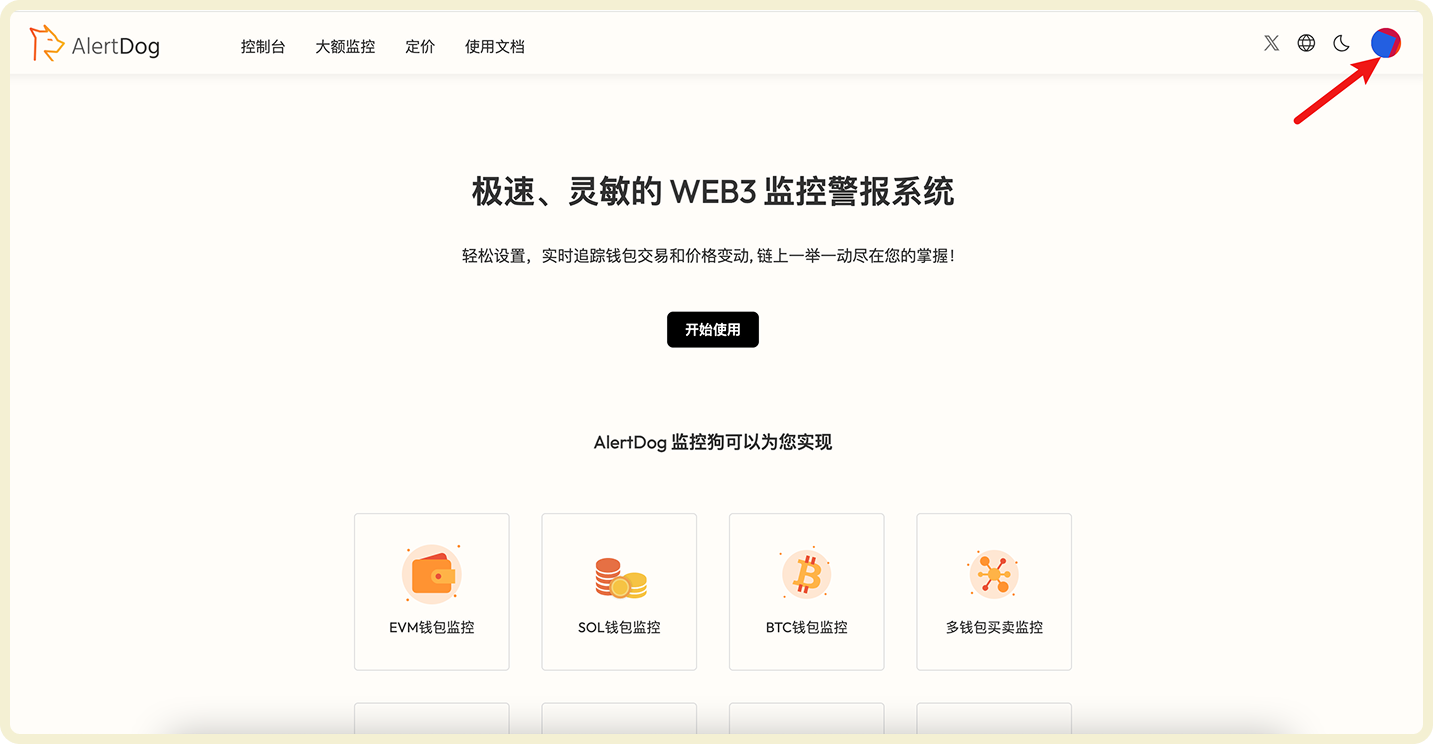
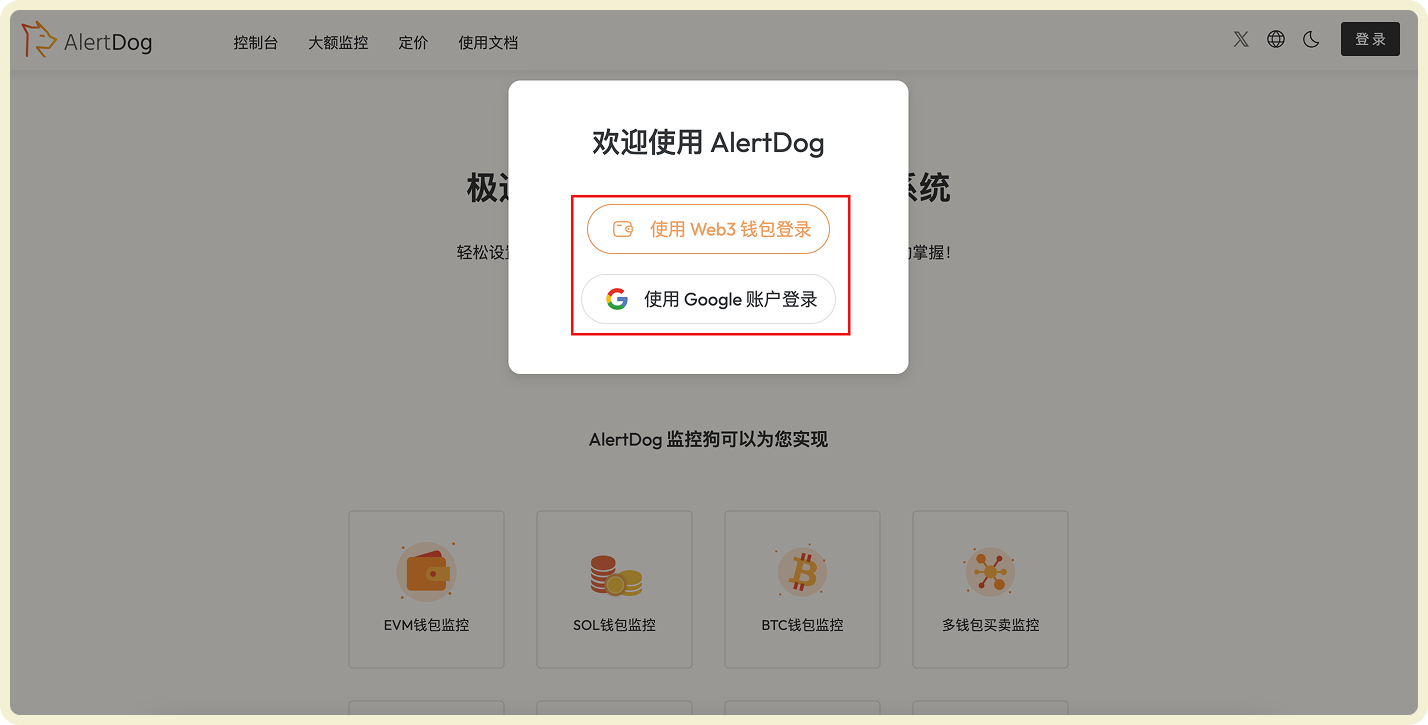 After successful sign in, you will see your user avatar in the top right corner.
 ## Step 2: Add Notification Channel
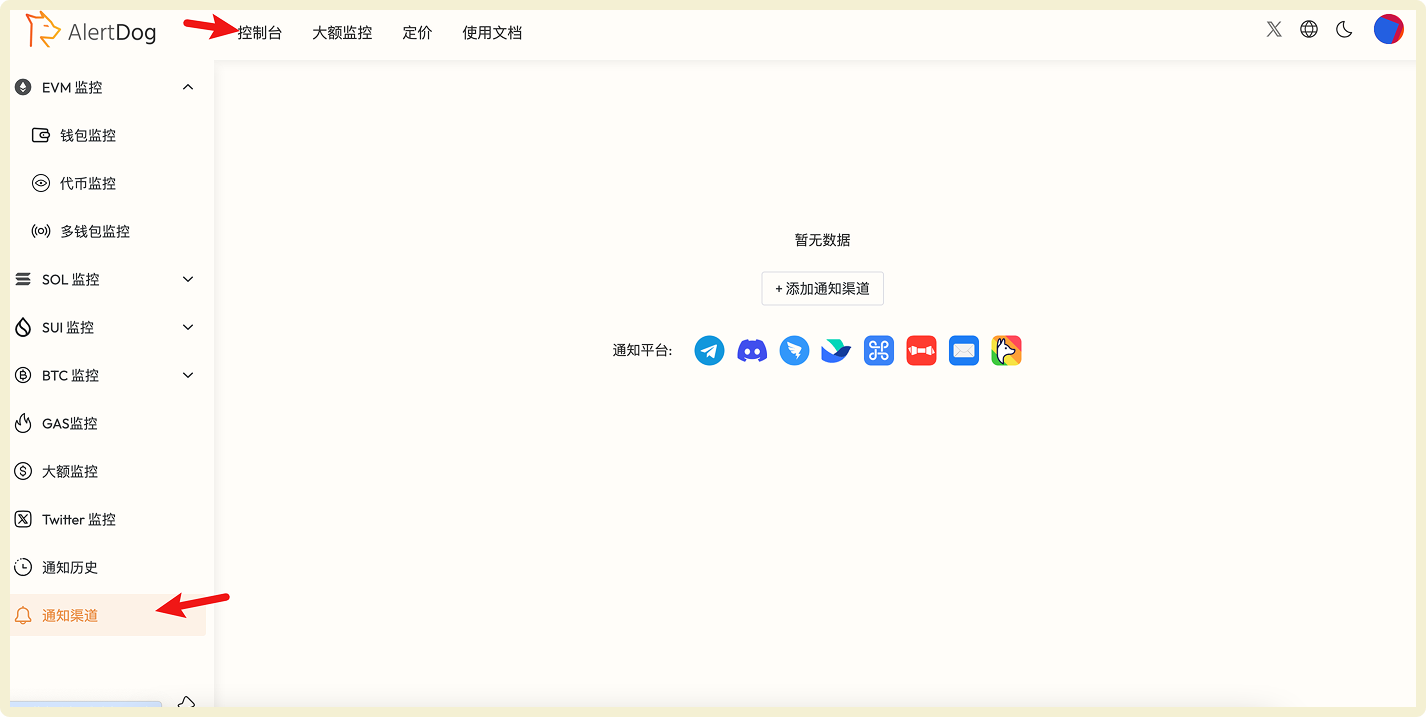
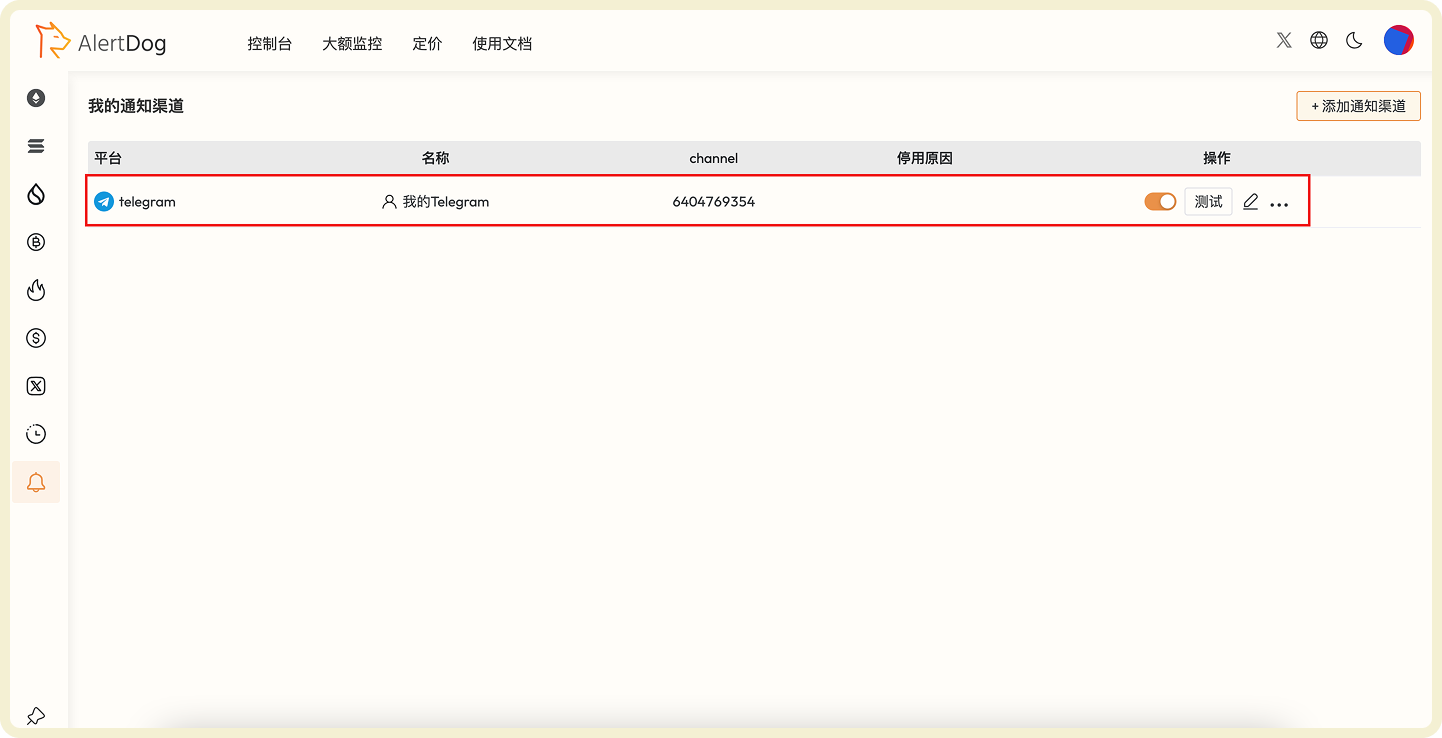
Click "Console" in the top left corner, find the "Notification Channels" option in the left sidebar.
## Step 2: Add Notification Channel
Click "Console" in the top left corner, find the "Notification Channels" option in the left sidebar.
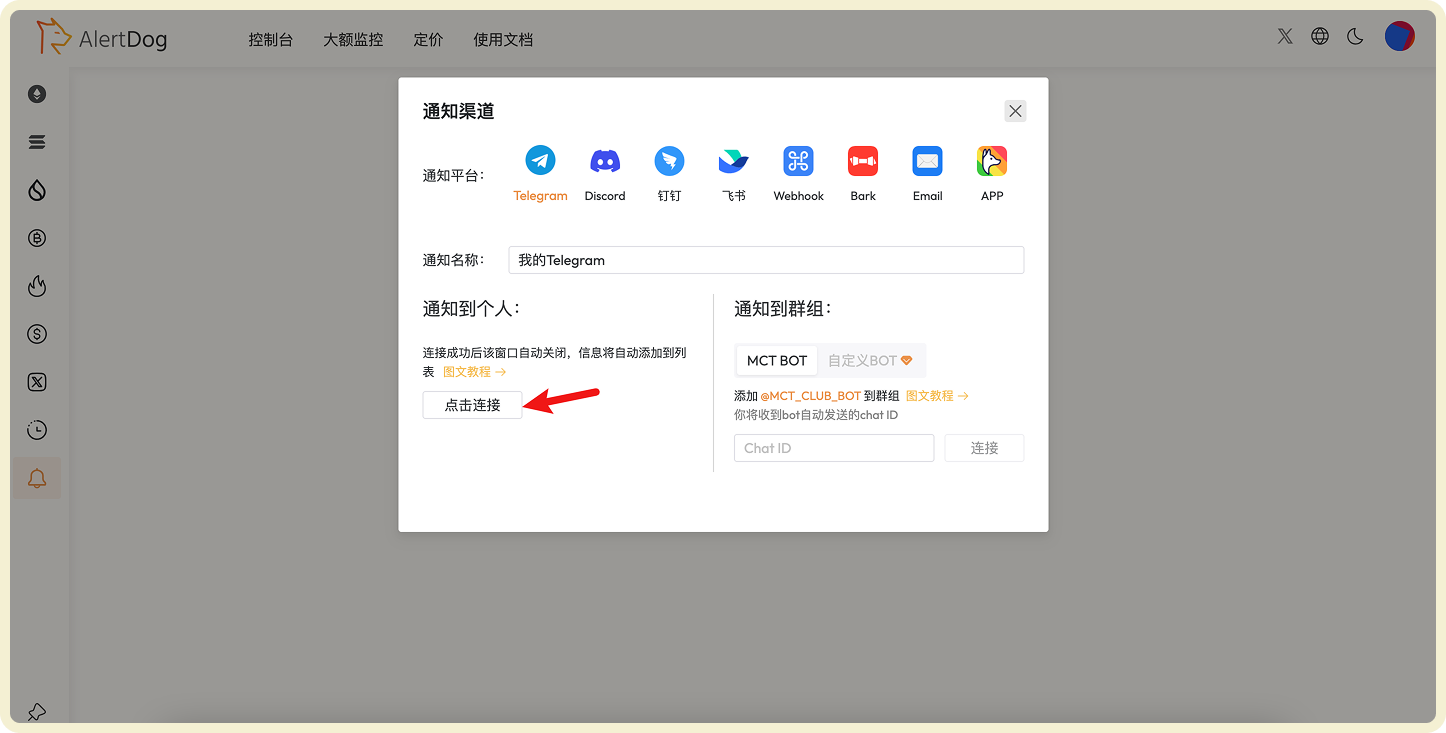
 Click "Add Notification Channel", using Telegram as an example, click "Connect" and follow the prompts to bind Telegram.
 The notification channel is successfully added when it appears in the list.
 ## Step 3: Add Monitor
Hover over the left sidebar, select **EVM Monitoring** → **Address Monitoring**, and click "Add Monitor".
## Step 3: Add Monitor
Hover over the left sidebar, select **EVM Monitoring** → **Address Monitoring**, and click "Add Monitor".
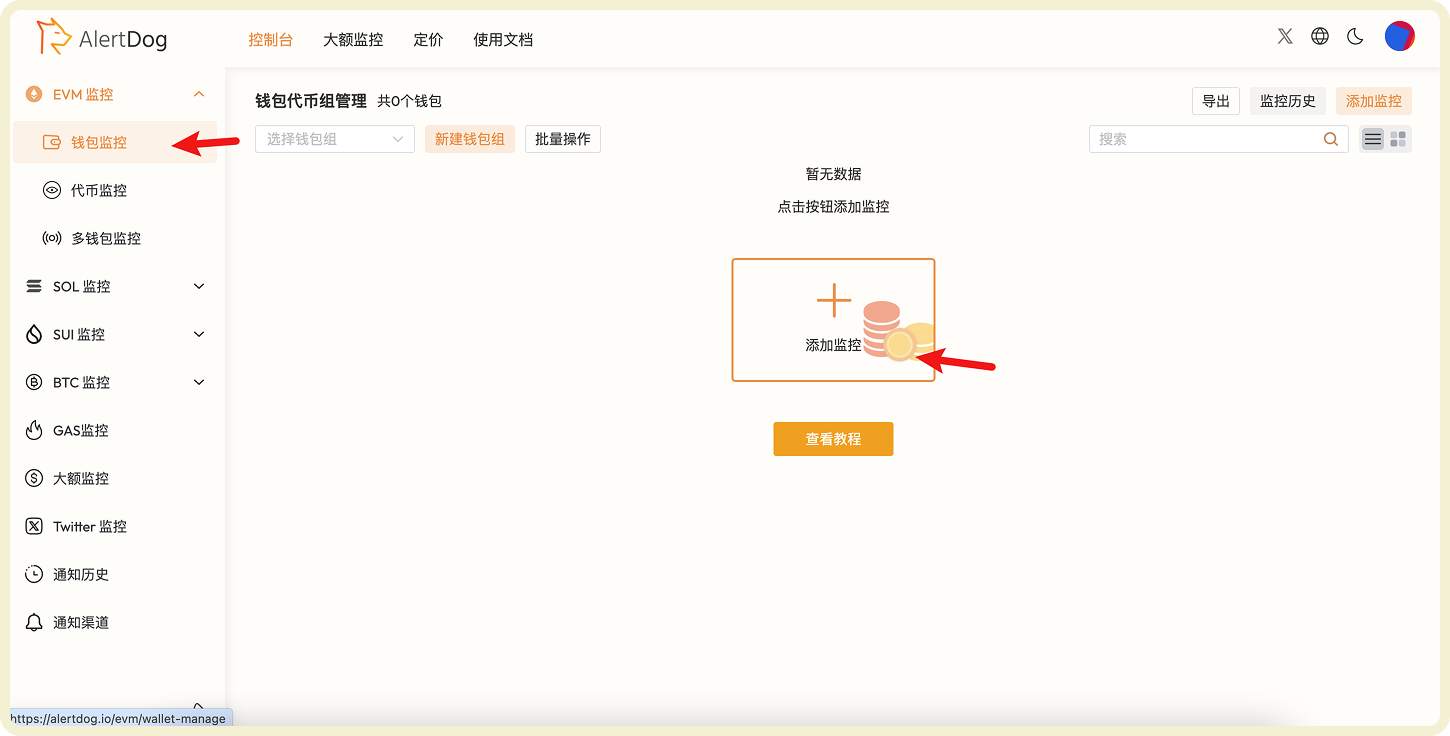 Fill in the monitoring form according to your needs as shown in the example. The example below can monitor all token activities of the wallet on BSC chain, click confirm after filling.
 ## Step 4: Receive Notifications
Once the wallet performs an action that meets the monitoring conditions, you will receive an alert immediately.
## Step 4: Receive Notifications
Once the wallet performs an action that meets the monitoring conditions, you will receive an alert immediately.
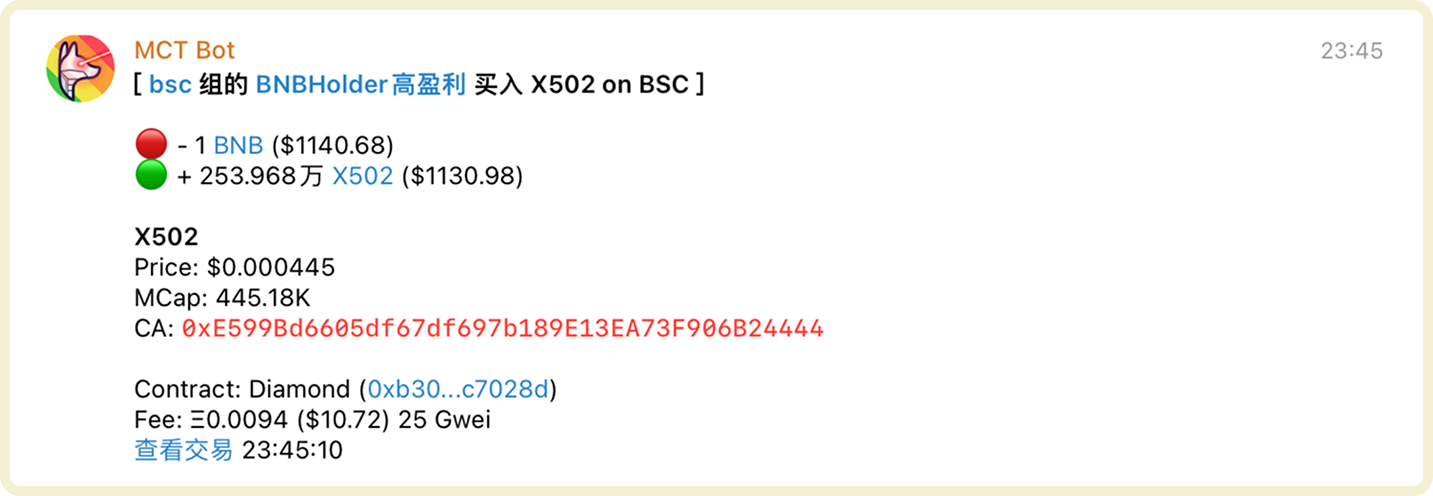 Congratulations! You have successfully set up your first monitoring task, now let's get started
## Next Steps
Monitor whale holdings changes in real-time, capture large transfer activities, quickly discover market signals.
One-stop monitoring of BTC, runes, and inscriptions in BTC wallets, comprehensive tracking of asset changes.
Congratulations! You have successfully set up your first monitoring task, now let's get started
## Next Steps
Monitor whale holdings changes in real-time, capture large transfer activities, quickly discover market signals.
One-stop monitoring of BTC, runes, and inscriptions in BTC wallets, comprehensive tracking of asset changes.