> ## Documentation Index
> Fetch the complete documentation index at: https://docs.alertdog.io/llms.txt
> Use this file to discover all available pages before exploring further.

# Sign In

> Support wallet login and Google account login, no complex registration required, start on-chain smart monitoring in seconds.

## Wallet Login
<Steps>
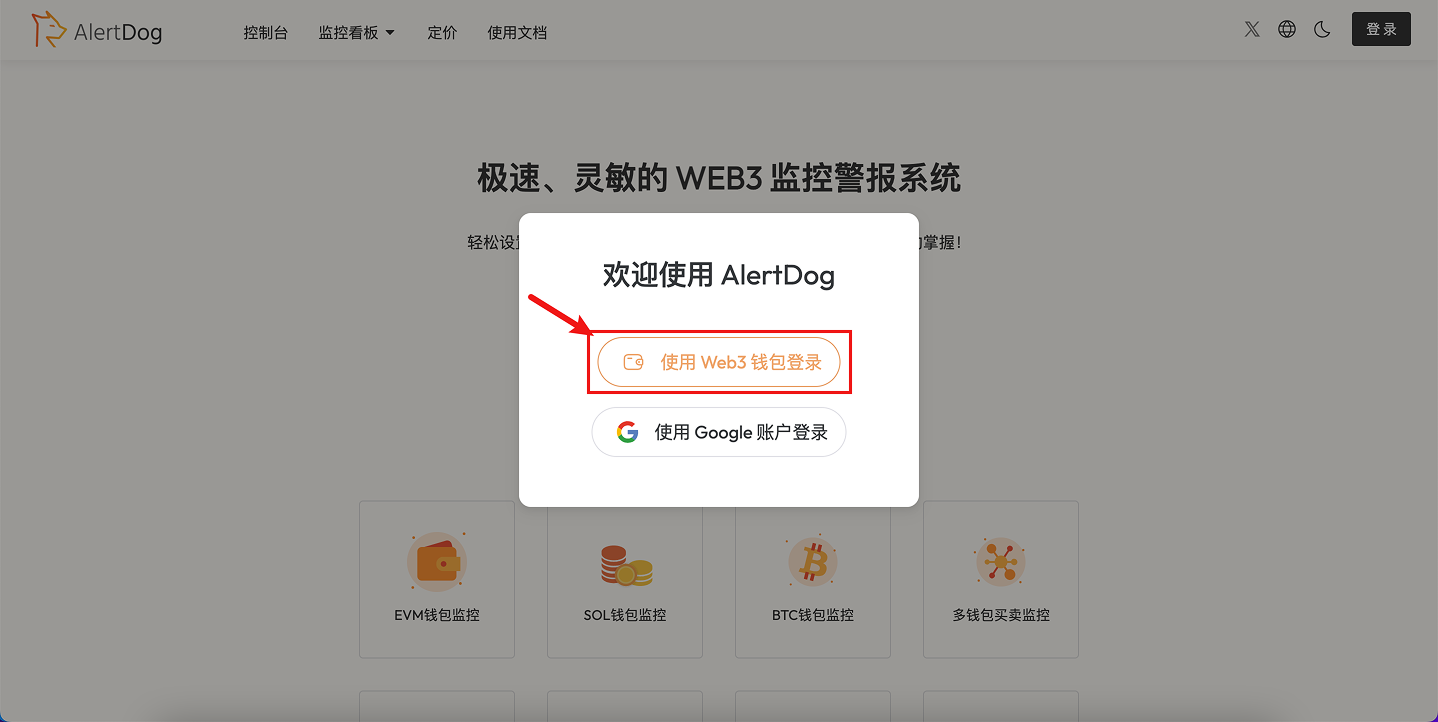
  <Step title="Choose to Sign In with Web3 Wallet">
    <Frame caption="Choose Web3 Wallet Sign In">
      <img src="https://mintcdn.com/alertdog/1TGpfP_Y7Ppxat3A/images/signin/wallet-login-select.png?fit=max&auto=format&n=1TGpfP_Y7Ppxat3A&q=85&s=fb6308b1ee6be599eb8800fa3f7601ea" alt="AlertDog sign in page showing Web3 wallet sign in option" width="1438" height="722" data-path="images/signin/wallet-login-select.png" />
    </Frame>

    Select the wallet you want to sign in with
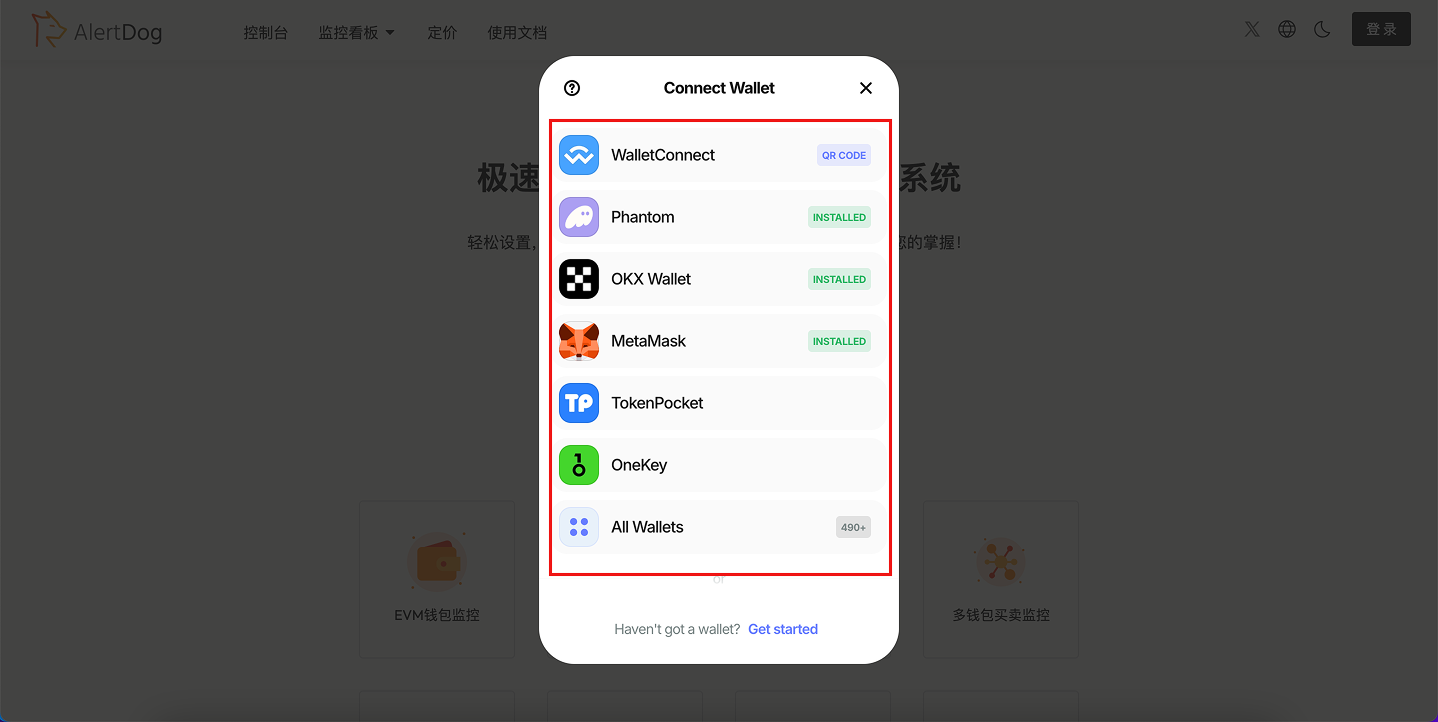
    <Frame caption="Select Wallet Type">
      <img src="https://mintcdn.com/alertdog/RCBluHwjsDCzwhrG/images/signin/wallet-list-selection.png?fit=max&auto=format&n=RCBluHwjsDCzwhrG&q=85&s=517eb71017fddcf99b4236e29ad03aa9" alt="Wallet selection list showing MetaMask, WalletConnect and other options" width="1438" height="722" data-path="images/signin/wallet-list-selection.png" />
    </Frame>
  </Step>

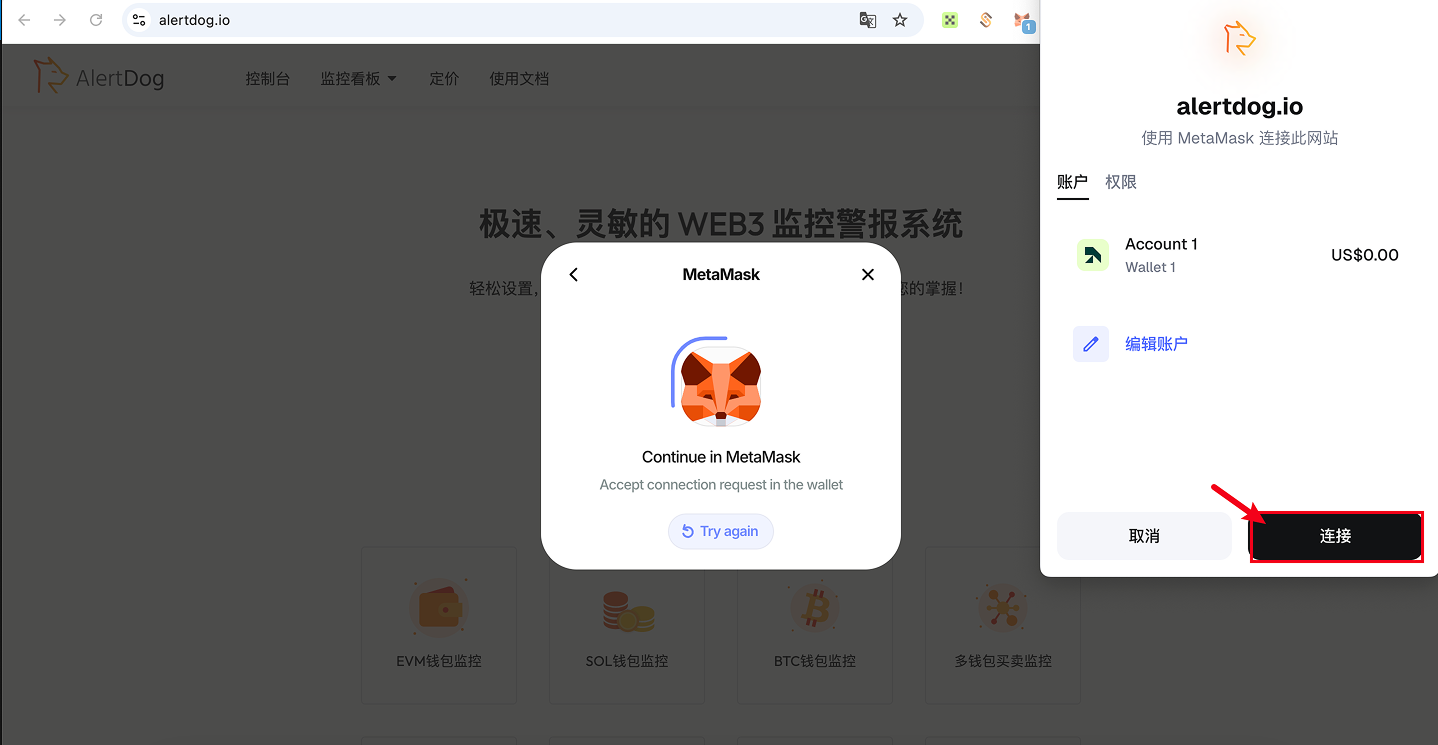
  <Step title="Connect and Authorize">
    <Frame caption="Wallet Connection Request">
      <img src="https://mintcdn.com/alertdog/RCBluHwjsDCzwhrG/images/signin/wallet-connect-request.png?fit=max&auto=format&n=RCBluHwjsDCzwhrG&q=85&s=4a9bbf4d1dabb10f24f5a0dbcee88ff6" alt="Wallet connection authorization request popup" width="1438" height="745" data-path="images/signin/wallet-connect-request.png" />
    </Frame>

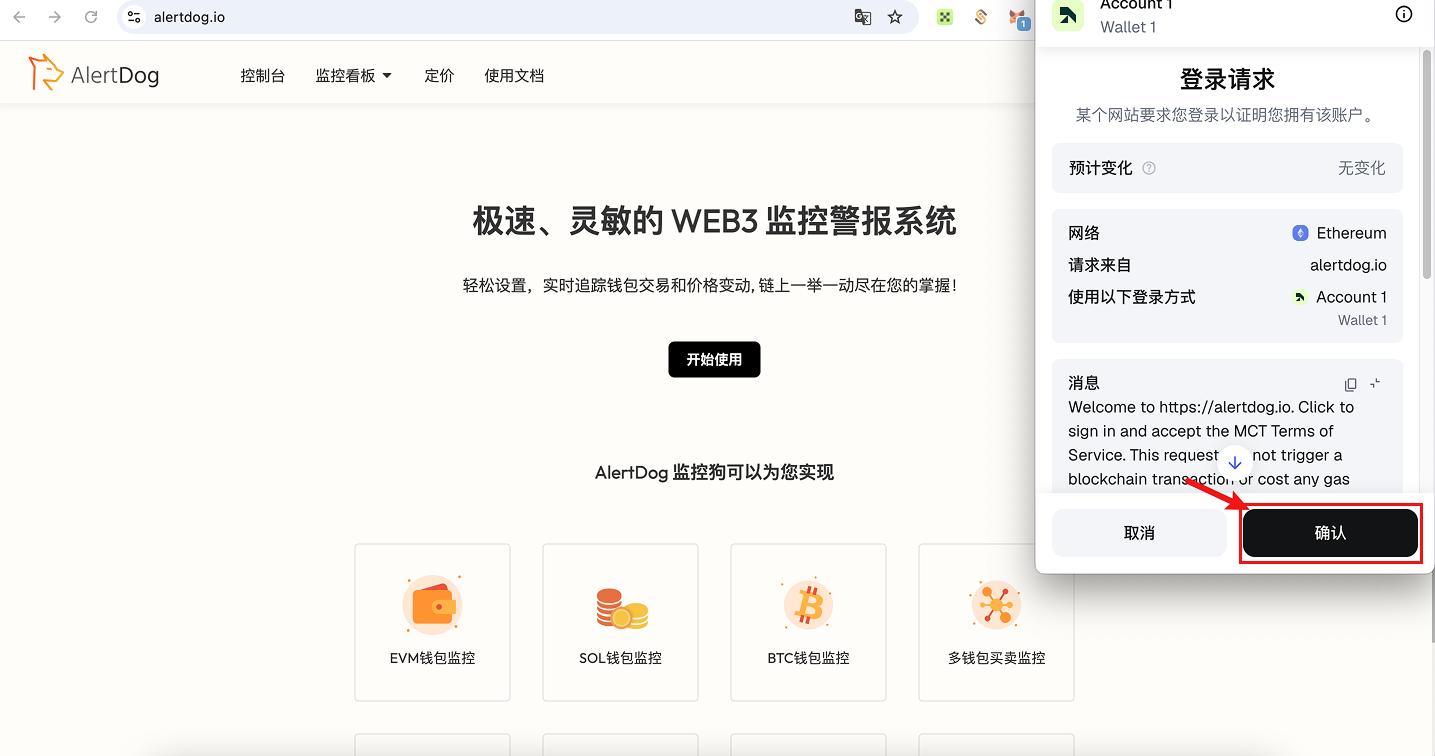
    <Frame caption="Signature Confirmation">
      <img src="https://mintcdn.com/alertdog/1TGpfP_Y7Ppxat3A/images/signin/wallet-signature-confirm.png?fit=max&auto=format&n=1TGpfP_Y7Ppxat3A&q=85&s=a877bf1919d888eabed0f54247c46fa9" alt="Wallet signature confirmation interface" width="1435" height="756" data-path="images/signin/wallet-signature-confirm.png" />
    </Frame>
  </Step>

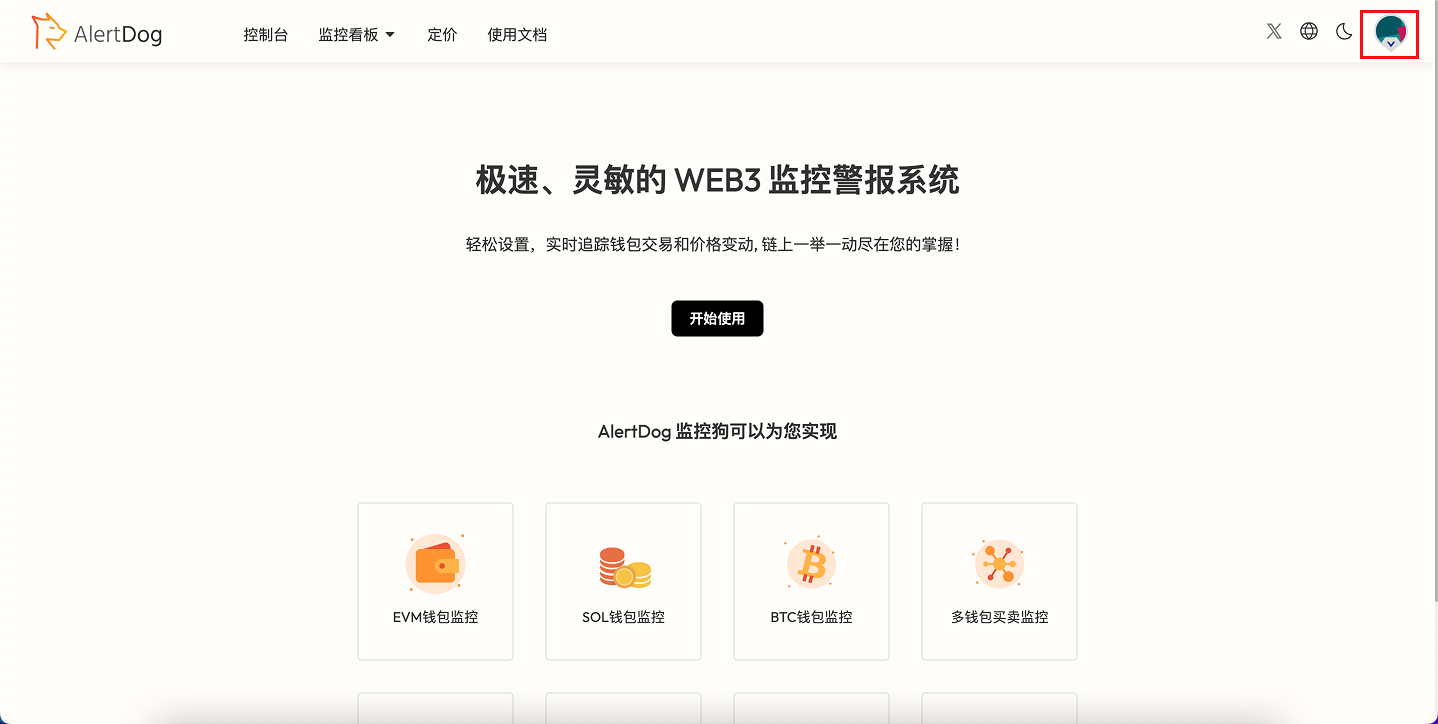
  <Step title="Avatar appears in the top right corner indicating successful sign in">
    <Frame caption="Sign In Success">
      <img src="https://mintcdn.com/alertdog/1TGpfP_Y7Ppxat3A/images/signin/wallet-login-success.png?fit=max&auto=format&n=1TGpfP_Y7Ppxat3A&q=85&s=9bd2b32465245dc41c5243bb24d31159" alt="Interface after successful sign in, showing user avatar in top right corner" width="1438" height="724" data-path="images/signin/wallet-login-success.png" />
    </Frame>
  </Step>
</Steps>

<Note>
  **Wallet unable to confirm authorization?**

  1. Try refreshing the page, restarting the wallet extension, or restarting the browser.

  2. Having multiple wallet extensions enabled simultaneously may cause authorization conflicts. It's recommended to temporarily disable other wallet extensions and keep only one wallet for sign in.
</Note>

## Email Login

<Steps>
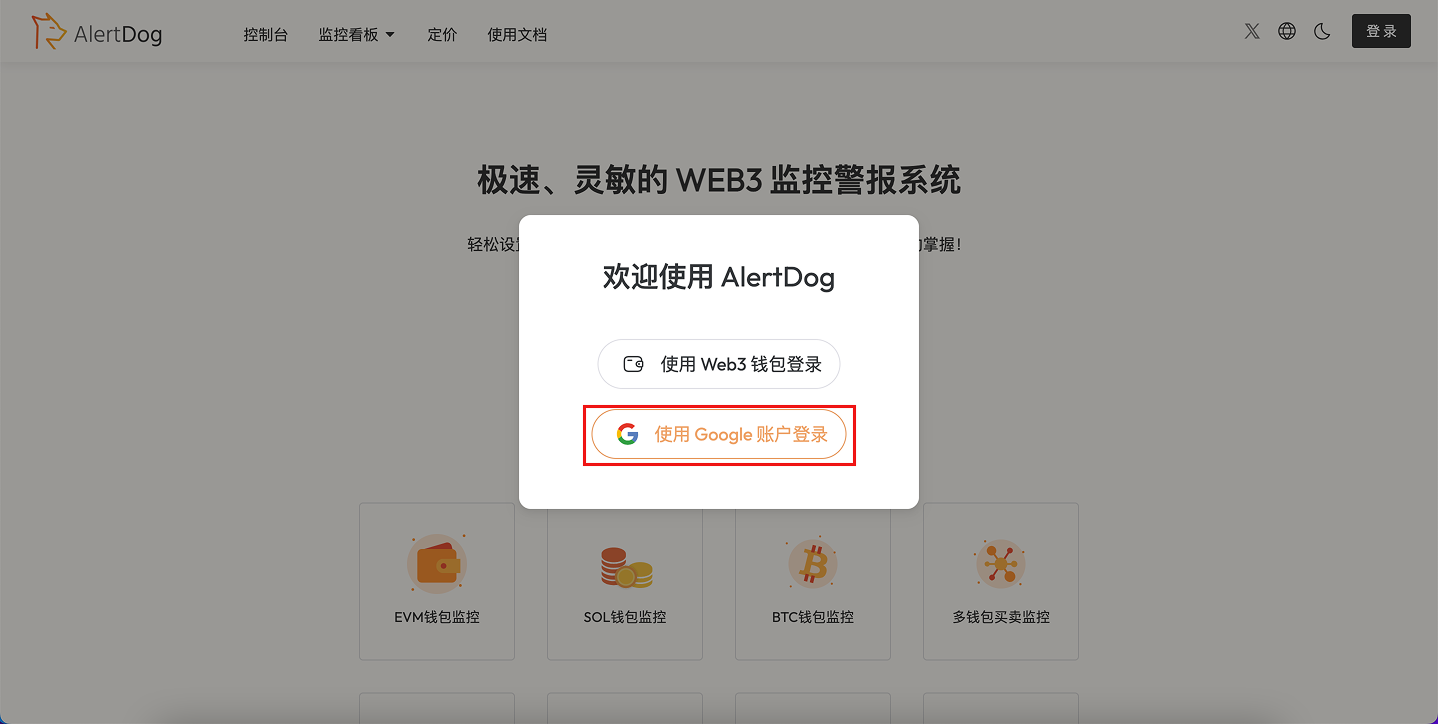
  <Step title="Choose to Sign In with Google Account">
    <Frame caption="Choose Google Account Sign In">
      <img src="https://mintcdn.com/alertdog/RCBluHwjsDCzwhrG/images/signin/google-login-button.png?fit=max&auto=format&n=RCBluHwjsDCzwhrG&q=85&s=6d69ec16ddc77e583700adc4a79e4fd8" alt="AlertDog sign in page showing Google account sign in option" width="1438" height="724" data-path="images/signin/google-login-button.png" />
    </Frame>
  </Step>

  <Step title="Connect and Authorize">
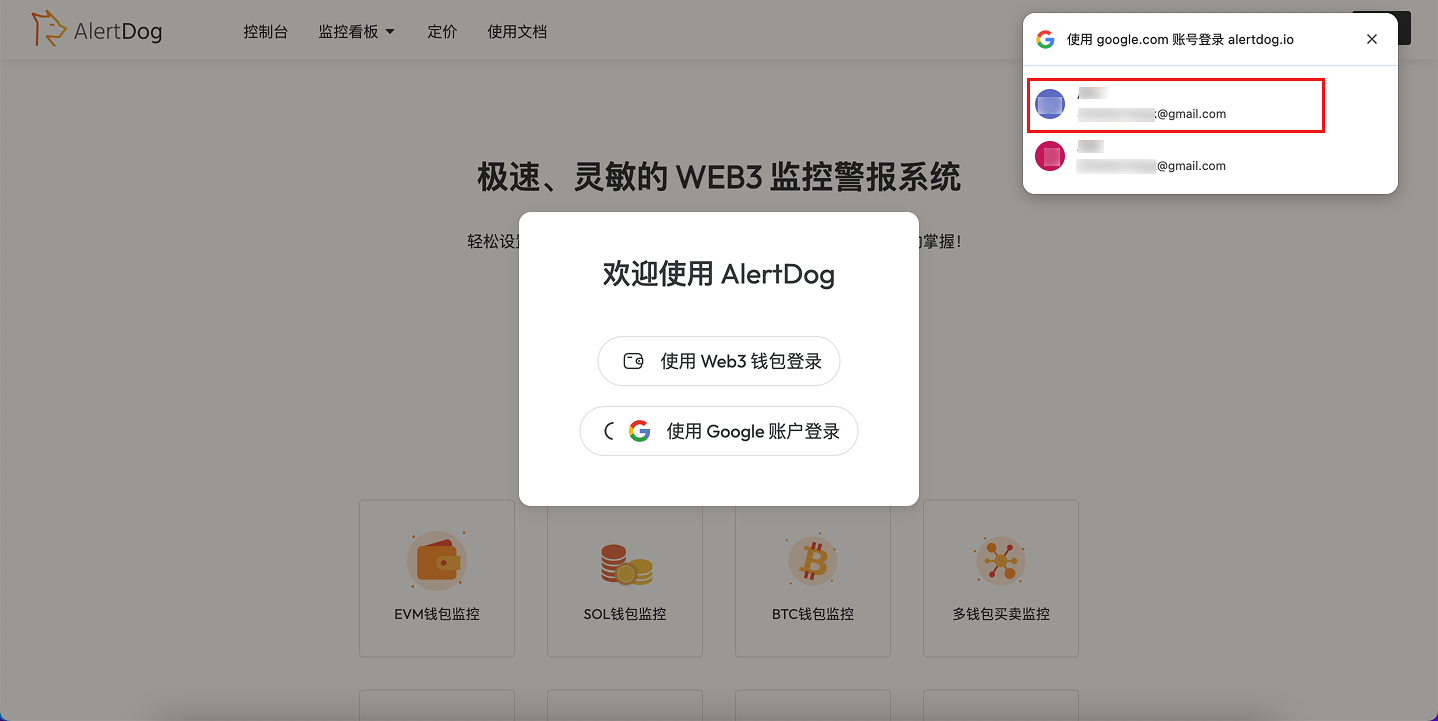
    <Frame caption="Google Account Authorization">
      <img src="https://mintcdn.com/alertdog/RCBluHwjsDCzwhrG/images/signin/google-account-select.png?fit=max&auto=format&n=RCBluHwjsDCzwhrG&q=85&s=b838277a8bf27800f1a097b326d090b8" alt="Google account authorization page, select the account to use" width="1438" height="721" data-path="images/signin/google-account-select.png" />
    </Frame>
  </Step>

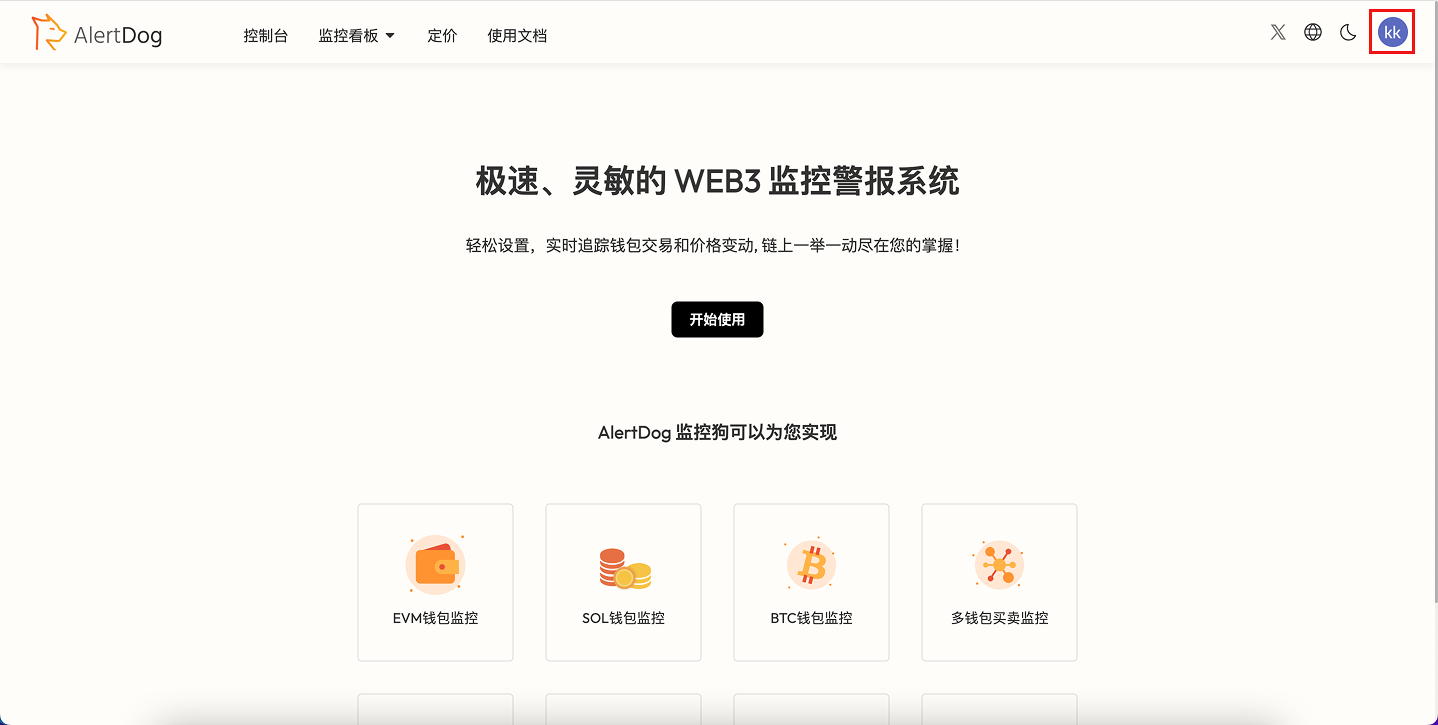
  <Step title="Avatar appears in the top right corner indicating successful sign in">
    <Frame caption="Sign In Success">
      <img src="https://mintcdn.com/alertdog/RCBluHwjsDCzwhrG/images/signin/google-login-success.png?fit=max&auto=format&n=RCBluHwjsDCzwhrG&q=85&s=127bf4d3870ef527a0704e99f11d0954" alt="Google account sign in success, user avatar shown in top right corner" width="1438" height="725" data-path="images/signin/google-login-success.png" />
    </Frame>
  </Step>
</Steps>