> ## Documentation Index
> Fetch the complete documentation index at: https://docs.alertdog.io/llms.txt
> Use this file to discover all available pages before exploring further.

# FeiShu 飞书

> 通过飞书机器人接收 AlertDog 监控报警消息，企业协作平台首选通知方式

简介：飞书是企业级协作平台，支持通过群组机器人推送监控消息，适合团队使用，可以在飞书群组中实时查看监控报警。

## 第一步：创建机器人

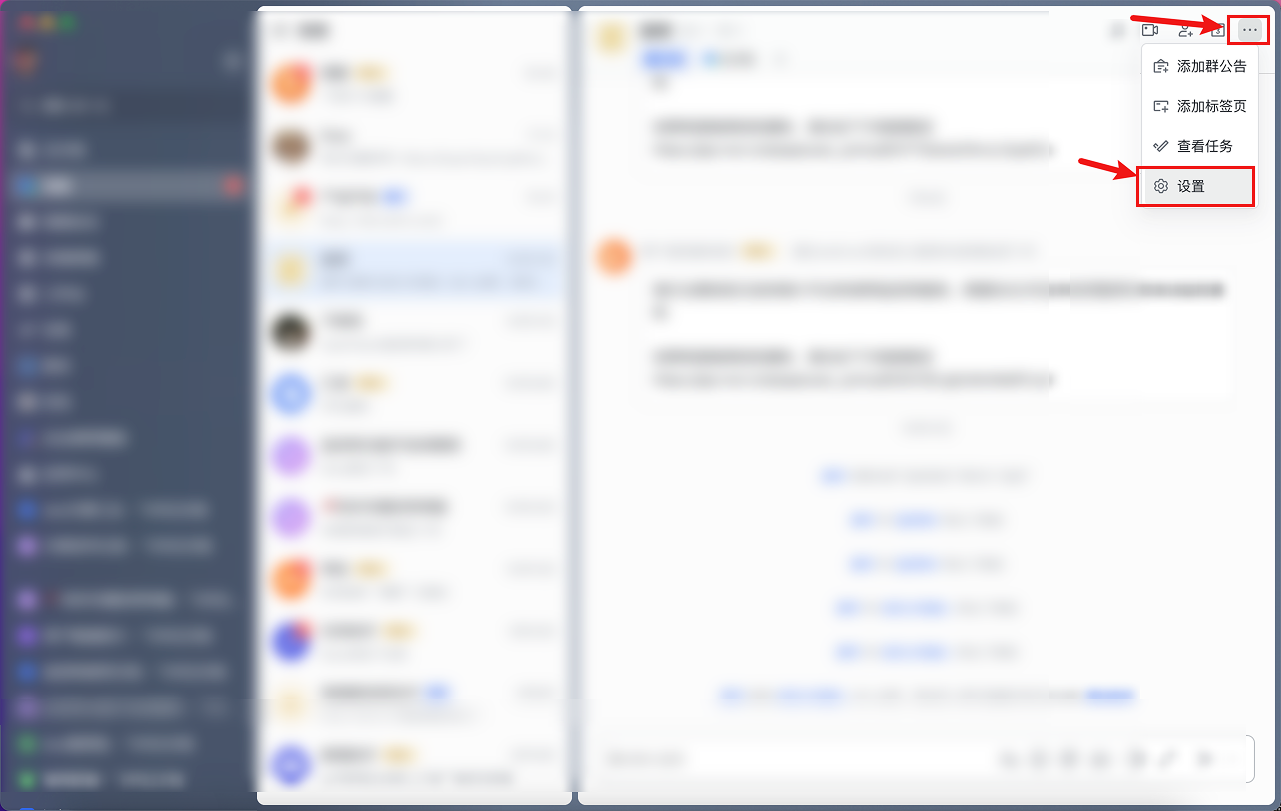
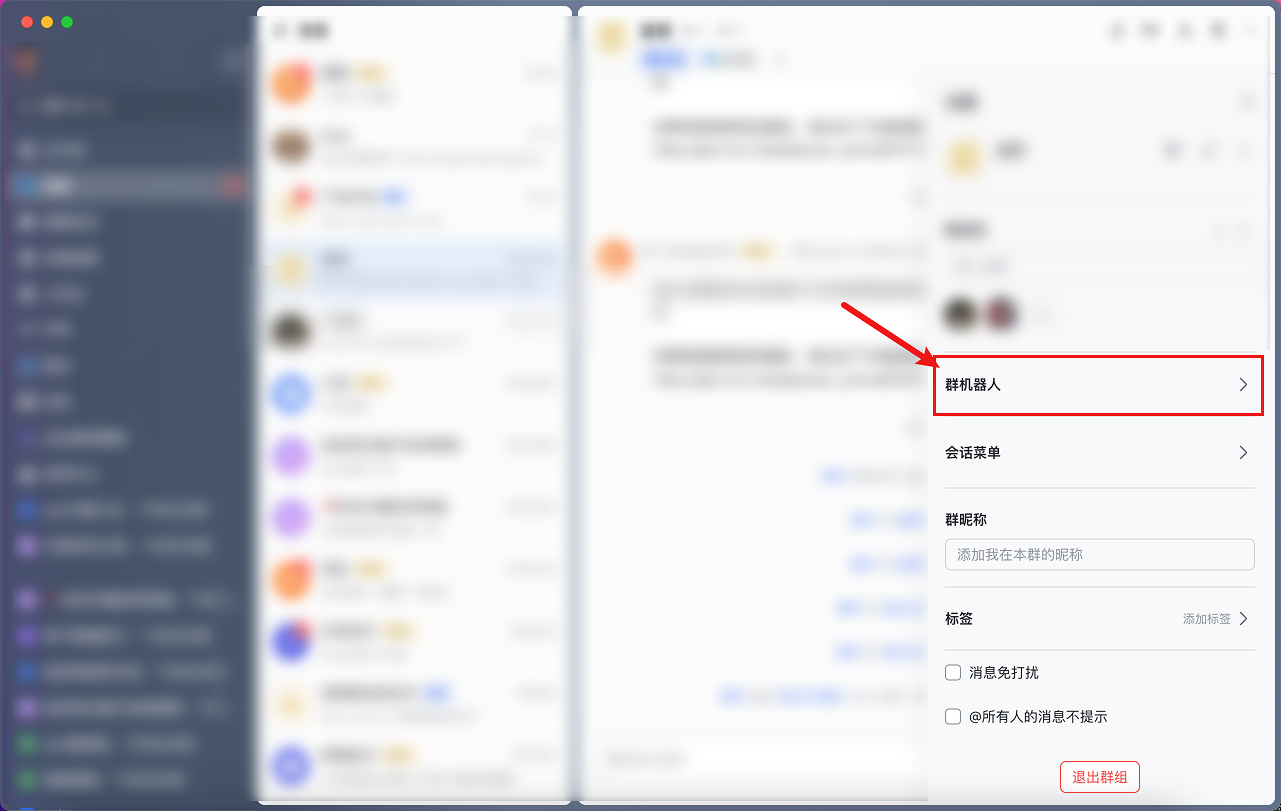
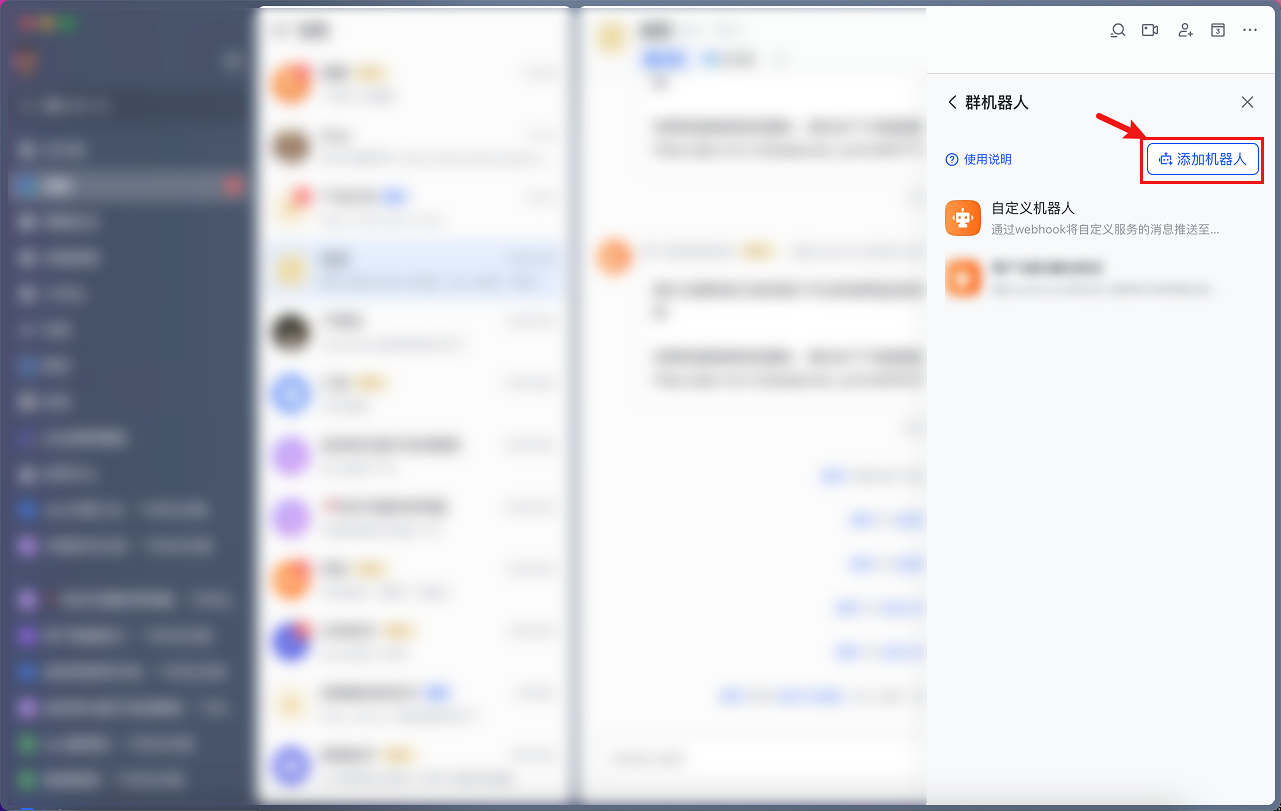
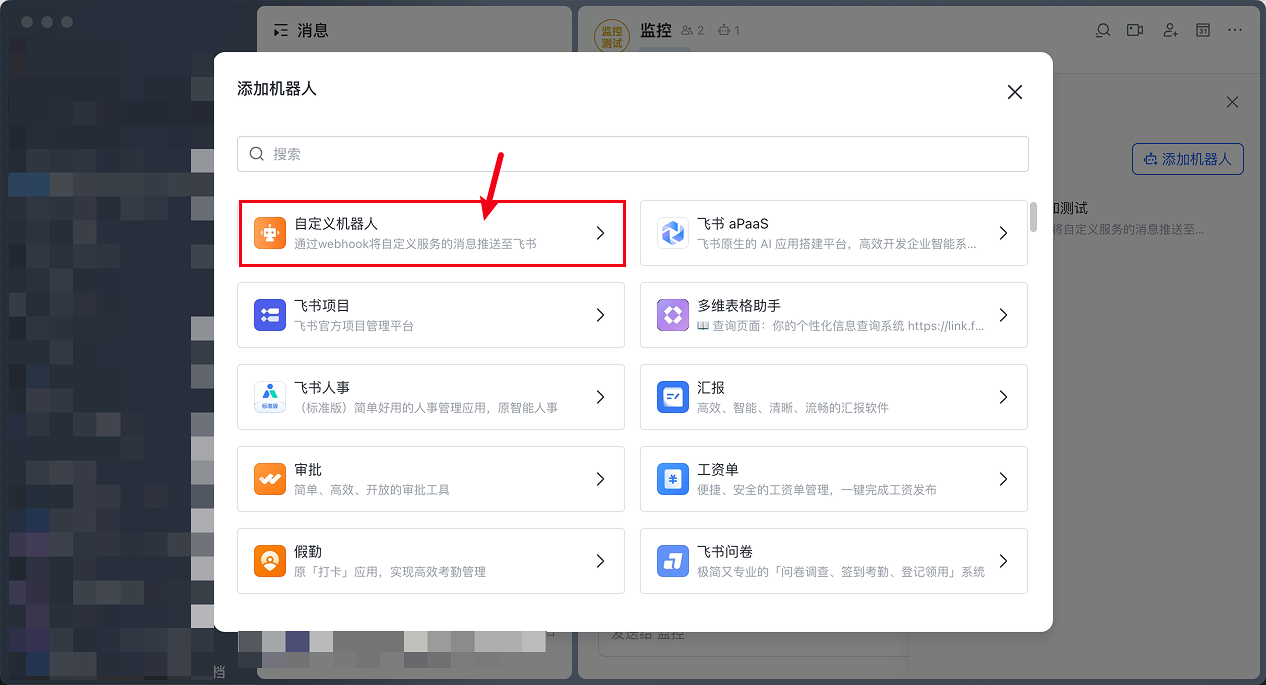
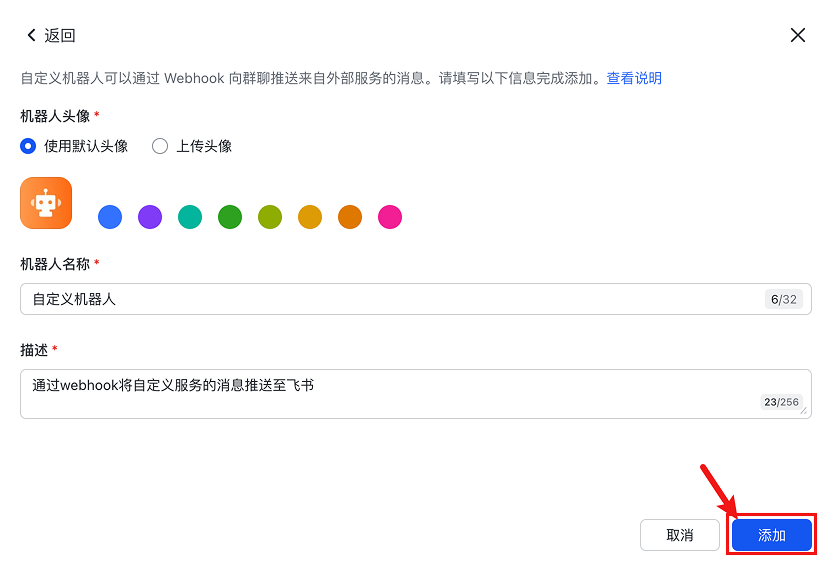
打开飞书，在群组内找到设置，创建机器人

<Frame>
  <img src="https://mintcdn.com/alertdog/RCBluHwjsDCzwhrG/images/notification-channels/feishu/feishu-robot-settings.png?fit=max&auto=format&n=RCBluHwjsDCzwhrG&q=85&s=33913d4555c7add6c29120964a7b0945" alt="飞书群组设置界面，显示机器人管理选项" width="1281" height="811" data-path="images/notification-channels/feishu/feishu-robot-settings.png" />
</Frame>

<Frame>
  <img src="https://mintcdn.com/alertdog/RCBluHwjsDCzwhrG/images/notification-channels/feishu/feishu-add-robot.png?fit=max&auto=format&n=RCBluHwjsDCzwhrG&q=85&s=8c5926bbc7c98a96840b02cb12535576" alt="飞书添加机器人界面，选择自定义机器人" width="1281" height="811" data-path="images/notification-channels/feishu/feishu-add-robot.png" />
</Frame>

<Frame>
  <img src="https://mintcdn.com/alertdog/RCBluHwjsDCzwhrG/images/notification-channels/feishu/feishu-robot-name.png?fit=max&auto=format&n=RCBluHwjsDCzwhrG&q=85&s=256639e13946ec741b9a2467a6e41b42" alt="飞书机器人命名界面，输入机器人名称" width="1281" height="811" data-path="images/notification-channels/feishu/feishu-robot-name.png" />
</Frame>

<Frame>
  <img src="https://mintcdn.com/alertdog/RCBluHwjsDCzwhrG/images/notification-channels/feishu/feishu-create-group.png?fit=max&auto=format&n=RCBluHwjsDCzwhrG&q=85&s=8f994a01a0504e952b1815e79f7d97b5" alt="飞书创建群组界面" width="1266" height="685" data-path="images/notification-channels/feishu/feishu-create-group.png" />
</Frame>

<Frame>
  <img src="https://mintcdn.com/alertdog/RCBluHwjsDCzwhrG/images/notification-channels/feishu/feishu-group-settings.png?fit=max&auto=format&n=RCBluHwjsDCzwhrG&q=85&s=604b34e8705d86364f132bdd24f97a11" alt="飞书群组设置界面，显示机器人配置" width="830" height="567" data-path="images/notification-channels/feishu/feishu-group-settings.png" />
</Frame>

## 第二步：复制密钥和 Webhook URL

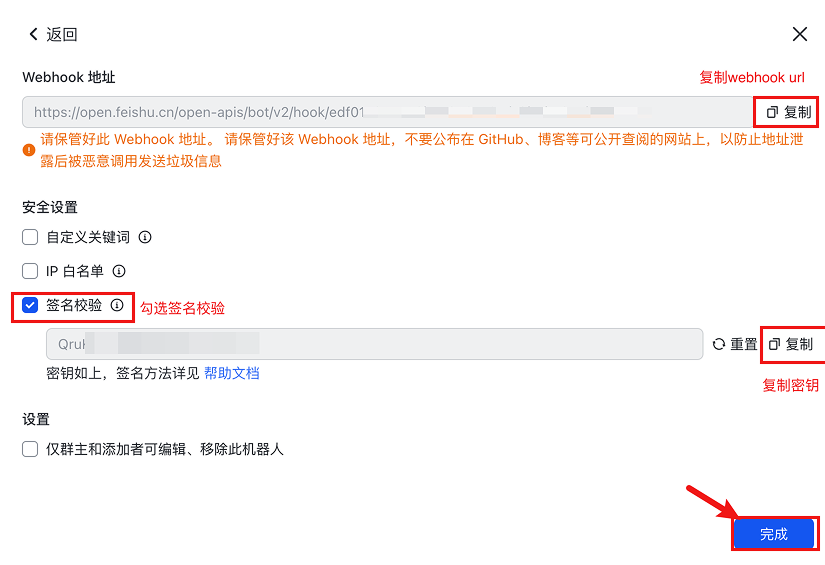
创建完成后，复制密钥和 Webhook URL

<Frame>
  <img src="https://mintcdn.com/alertdog/RCBluHwjsDCzwhrG/images/notification-channels/feishu/feishu-copy-webhook.png?fit=max&auto=format&n=RCBluHwjsDCzwhrG&q=85&s=8ff3396a3a5b46335acc2b30dfc4a25e" alt="飞书机器人 Webhook URL 和密钥复制界面" width="825" height="565" data-path="images/notification-channels/feishu/feishu-copy-webhook.png" />
</Frame>

<Frame>
  <img src="https://mintcdn.com/alertdog/RCBluHwjsDCzwhrG/images/notification-channels/feishu/feishu-alertdog-config.png?fit=max&auto=format&n=RCBluHwjsDCzwhrG&q=85&s=1e04d714906204d94e102d5ea116cb84" alt="AlertDog 中配置飞书通知渠道，输入 Webhook 和密钥" width="1418" height="703" data-path="images/notification-channels/feishu/feishu-alertdog-config.png" />
</Frame>

## 第三步：创建通知渠道

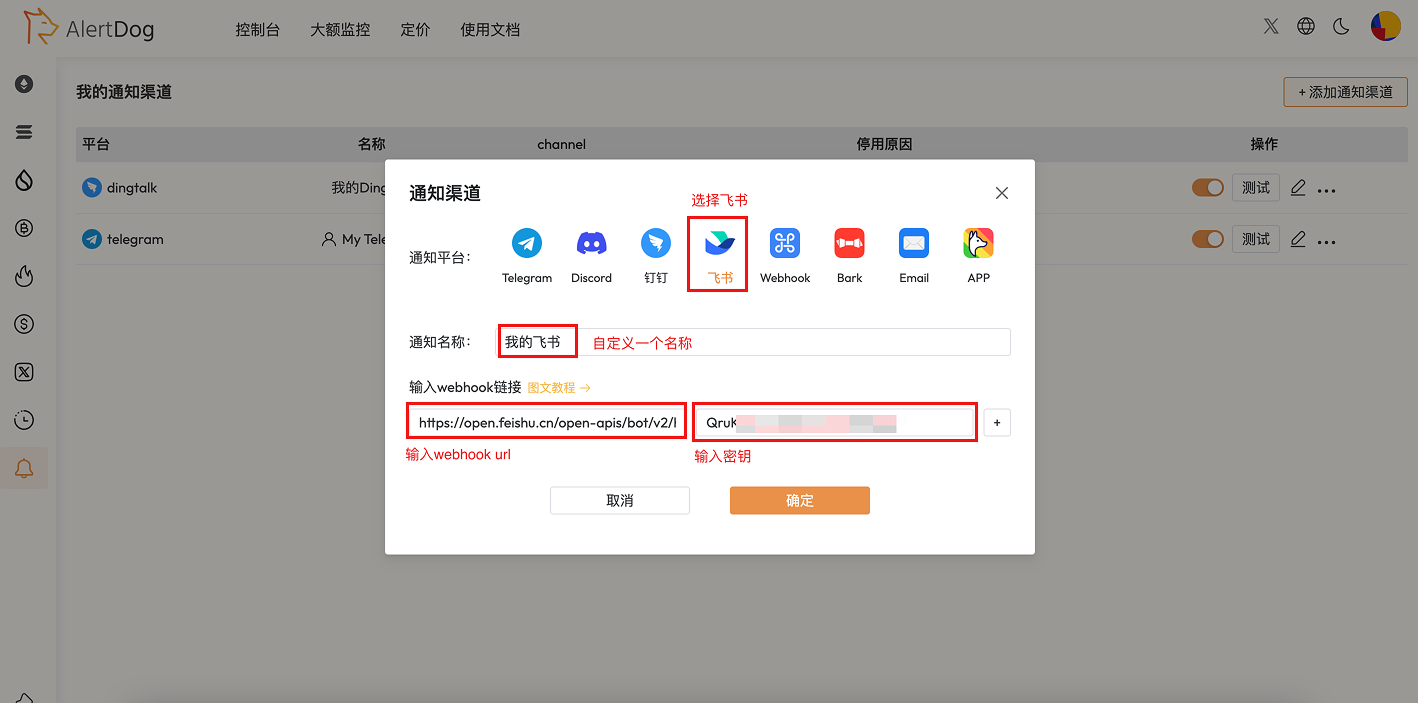
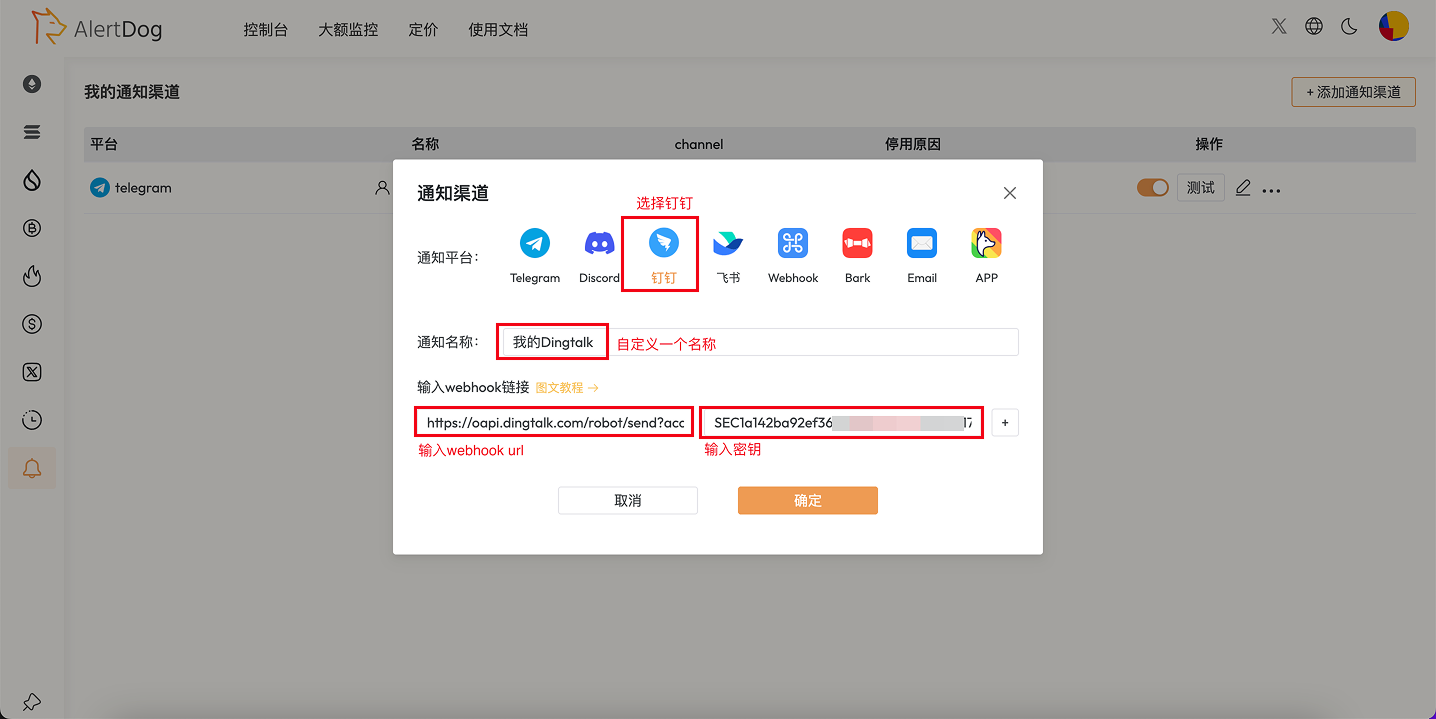
打开 AlertDog，选择飞书，输入密钥和 Webhook URL，确认即可

<Frame caption="创建通知渠道">
  <img src="https://mintcdn.com/alertdog/NmTmCeFNBk4WSdFg/images/notification-channels/dingtalk/dingtalk-alertdog-config.png?fit=max&auto=format&n=NmTmCeFNBk4WSdFg&q=85&s=43c3ad4bde8afcf406e4066e17f7f998" alt="创建通知渠道" width="1436" height="719" data-path="images/notification-channels/dingtalk/dingtalk-alertdog-config.png" />
</Frame>

<Note>
  你需要在飞书群组中添加自定义机器人，然后将机器人的 Webhook URL 复制到 AlertDog 中。
</Note>

使用说明：配置完成后，你可以在创建监控任务时选择飞书作为通知方式。监控触发时，消息将推送到指定的飞书群组。

## 常见问题

<AccordionGroup>
  <Accordion title="如何在飞书中添加机器人？">
    在飞书群组设置 → 群机器人 → 添加机器人 → 自定义机器人中创建并获取 Webhook URL。
  </Accordion>

  <Accordion title="可以添加多个飞书群组吗？">
    可以。你可以为不同的飞书群组配置多个 Webhook，实现分类通知。
  </Accordion>

  <Accordion title="飞书机器人有消息频率限制吗？">
    飞书机器人有一定的频率限制，具体限制请参考飞书官方文档。
  </Accordion>
</AccordionGroup>