> ## Documentation Index
> Fetch the complete documentation index at: https://docs.alertdog.io/llms.txt
> Use this file to discover all available pages before exploring further.

# 注册登录

> 支持 钱包登录 与 Google 账号登录，无需繁琐注册，几秒即可开启链上智能监控。

## 钱包登录

<Steps>
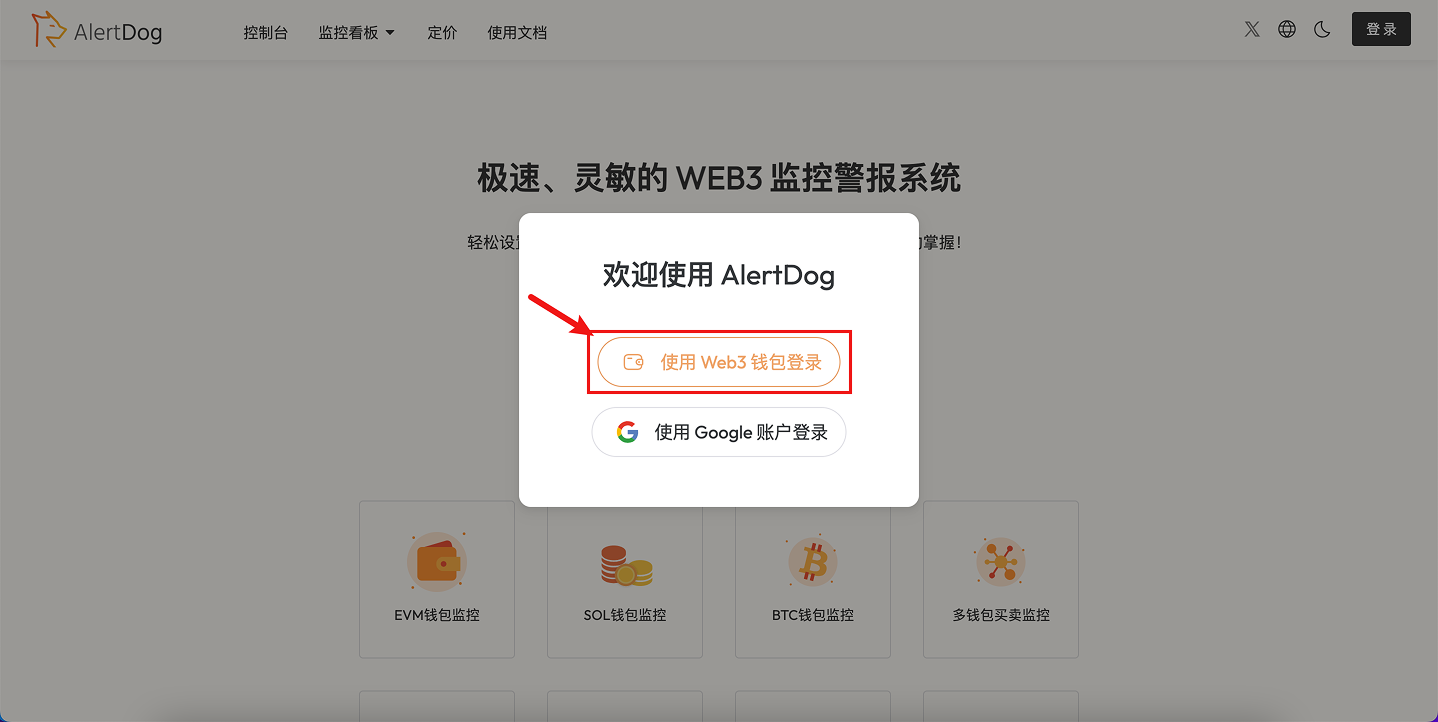
  <Step title="选择使用 Web3 钱包登录">
    <Frame caption="选择 Web3 钱包登录">
      <img src="https://mintcdn.com/alertdog/1TGpfP_Y7Ppxat3A/images/signin/wallet-login-select.png?fit=max&auto=format&n=1TGpfP_Y7Ppxat3A&q=85&s=fb6308b1ee6be599eb8800fa3f7601ea" alt="AlertDog 登录页面，显示 Web3 钱包登录选项" width="1438" height="722" data-path="images/signin/wallet-login-select.png" />
    </Frame>

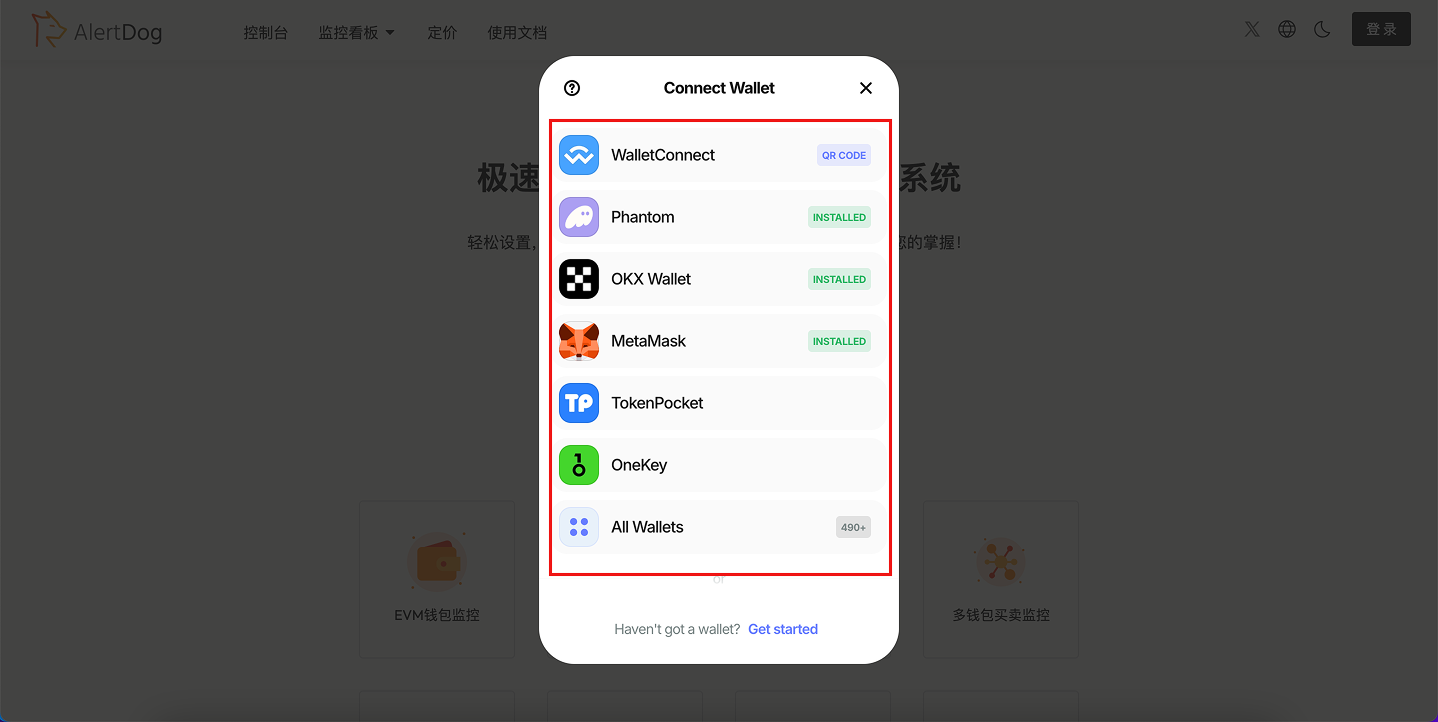
    选择要登录的钱包

    <Frame caption="选择钱包类型">
      <img src="https://mintcdn.com/alertdog/RCBluHwjsDCzwhrG/images/signin/wallet-list-selection.png?fit=max&auto=format&n=RCBluHwjsDCzwhrG&q=85&s=517eb71017fddcf99b4236e29ad03aa9" alt="钱包选择列表，显示 MetaMask、WalletConnect 等选项" width="1438" height="722" data-path="images/signin/wallet-list-selection.png" />
    </Frame>
  </Step>

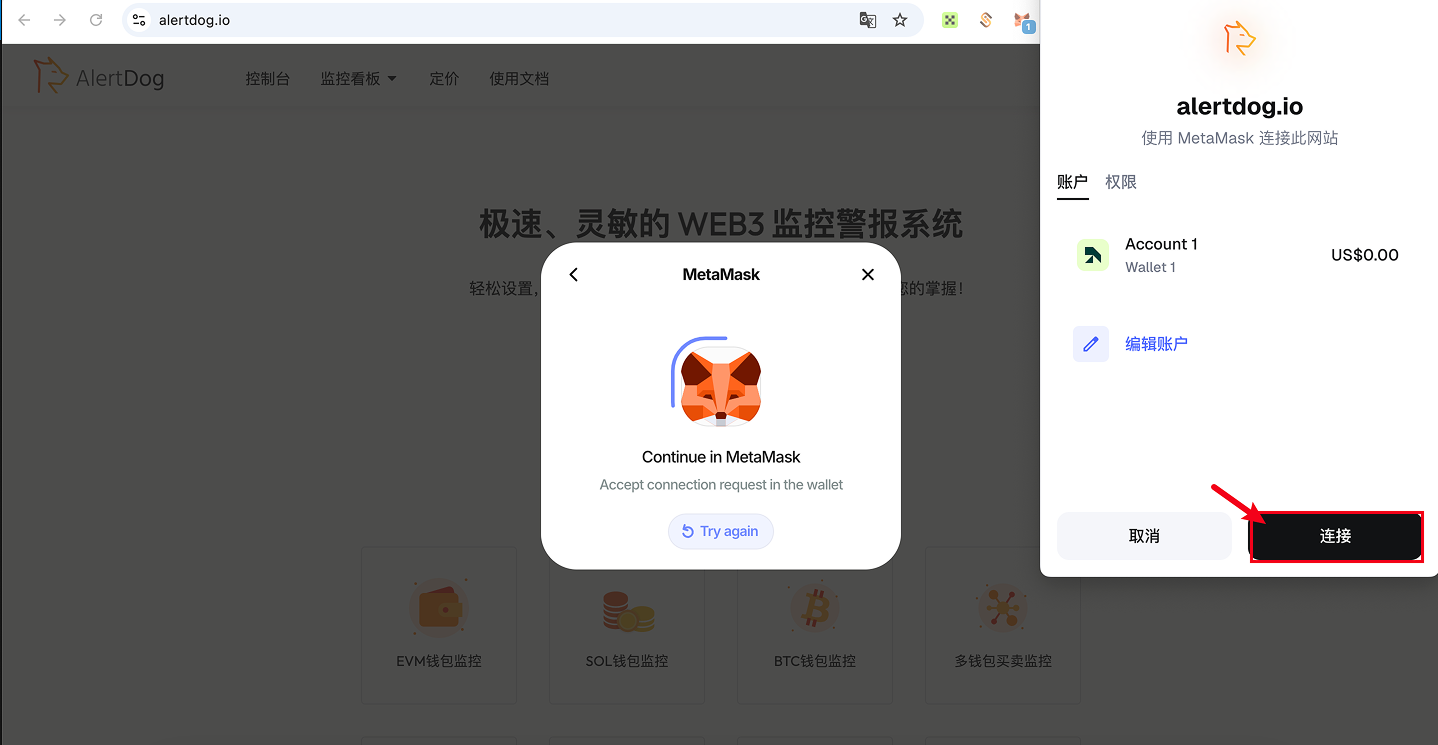
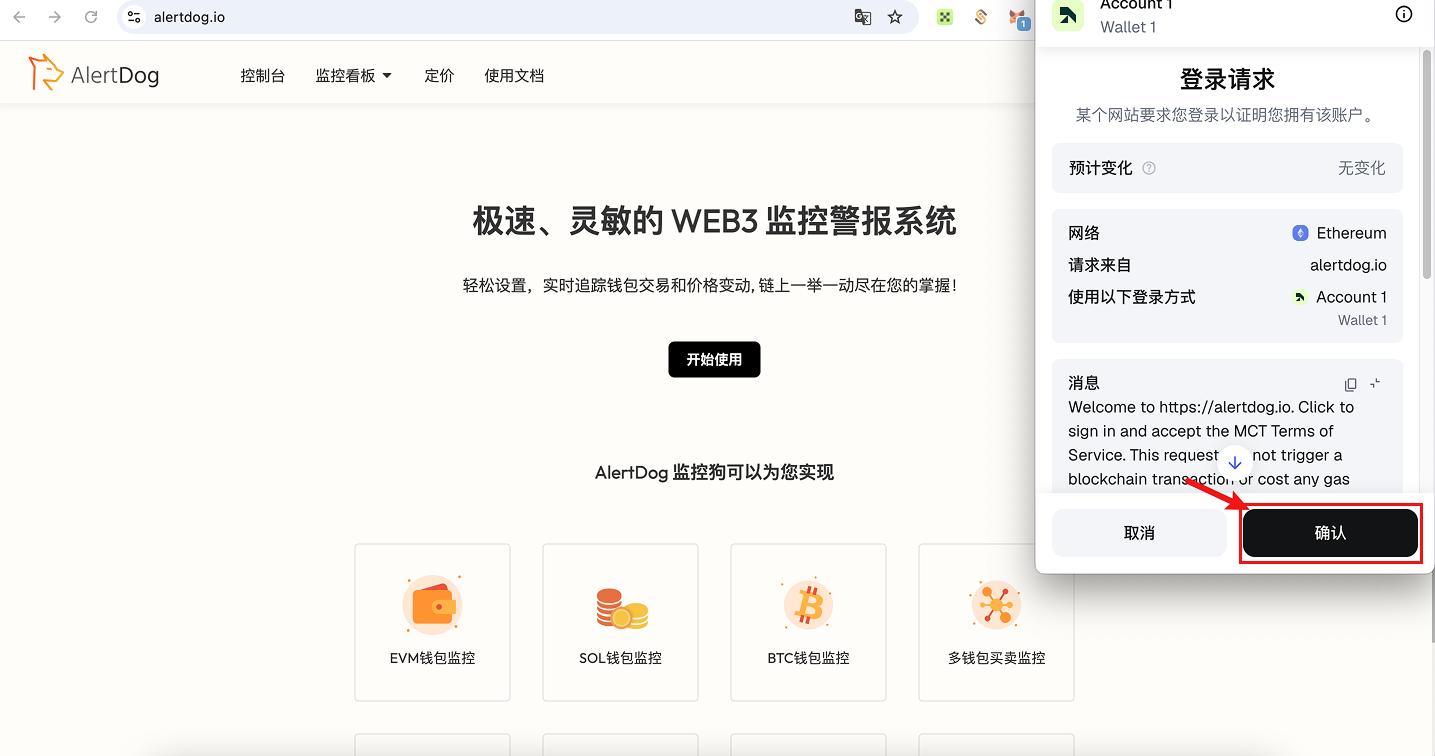
  <Step title="连接授权">
    <Frame caption="钱包连接请求">
      <img src="https://mintcdn.com/alertdog/RCBluHwjsDCzwhrG/images/signin/wallet-connect-request.png?fit=max&auto=format&n=RCBluHwjsDCzwhrG&q=85&s=4a9bbf4d1dabb10f24f5a0dbcee88ff6" alt="钱包连接授权请求弹窗" width="1438" height="745" data-path="images/signin/wallet-connect-request.png" />
    </Frame>

    <Frame caption="签名确认">
      <img src="https://mintcdn.com/alertdog/1TGpfP_Y7Ppxat3A/images/signin/wallet-signature-confirm.png?fit=max&auto=format&n=1TGpfP_Y7Ppxat3A&q=85&s=a877bf1919d888eabed0f54247c46fa9" alt="钱包签名确认界面" width="1435" height="756" data-path="images/signin/wallet-signature-confirm.png" />
    </Frame>
  </Step>

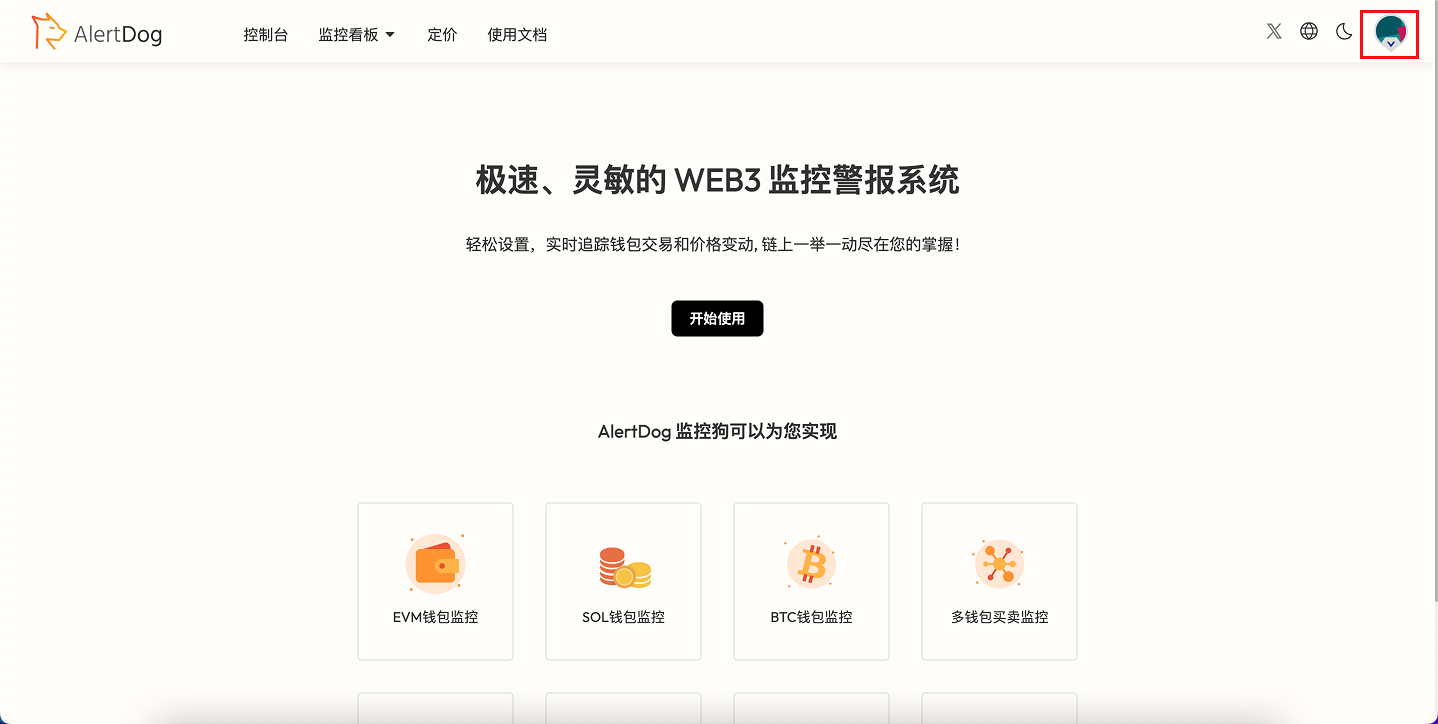
  <Step title="头像出现在右上角即为登录成功">
    <Frame caption="登录成功">
      <img src="https://mintcdn.com/alertdog/1TGpfP_Y7Ppxat3A/images/signin/wallet-login-success.png?fit=max&auto=format&n=1TGpfP_Y7Ppxat3A&q=85&s=9bd2b32465245dc41c5243bb24d31159" alt="登录成功后的界面，右上角显示用户头像" width="1438" height="724" data-path="images/signin/wallet-login-success.png" />
    </Frame>
  </Step>
</Steps>

<Note>
  **钱包无法确认授权？**

  1、尝试刷新页面、重启钱包插件或重启浏览器。

  2、同时开启多个钱包插件可能会抢占授权，建议暂时禁用其他钱包插件，只保留一个钱包进行登录。
</Note>

## 邮箱登录

<Steps>
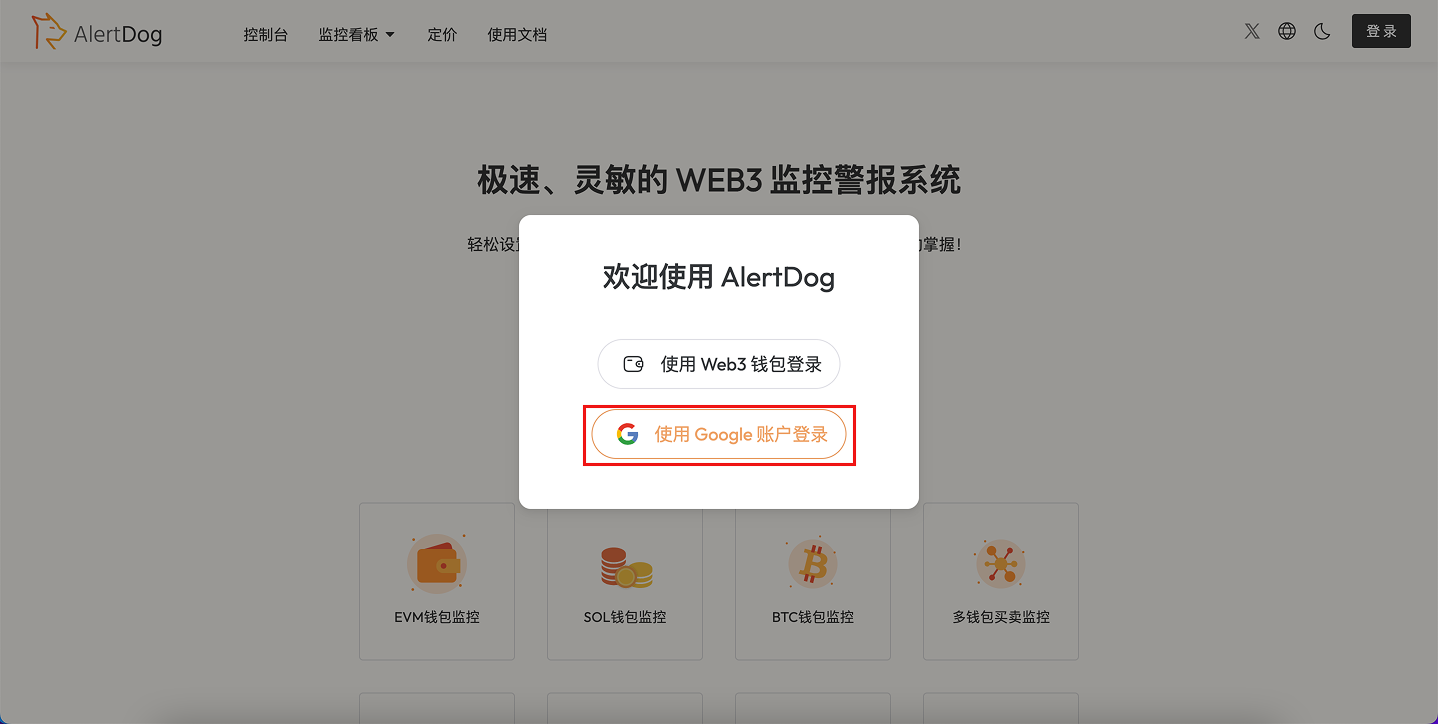
  <Step title="选择使用 Google 账号登录">
    <Frame caption="选择 Google 账号登录">
      <img src="https://mintcdn.com/alertdog/RCBluHwjsDCzwhrG/images/signin/google-login-button.png?fit=max&auto=format&n=RCBluHwjsDCzwhrG&q=85&s=6d69ec16ddc77e583700adc4a79e4fd8" alt="AlertDog 登录页面，显示 Google 账号登录选项" width="1438" height="724" data-path="images/signin/google-login-button.png" />
    </Frame>
  </Step>

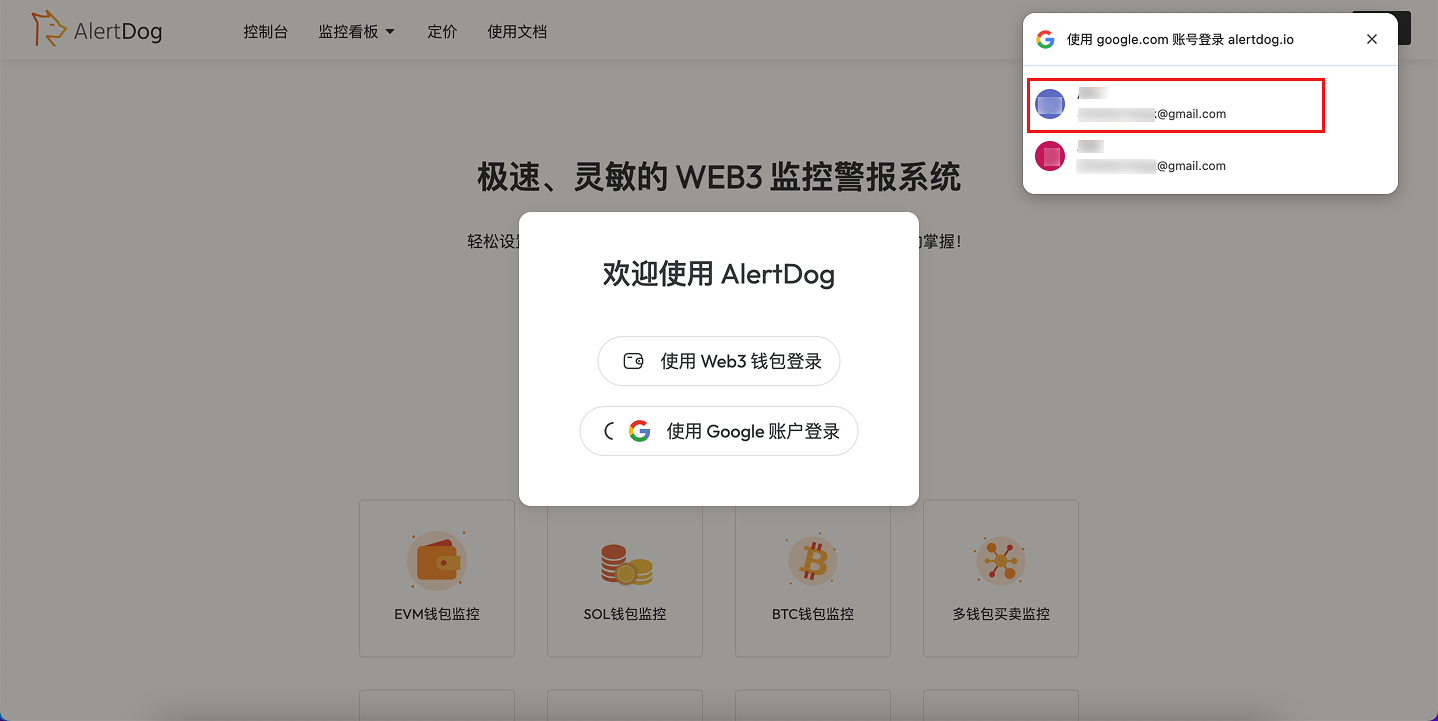
  <Step title="连接授权">
    <Frame caption="Google 账号授权">
      <img src="https://mintcdn.com/alertdog/RCBluHwjsDCzwhrG/images/signin/google-account-select.png?fit=max&auto=format&n=RCBluHwjsDCzwhrG&q=85&s=b838277a8bf27800f1a097b326d090b8" alt="Google 账号授权页面，选择要使用的账号" width="1438" height="721" data-path="images/signin/google-account-select.png" />
    </Frame>
  </Step>

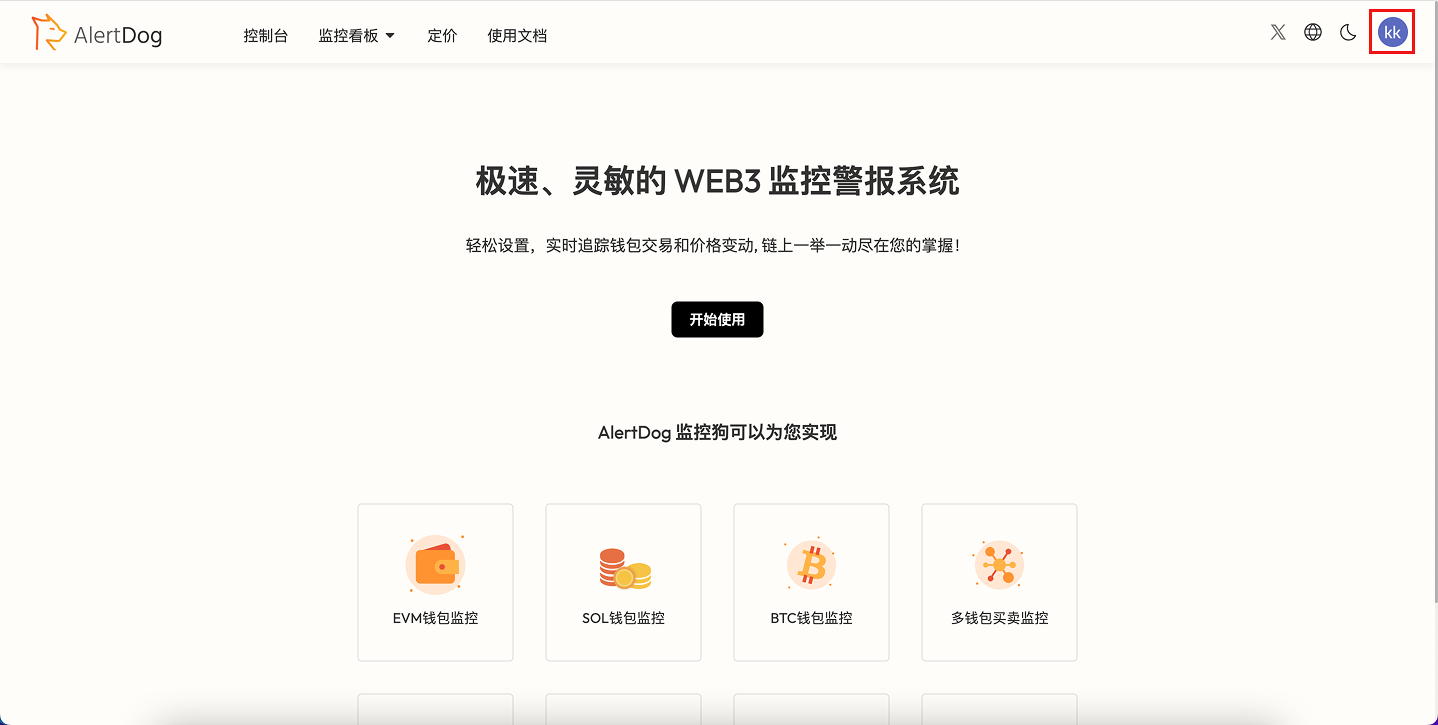
  <Step title="头像出现在右上角即为登录成功">
    <Frame caption="登录成功">
      <img src="https://mintcdn.com/alertdog/RCBluHwjsDCzwhrG/images/signin/google-login-success.png?fit=max&auto=format&n=RCBluHwjsDCzwhrG&q=85&s=127bf4d3870ef527a0704e99f11d0954" alt="Google 账号登录成功，右上角显示用户头像" width="1438" height="725" data-path="images/signin/google-login-success.png" />
    </Frame>
  </Step>
</Steps>