

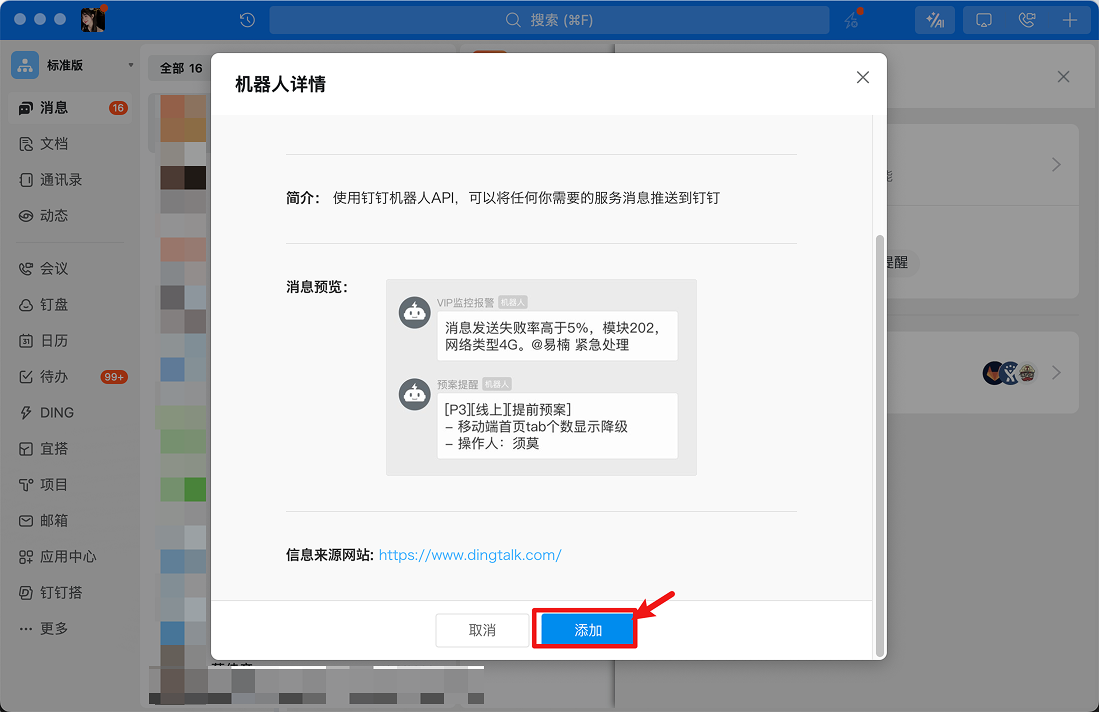
Step 1: Create DingTalk Bot
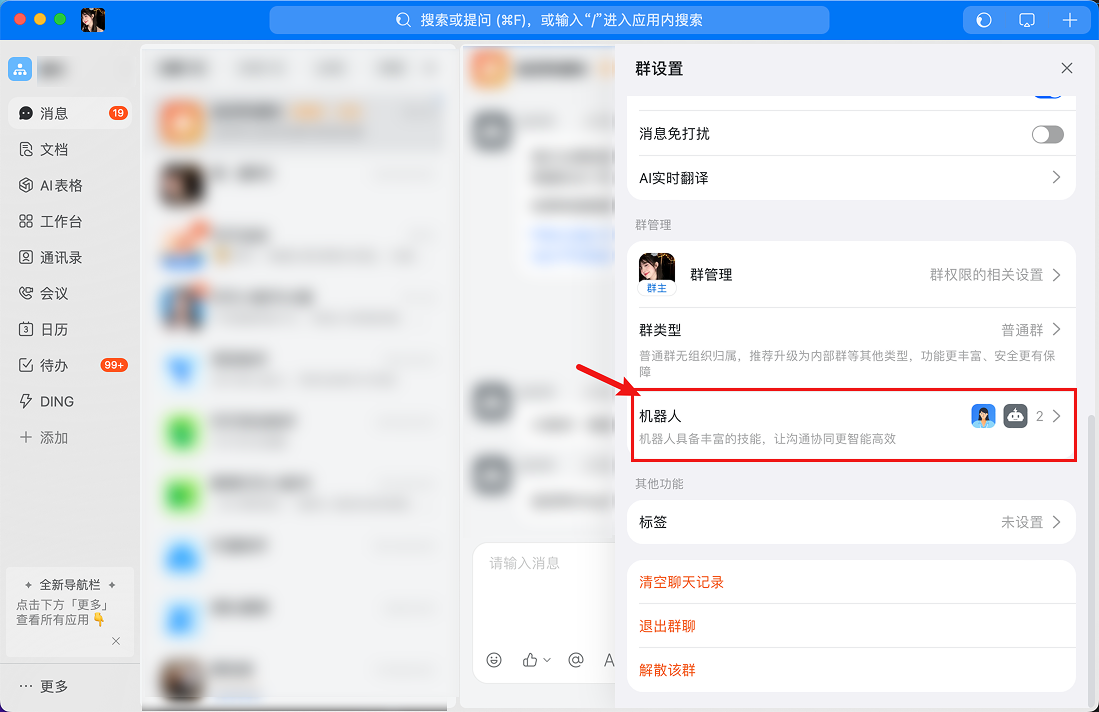
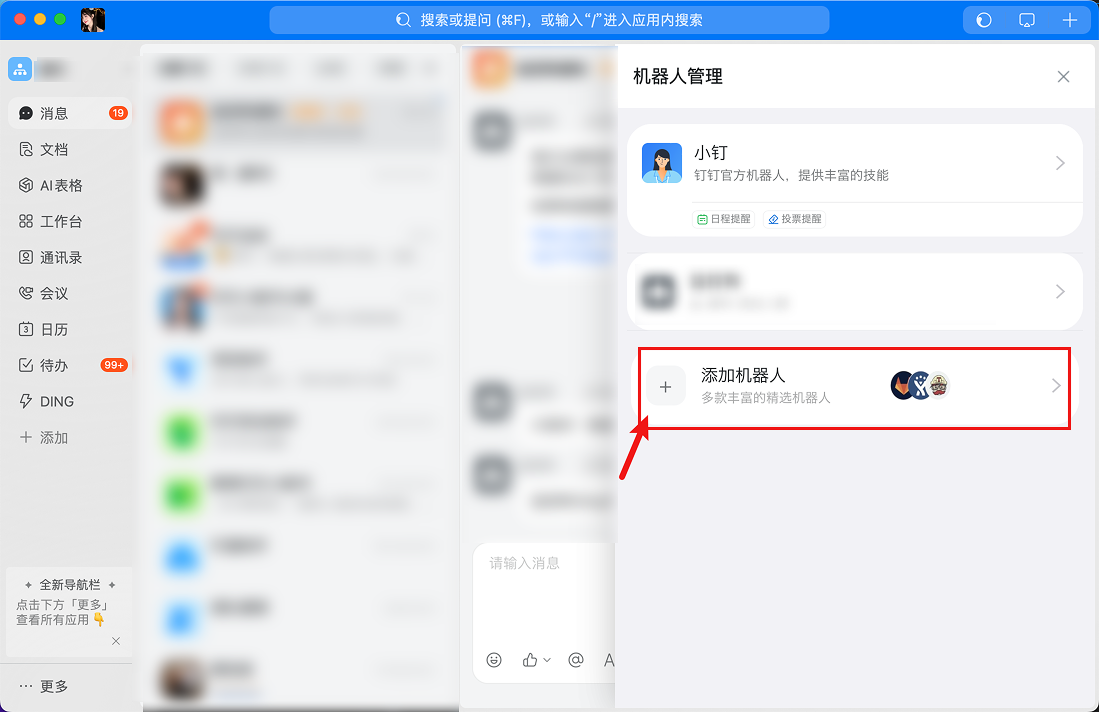
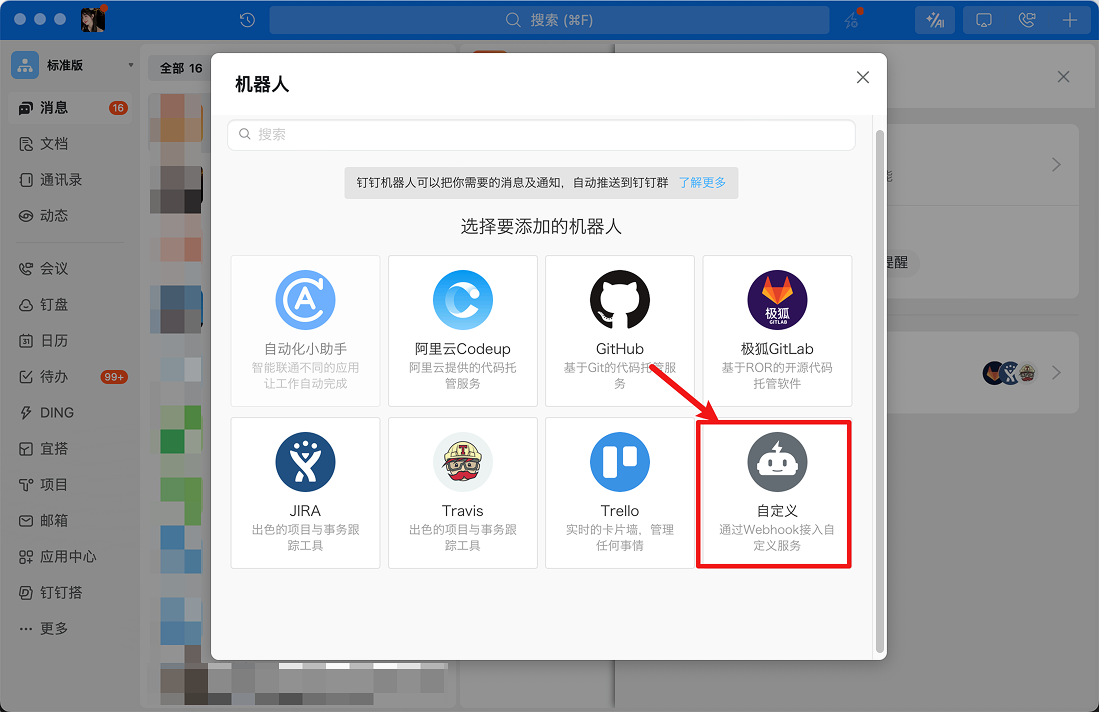
Open DingTalk, find settings in the group, create a bot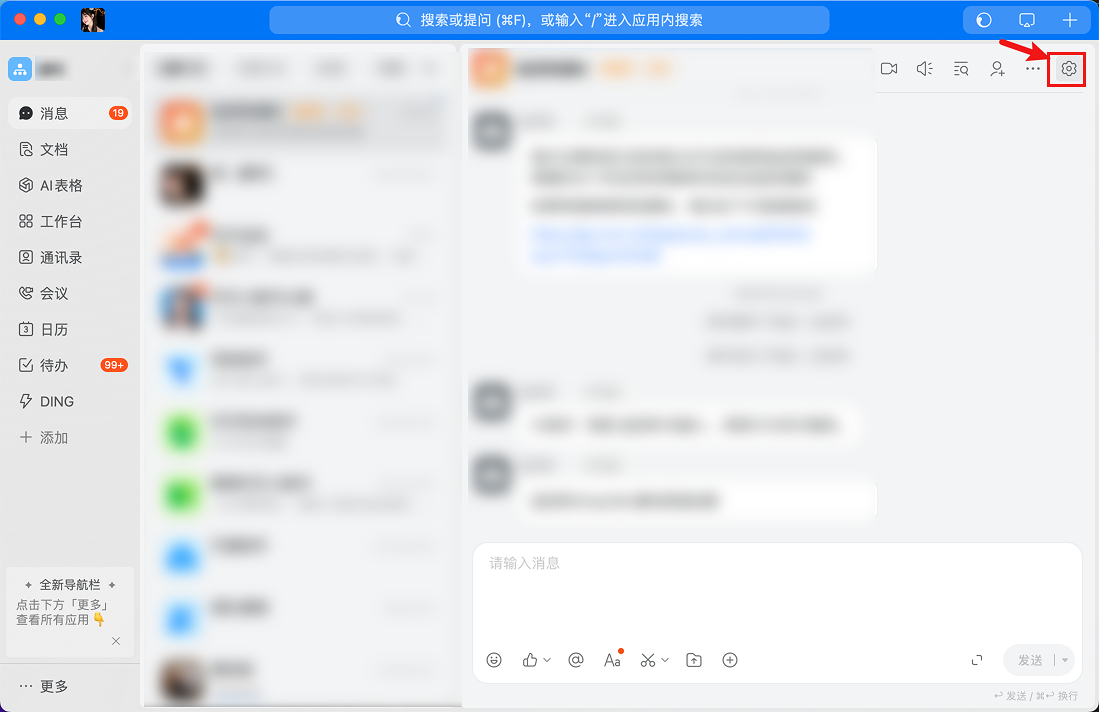
Step 2: Copy Secret and Webhook URL
After creation, copy the secret and Webhook URL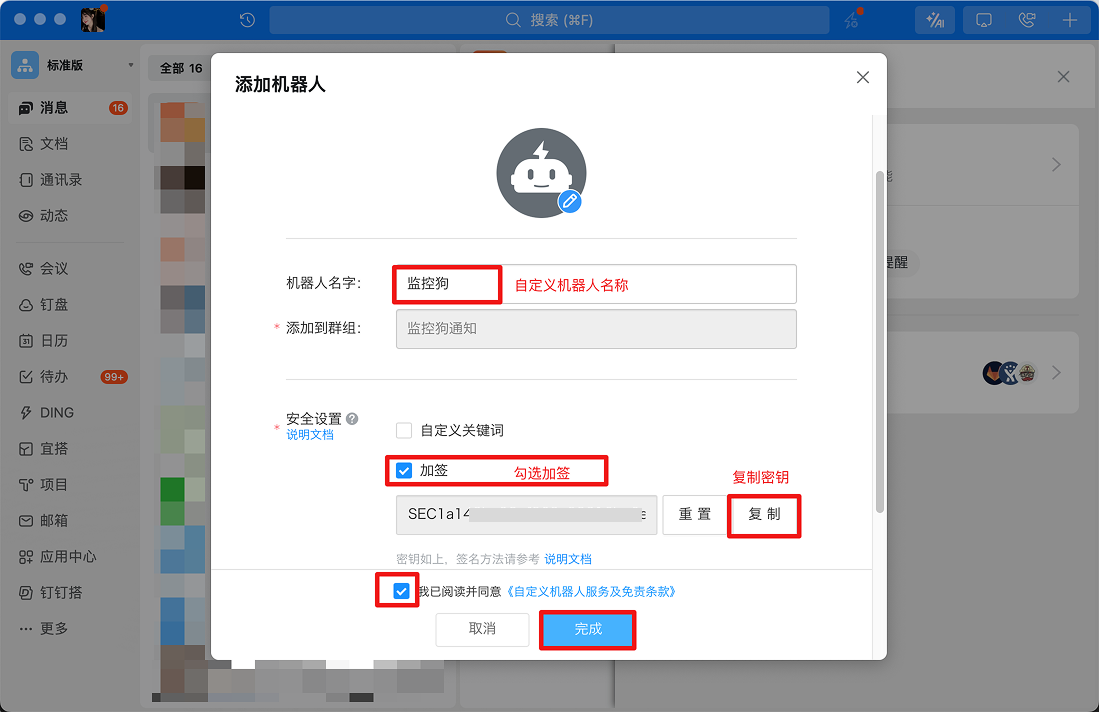
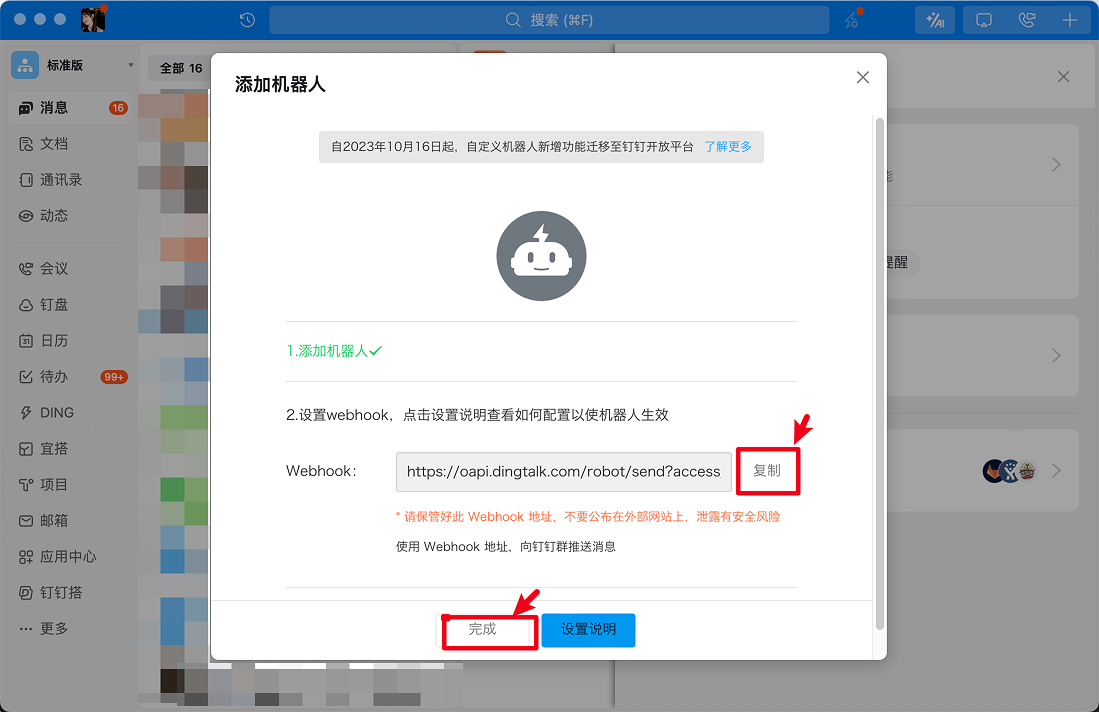
Step 3: Create DingTalk Notification Channel and Fill in Parameters
Open AlertDog Add New Channel -> DingTalk -> Enter secret and Webhook URL -> Confirm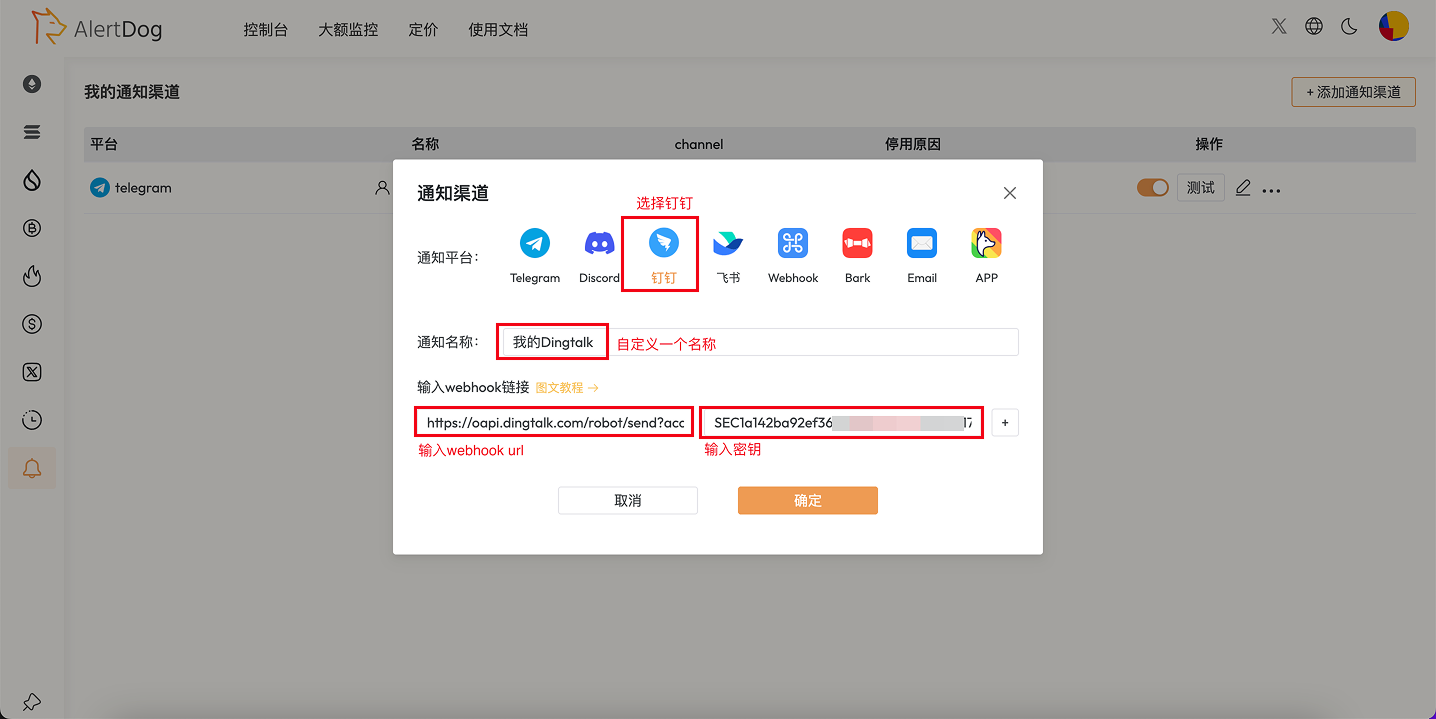
Create Notification Channel
Step 4: Setup Complete
After configuration, you can select DingTalk as the notification method when creating monitoring tasks. When monitoring is triggered, messages will be pushed to the specified DingTalk group.FAQ
How to add a bot in DingTalk?
How to add a bot in DingTalk?
In DingTalk group settings → Smart Group Assistant → Add Bot → Create a custom bot and get the Webhook URL.
What is signature verification?
What is signature verification?
DingTalk bots support signature verification for enhanced security. If signature verification is enabled, you need to configure the signature secret in AlertDog.
Do DingTalk bots have message frequency limits?
Do DingTalk bots have message frequency limits?
DingTalk bots have certain frequency limits, with a maximum of 20 messages per minute.