

AlertDog is a WEB3 on-chain monitoring and alert system that helps you track wallet addresses, token transactions, and on-chain activities in real-time, enabling you to seize market opportunities at the first moment.
Step 1: Sign In
Visit AlertDog Homepage, click the “Get Started” button, and sign in with your Web3 wallet or Google account.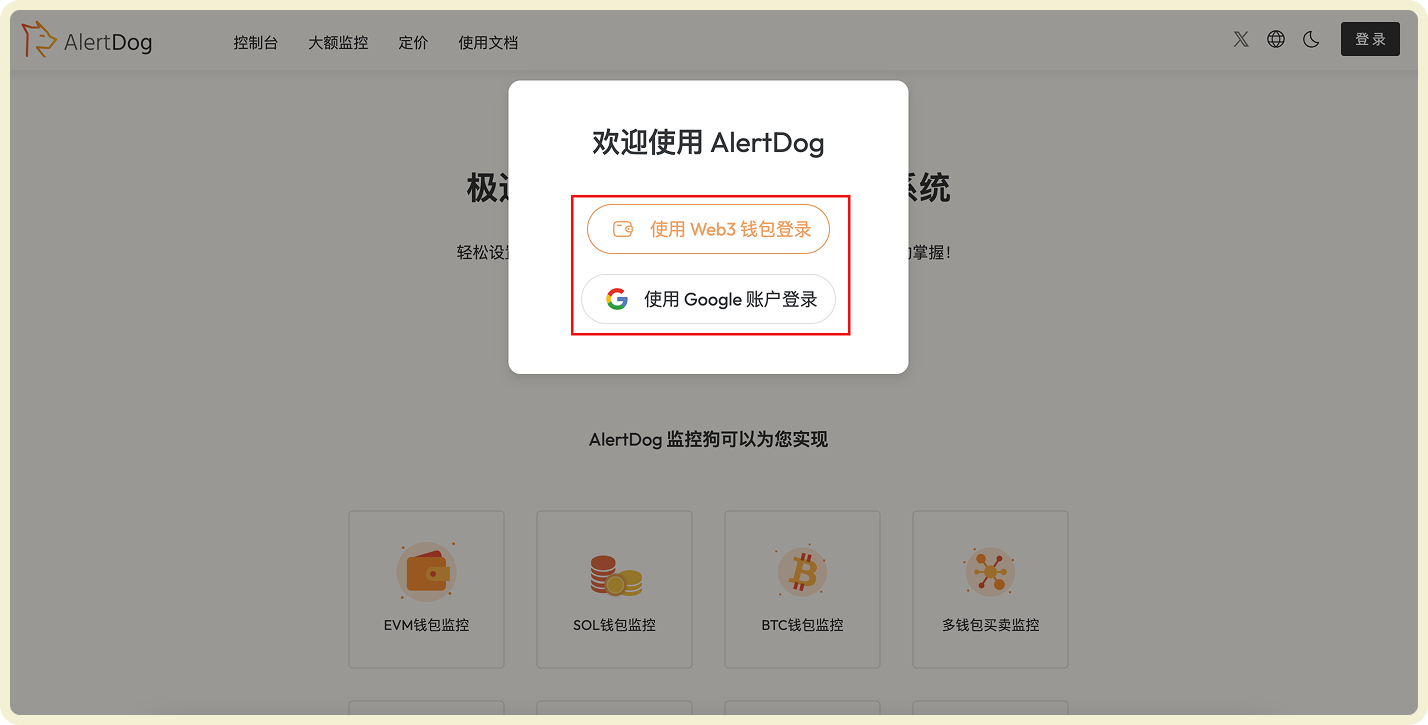
Sign In Page
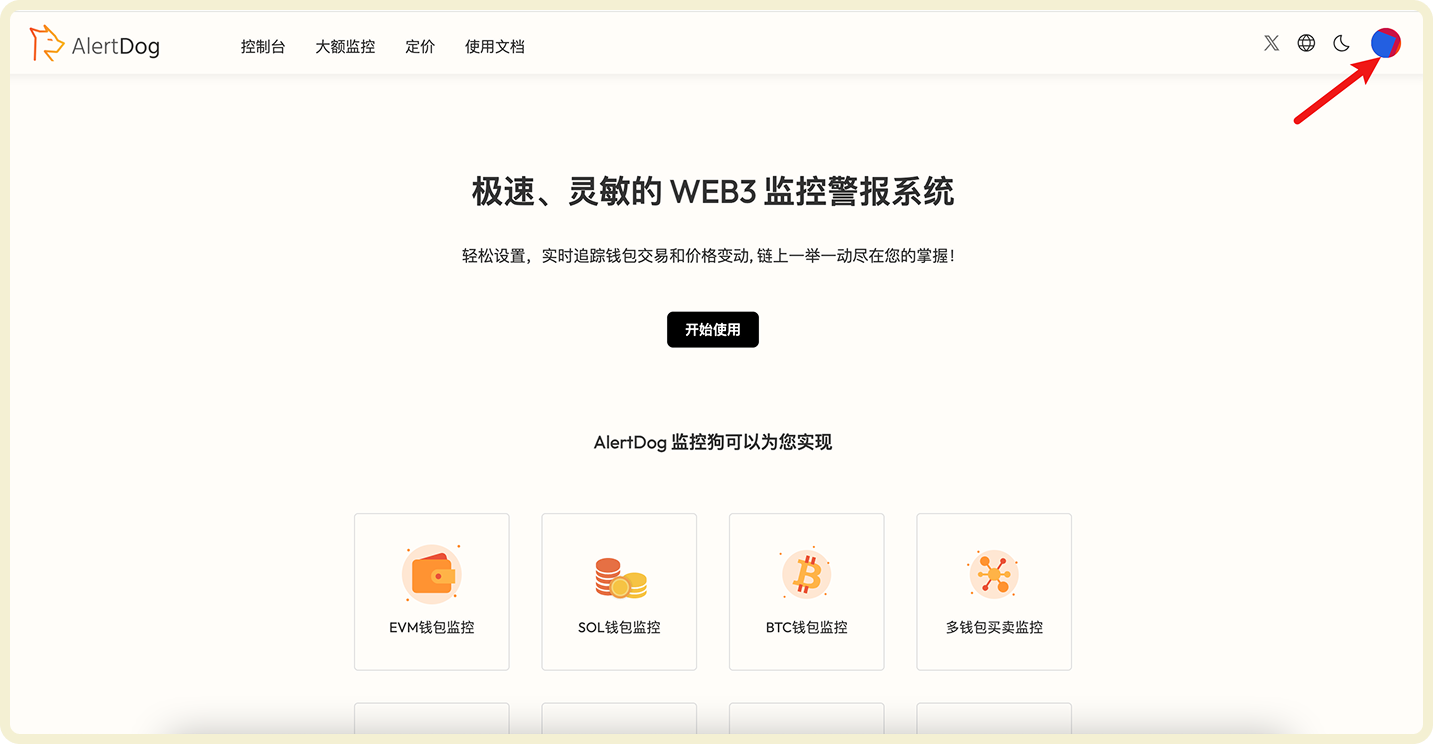
Interface After Sign In
Step 2: Add Notification Channel
Click “Console” in the top left corner, find the “Notification Channels” option in the left sidebar.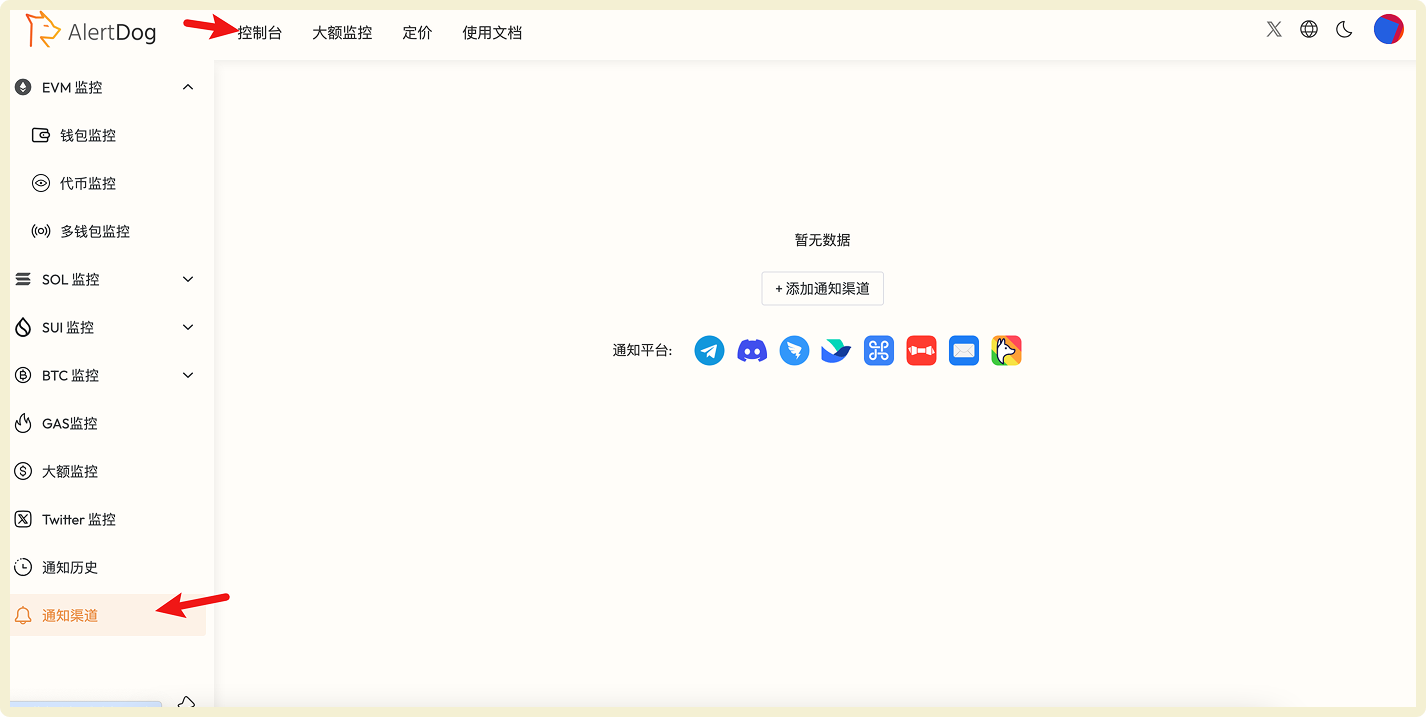
Notification Channels Entry
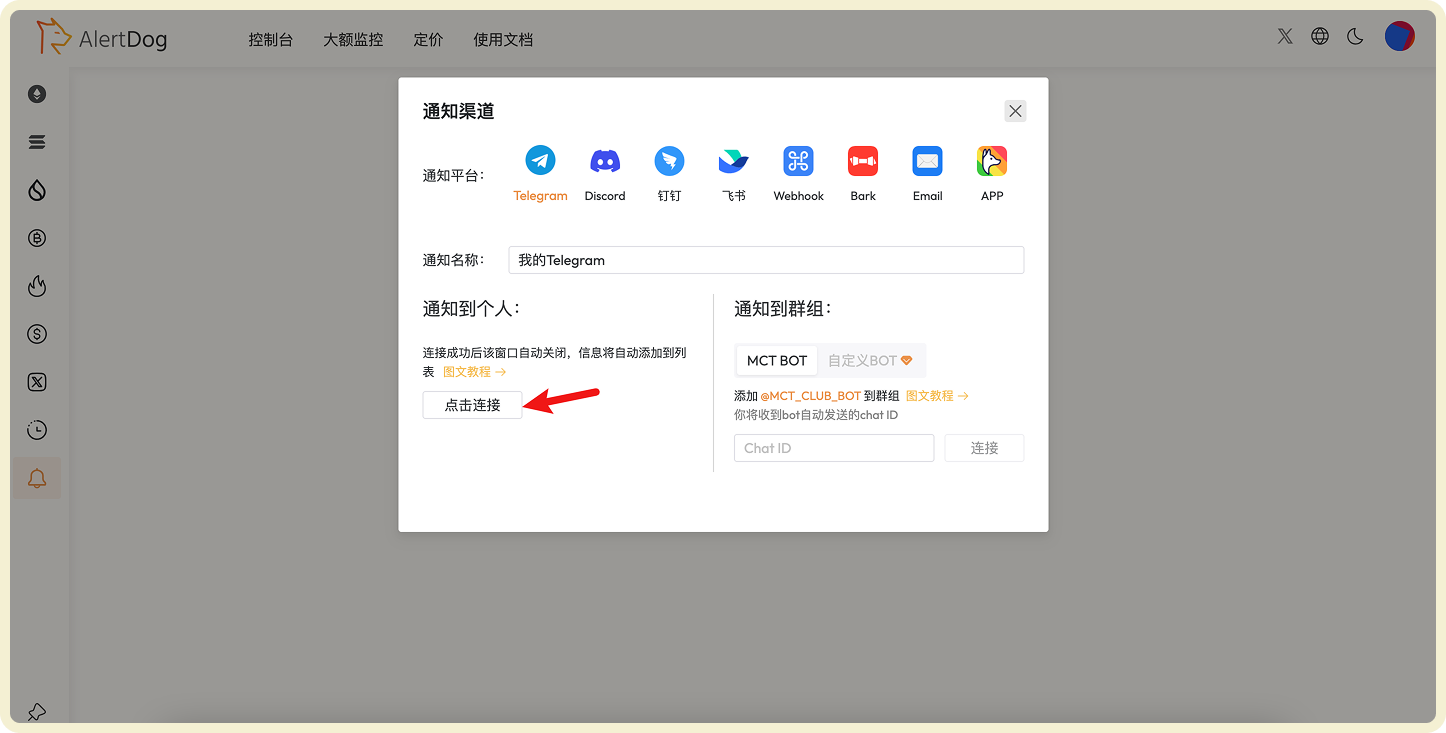
Bind Telegram Notification Channel
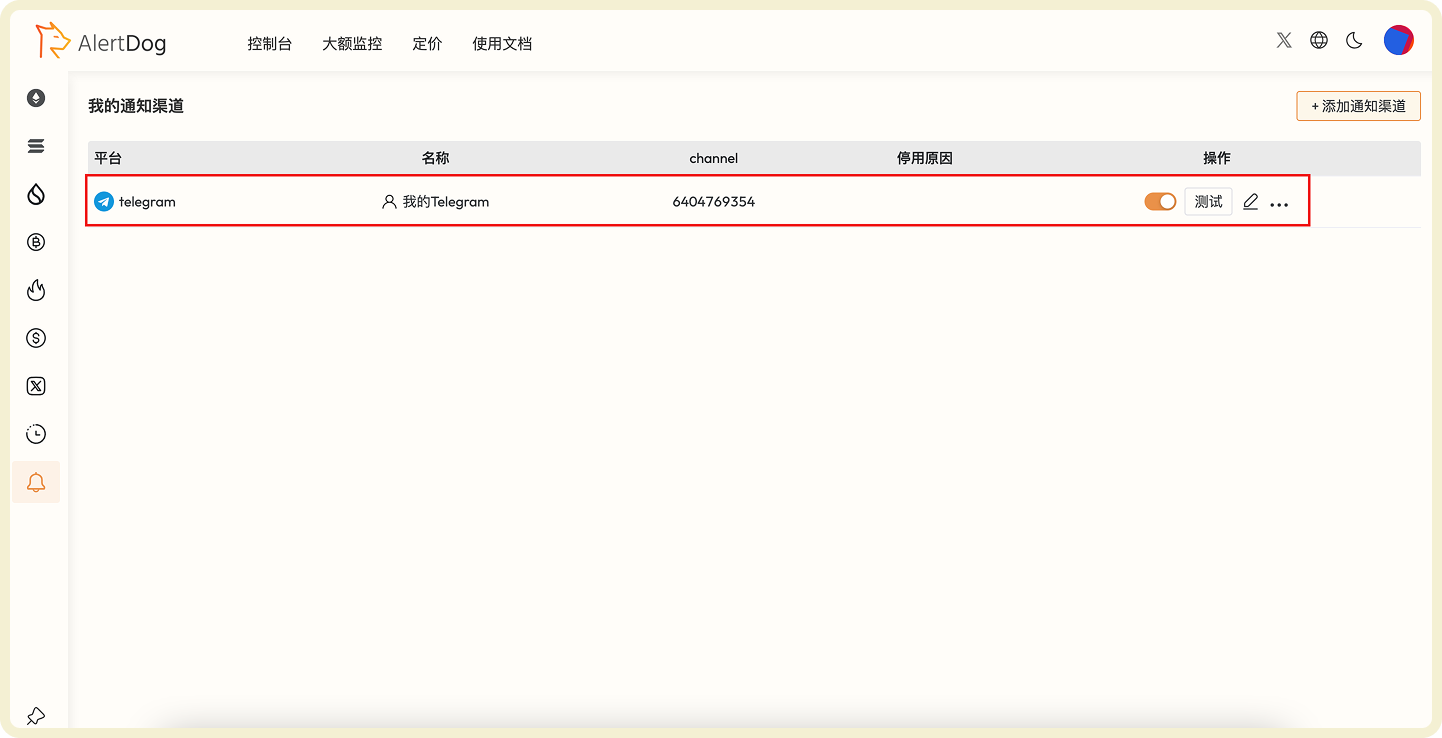
Notification Channels List
Step 3: Add Monitor
Hover over the left sidebar, select EVM Monitoring → Address Monitoring, and click “Add Monitor”.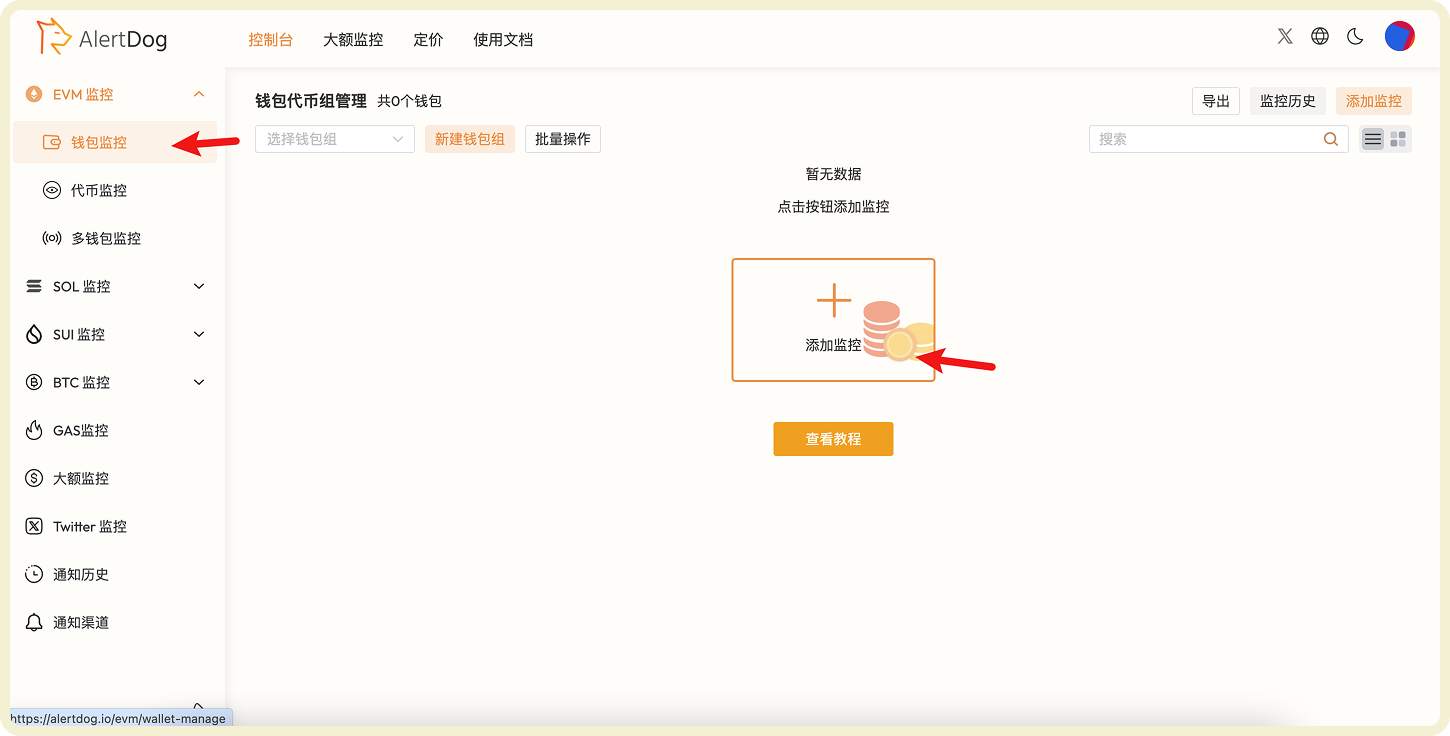
Add Address Monitoring Entry

Address Monitoring Form Configuration
Step 4: Receive Notifications
Once the wallet performs an action that meets the monitoring conditions, you will receive an alert immediately.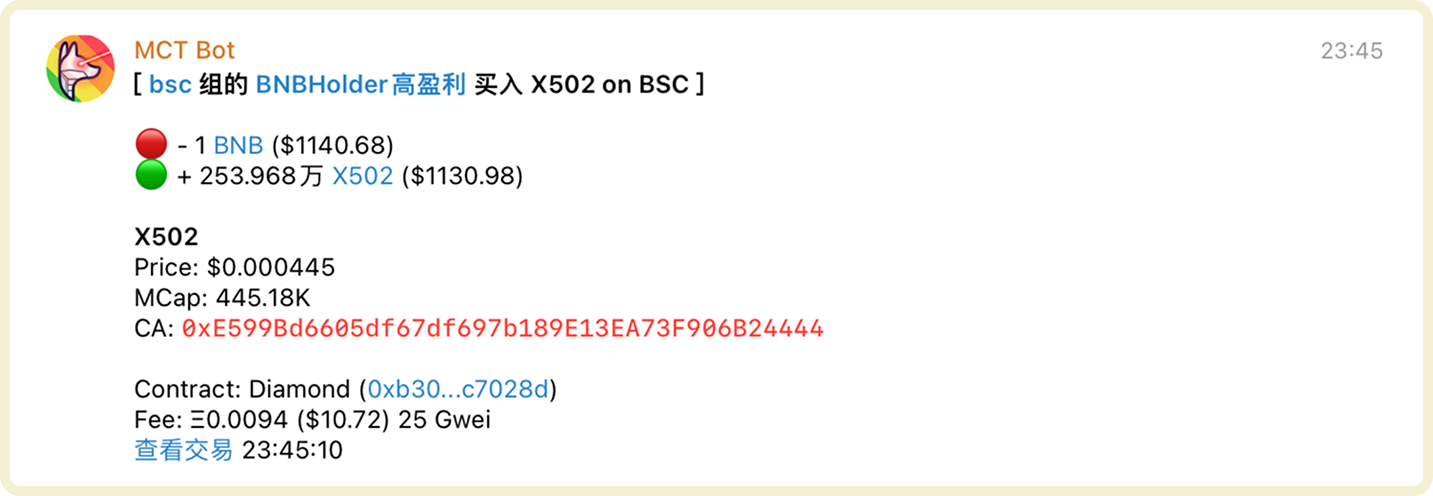
Monitoring Notification Example
Congratulations! You have successfully set up your first monitoring task, now let’s get started
Next Steps
Token Monitoring
Monitor whale holdings changes in real-time, capture large transfer activities, quickly discover market signals.
BTC Monitoring
One-stop monitoring of BTC, runes, and inscriptions in BTC wallets, comprehensive tracking of asset changes.