

Wallet Login
1
Choose to Sign In with Web3 Wallet
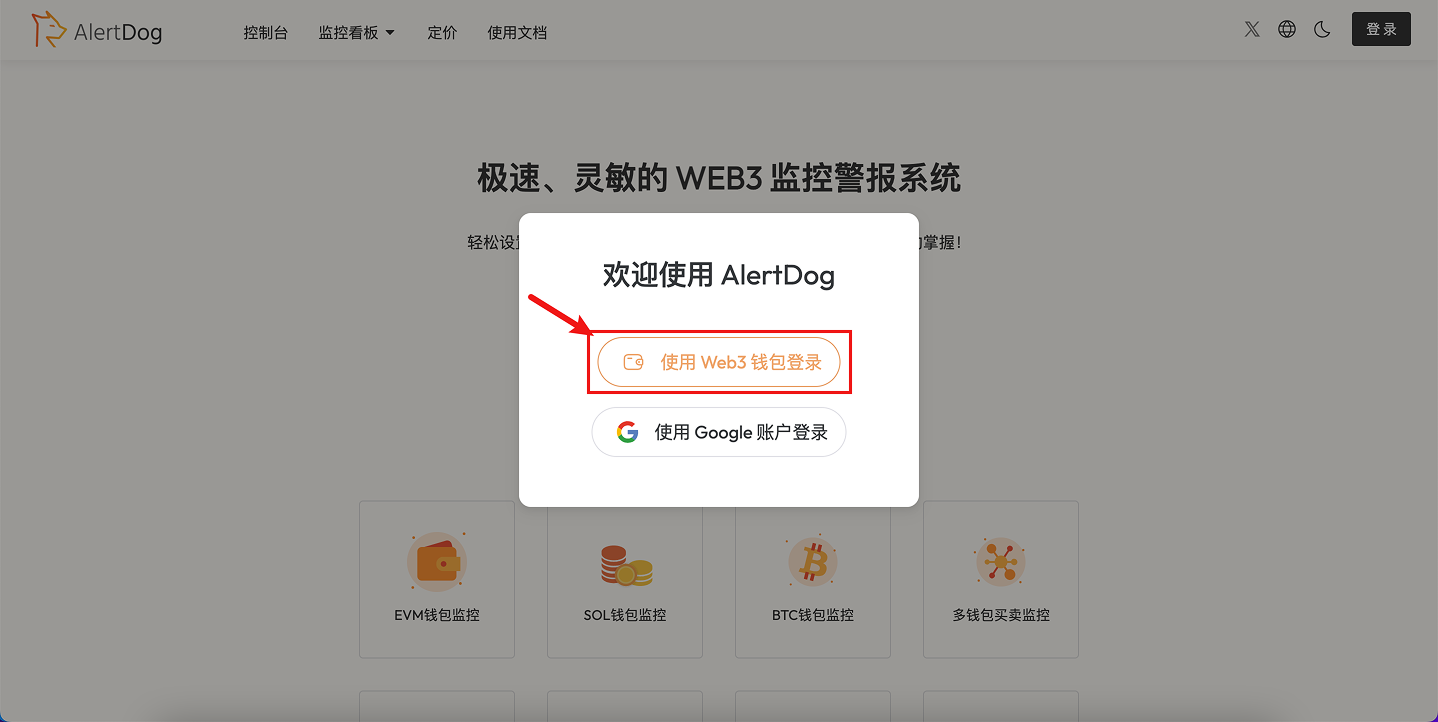
Choose Web3 Wallet Sign In
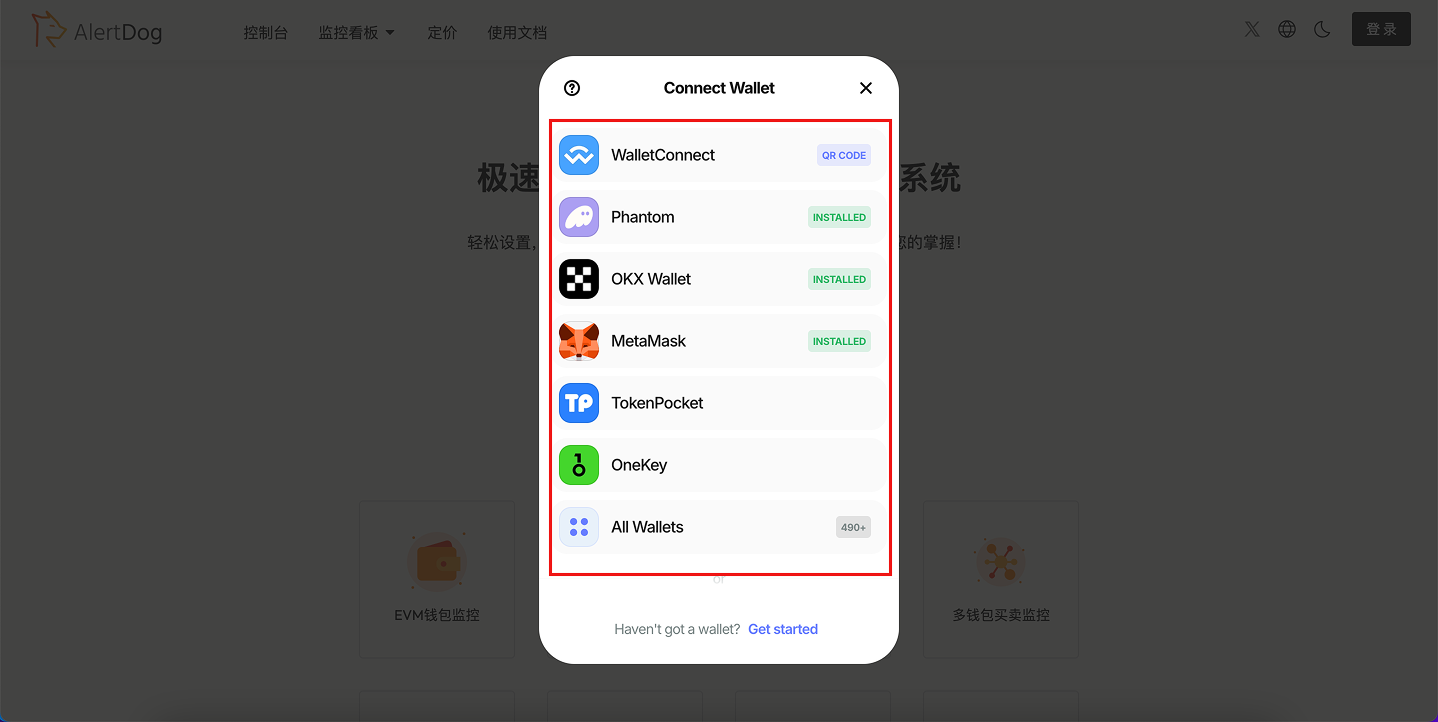
Select Wallet Type
2
Connect and Authorize
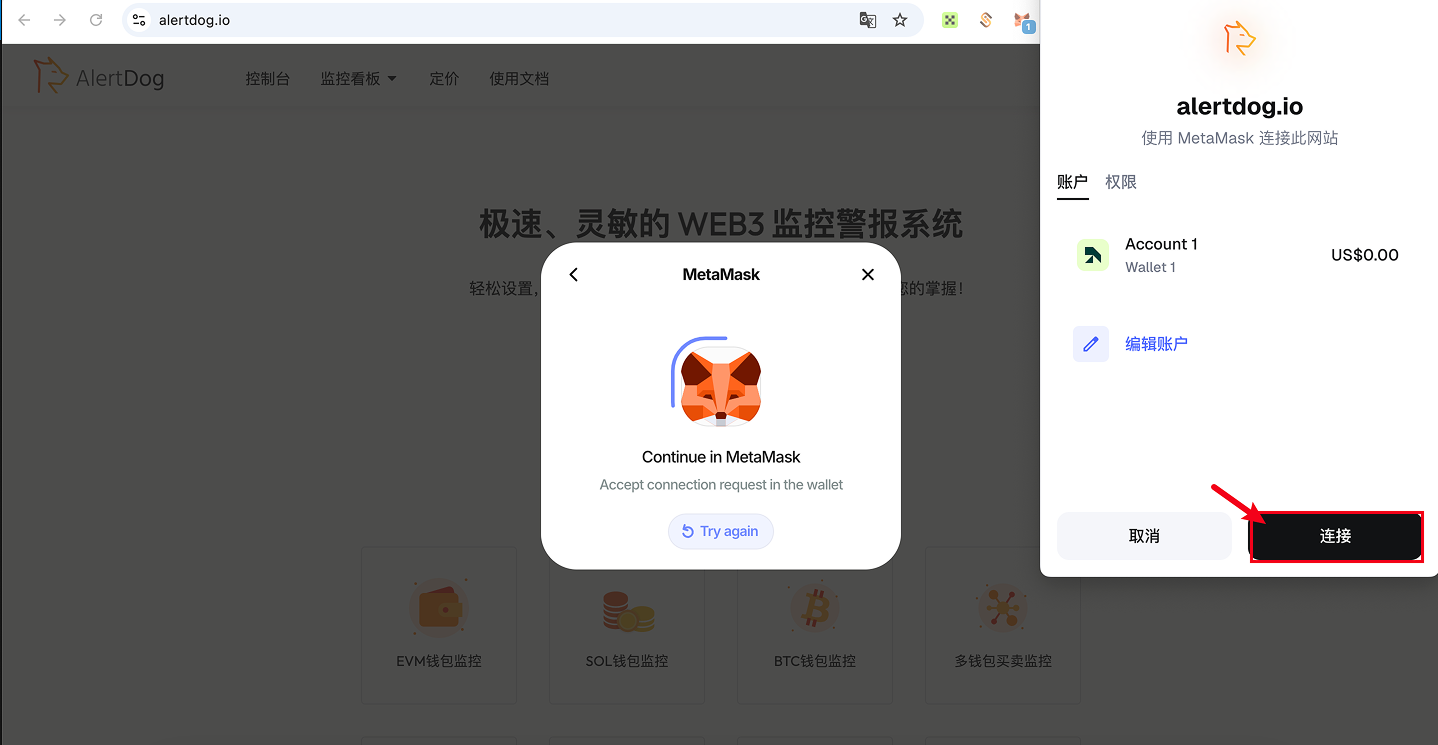
Wallet Connection Request
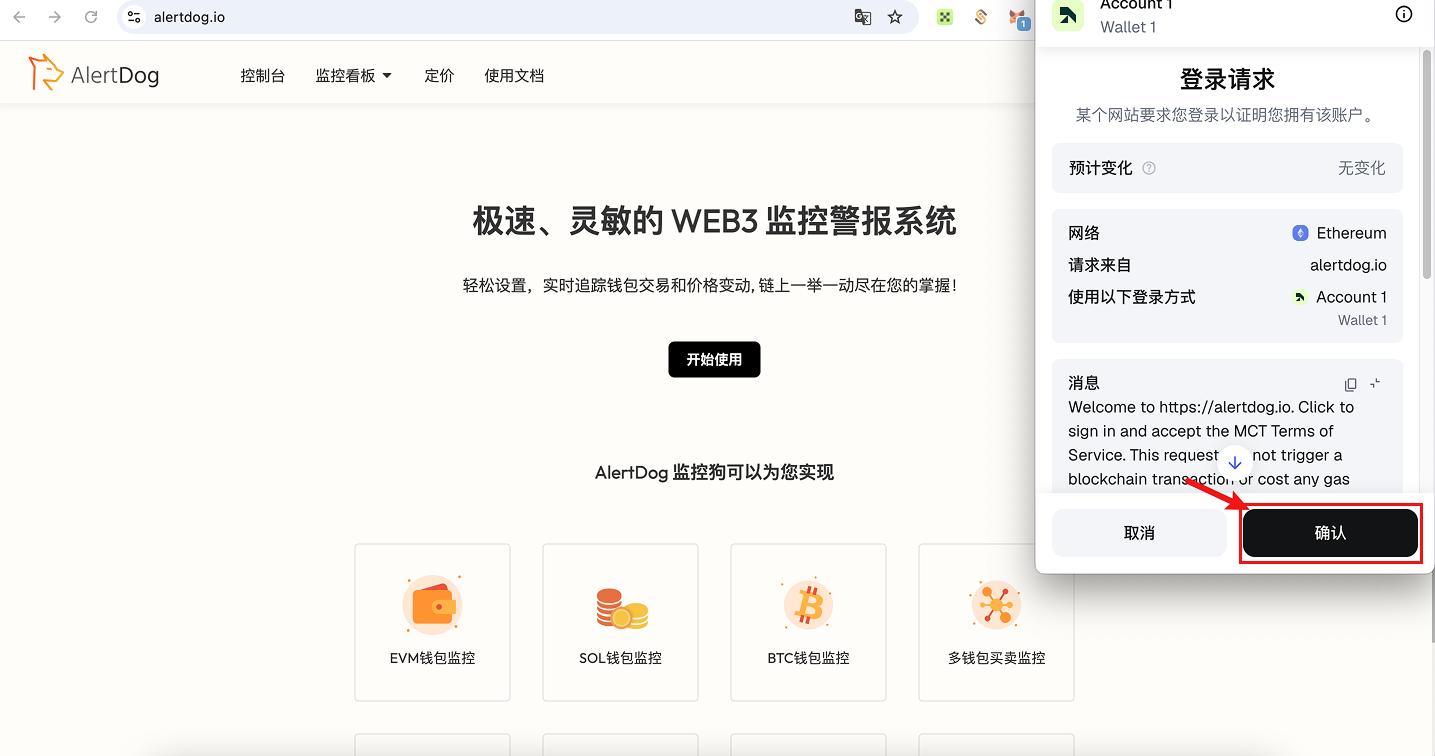
Signature Confirmation
3
Avatar appears in the top right corner indicating successful sign in
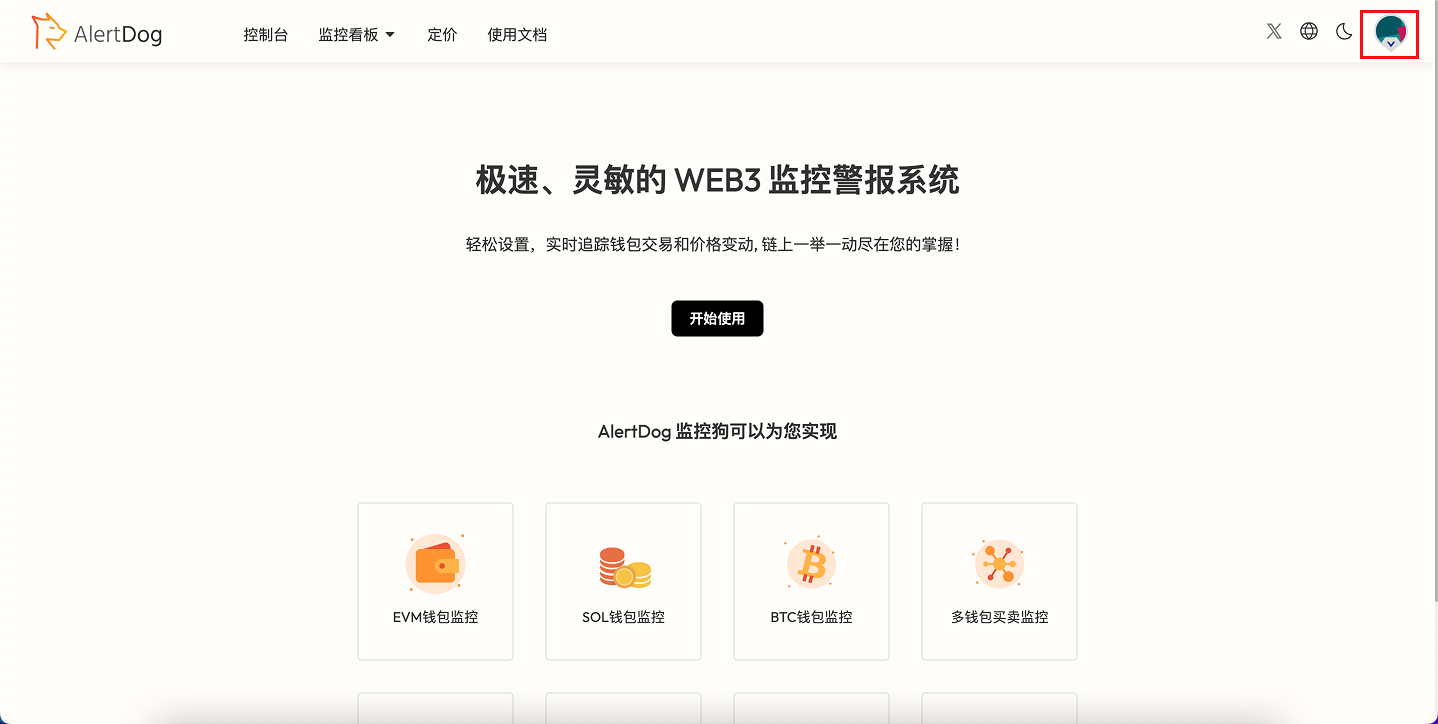
Sign In Success
Wallet unable to confirm authorization?
- Try refreshing the page, restarting the wallet extension, or restarting the browser.
- Having multiple wallet extensions enabled simultaneously may cause authorization conflicts. It’s recommended to temporarily disable other wallet extensions and keep only one wallet for sign in.
Email Login
1
Choose to Sign In with Google Account
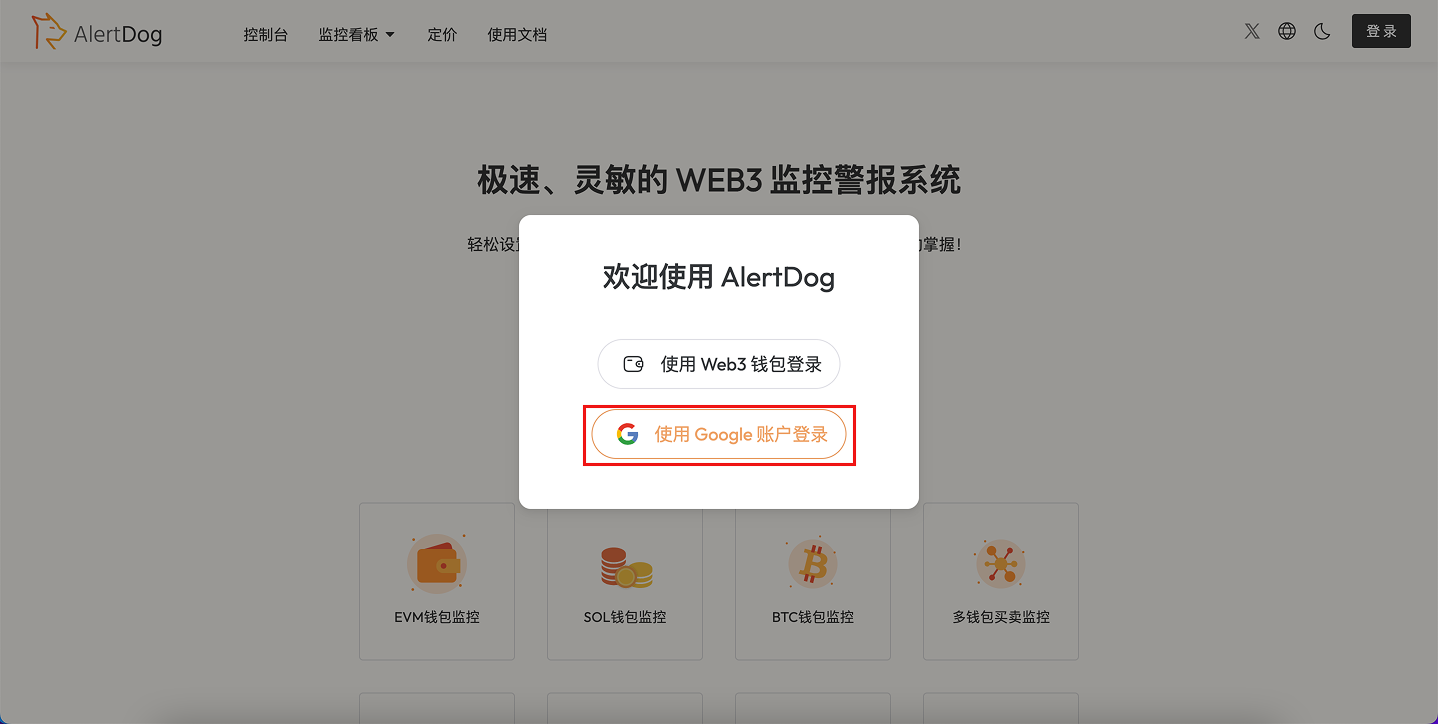
Choose Google Account Sign In
2
Connect and Authorize
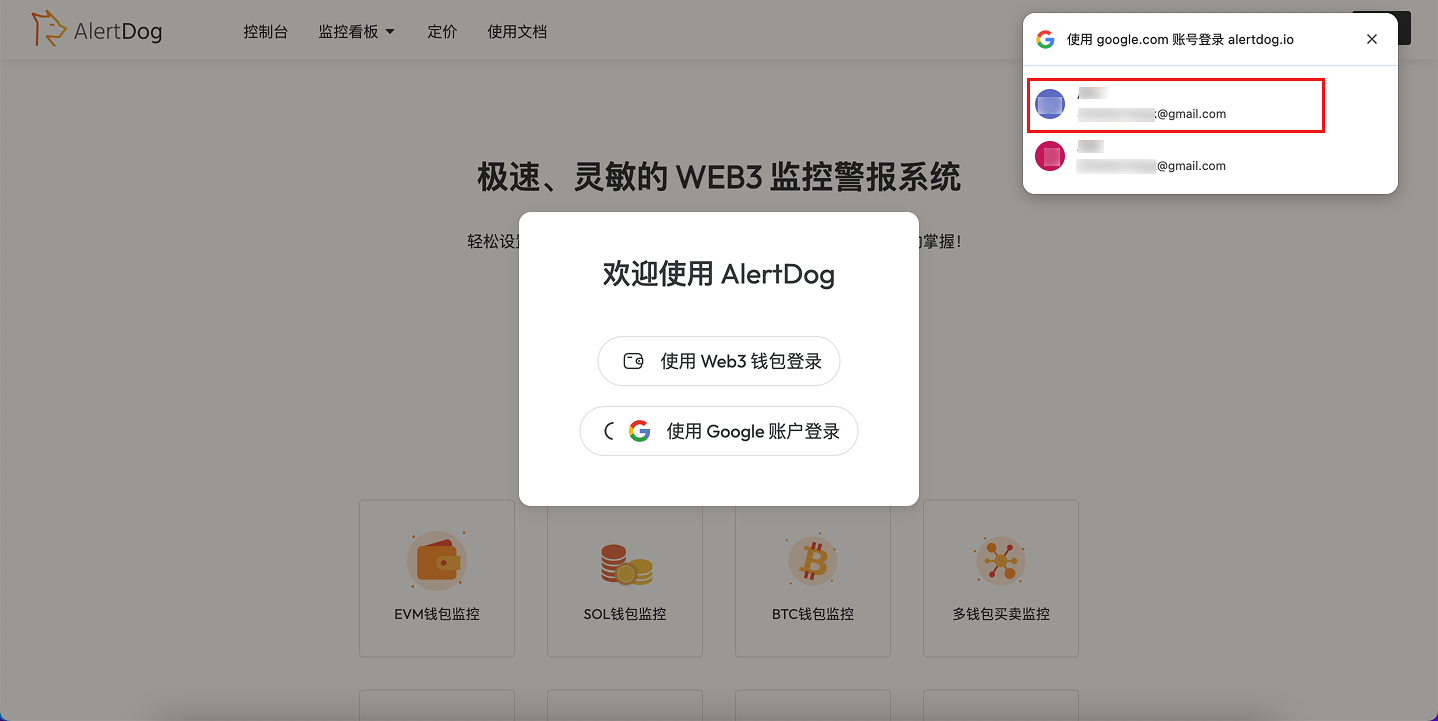
Google Account Authorization
3
Avatar appears in the top right corner indicating successful sign in
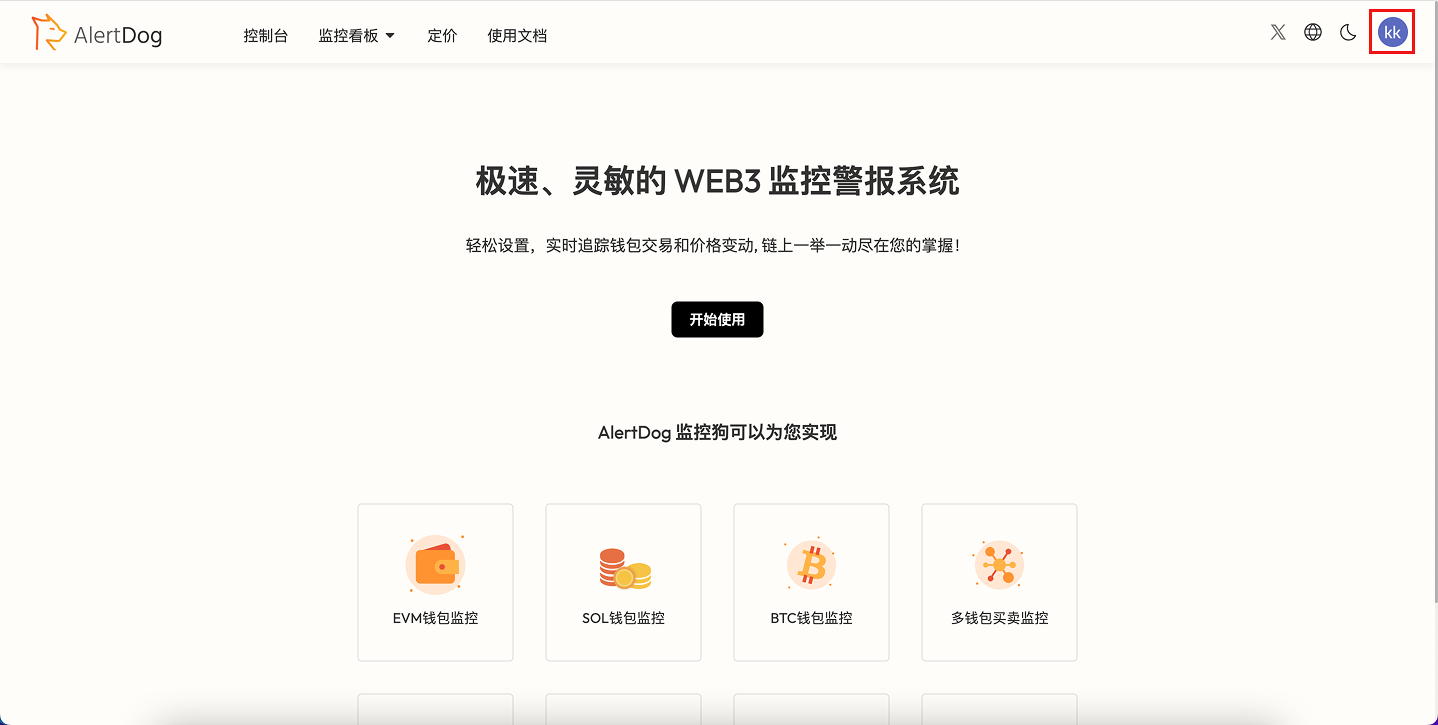
Sign In Success